Connect the DVI/RGB AUDIO IN port on the rear side of the monitor to the
sound card of the PC.
Connect the power cord for your LCD Display to the power port on the back
of the LCD Display. Turn on the power switch.
Note
• Turn on both your computer and the LCD Display.
• Contact a local SAMSUNG Electronics Service Center to buy optional items.
Connecting to Other devices
• AV input devices such as DVD players, VCRs or camcorders as well as your computer
can be connected to the LCD Display. For detailed information on connecting AV input
devices, refer to the contents under Adjusting Your LCD Display.
• The LCD Display 's configuration at the back may vary slightly depending on the LCD
Display model.
Connecting AV Devices
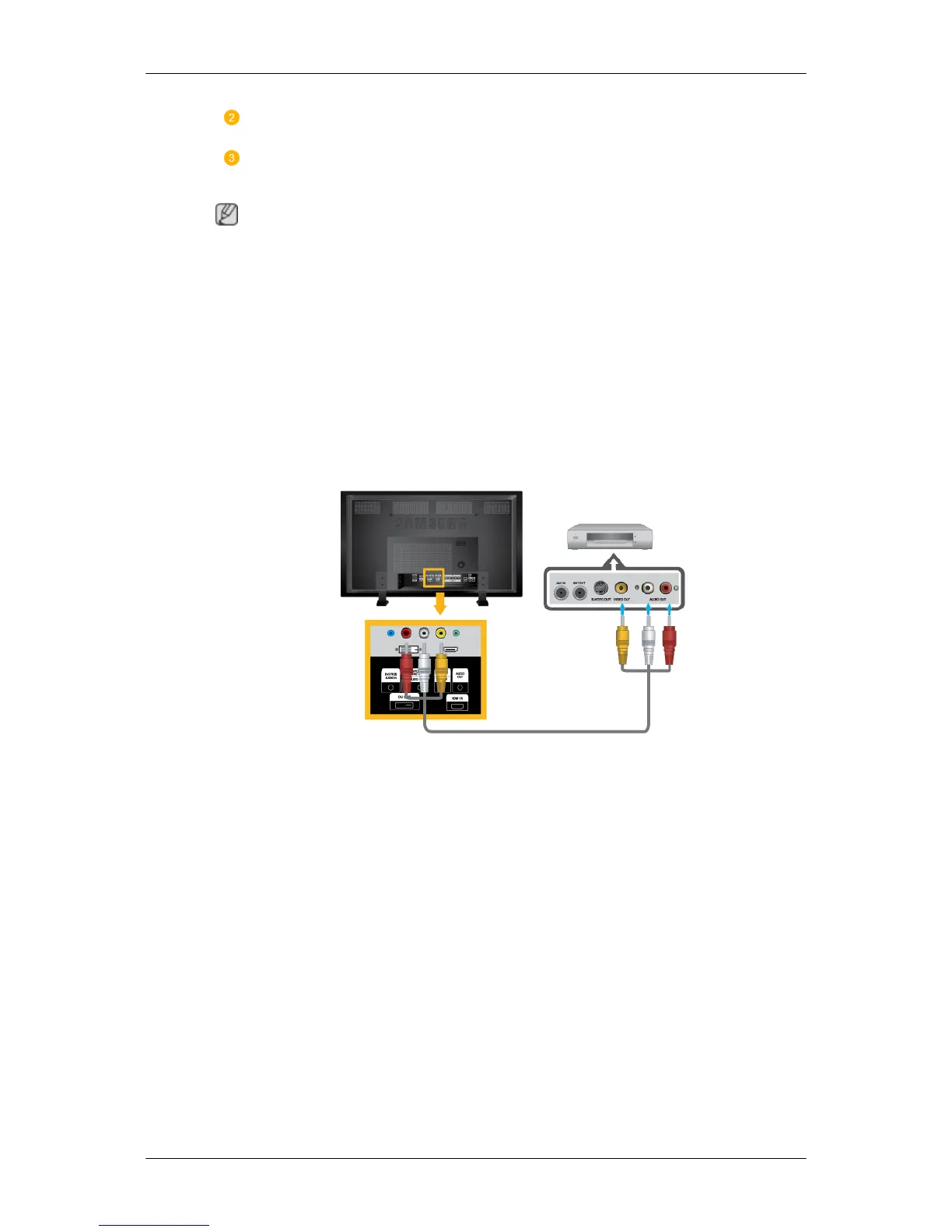
1. Connect the Video and [R-AUDIO-L] port of the DVD, VCR or DTV Set-Top Box to the
Video and [R-AUDIO-L] LCD Display.
2. Play the DVD, VCR or Camcorder with a DVD disc or tape inserted.
3. Select AV using the SOURCE .
Connections




 To Next Page