cel” buttons will show up. “ReCalibrate” means recalibration; “OK” means saving and exit;
“Cancel” means� exit without saving.
Mode Settings
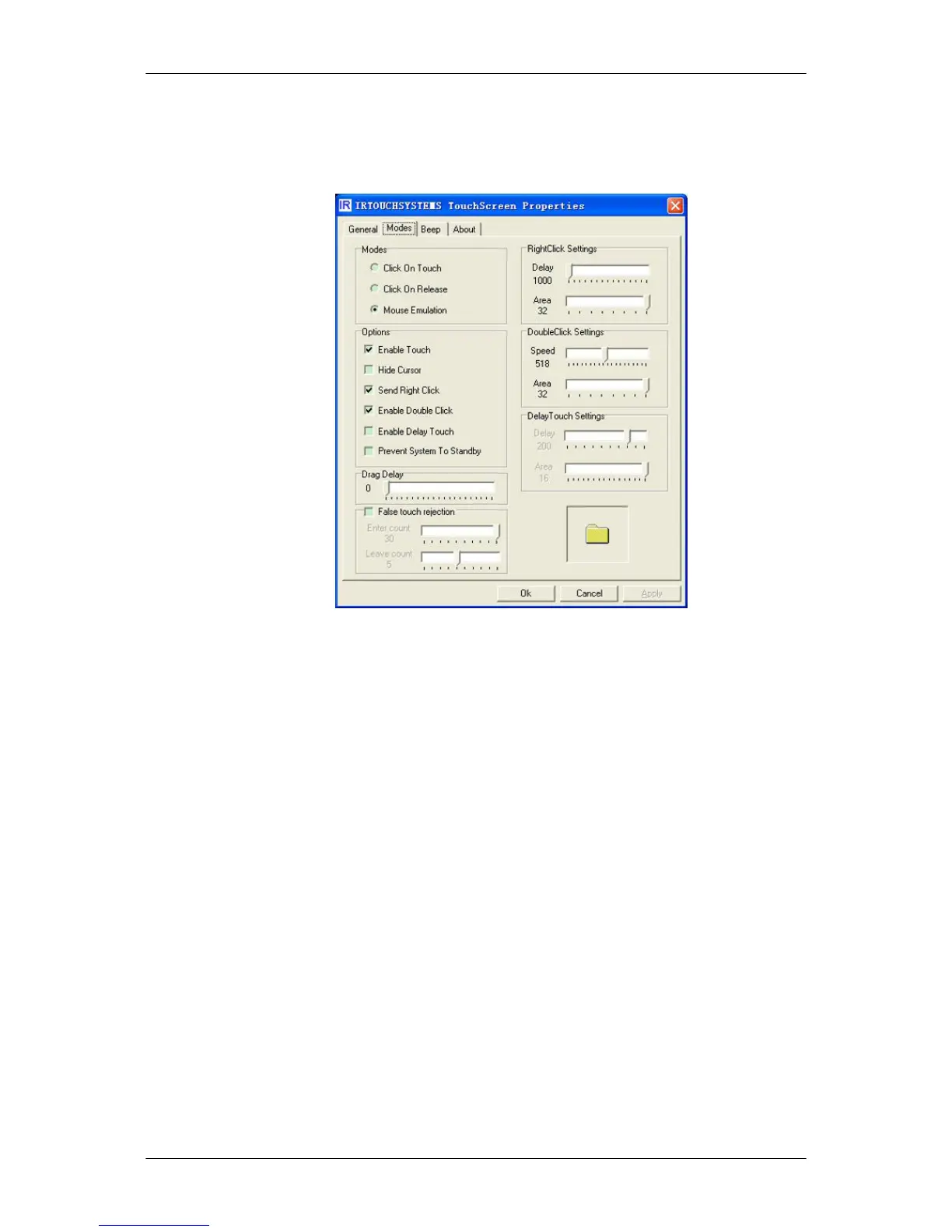
1. Click on touch
When the finger contacts a touch screen the mouse's single click will happen automati-
cally. The mode only applies to touch, not to drag. In this mode the touchscreen responds
the fastest. This mode is usually used for clicking a large object (e.g. OK button in the
pop-up window) in applications.
2. Click on Release
A mouse click event happens at the point where the finger leaves the touchscreen; it is
a precisely controlled mode and therefore good for clicking a small object (e.g. Minimize
button in the pop-up window) or hyperlink of web pages, such as POS and WEB appli-
cations.
3. Mouse Emulation
The “Mouse Emulation” mode is the default one, fully emulating mouse operation, such
as left-button clicking, moving, lifting and dragging. This mode is best for writing, drawing
and dragging.
4. Enable Touch
Enable(default)/disable touchscreen.
5. Hide Cursor
Hide the cursor by clicking "Hide cursor" in Options when the mouse cursor is not used
in some applications.
6. Send Right Click
Using the Software
46




 To Next Page