4
Various note format options will appear.
Select a format.
5
Create a note using the Menu.
E.g. When you selected Recipe
Exit S Note
Tap and hold to change
the photos or contents.
Menu Hide menu
Add a page
Using the S Note app
(S Note, Optional, for corresponding models only)
►
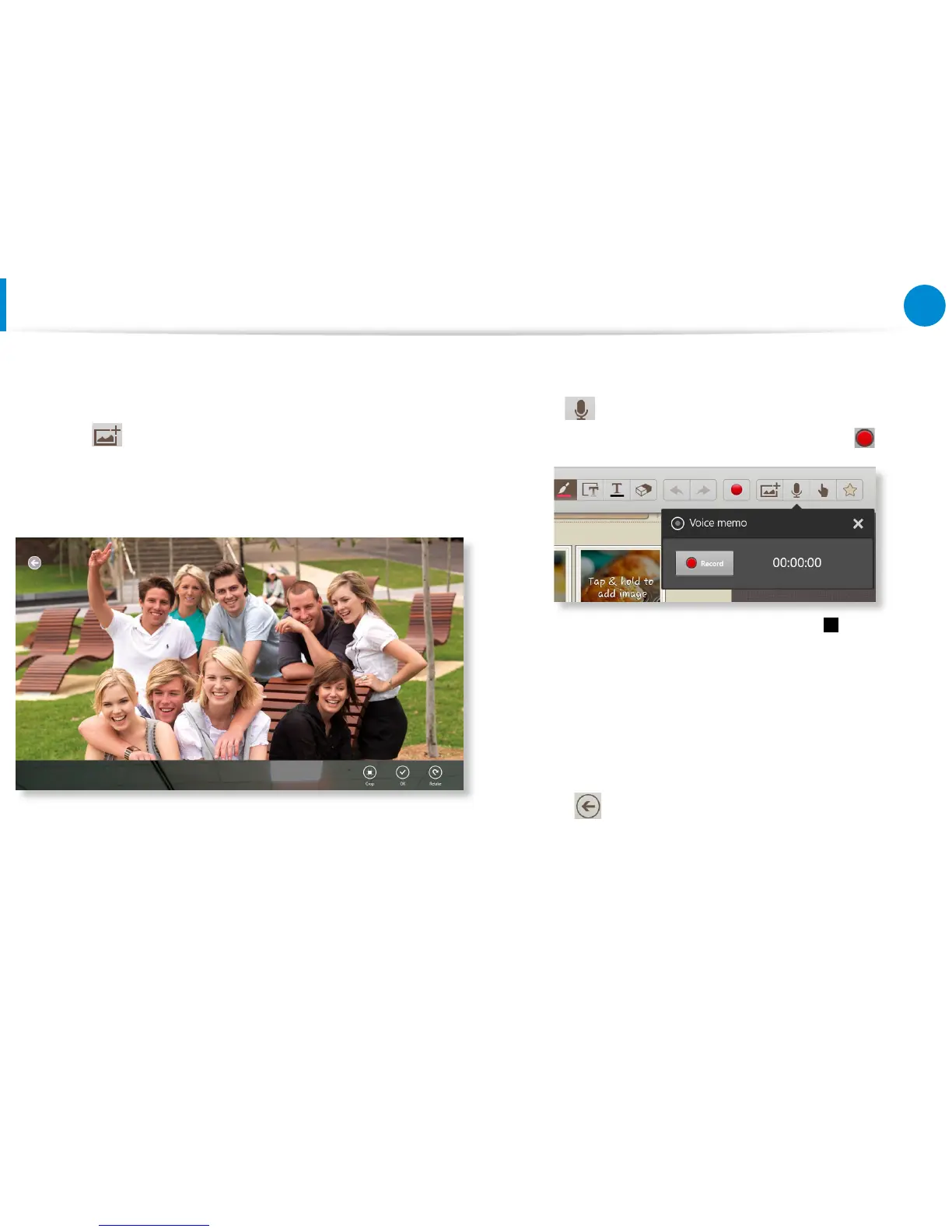
Inserting a gure (photo)
We will describe inserting a photo as an example.
z
Tap the icon.
x
Select the gure insertion method.
c
If you tap on Take a picture, the picture taking screen appears.
Tap on the screen to take a picture.
v
If the photo has been taken, tap OK.
b
The photo is inserted into the recipe screen. Adjust the size
and location of the photo.
n
Inserting a gure is completed.
You can also insert various items such as text boxes, clipart, etc.
►
Recording a voice memo
z
Tap the icon.
x
The voice memo window appears. Tap the Record button.
c
When the recording is complete, tap the Stop button.
v
The recording is complete. To make a new recording, tap
Replace.
6
When creating a note is completed, drag the bottom center
upward.
Tap Save to nish creating the note.
7
Tap the icon to exit the note app. Then you can view the
newly created note icon.







 To Next Page