EasyManua.ls Logo

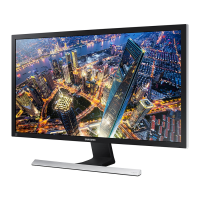
Samsung U28R550U - User Manual

Samsung U28R550U
46 pages
Print Icon
To Next Page IconTo Next Page
Loading...
User Manual
The colour and the appearance may differ depending on the product, and the specifications are subject to change without
prior notice to improve the performance.
The contents of this manual are subject to change without notice to improve quality.
© Samsung
Samsung owns the copyright for this manual.
Use or reproduction of this manual in parts or entirety without the authorization of Samsung is prohibited.
Trademarks other than that of Samsung are owned by their respective owners.
An administration fee may be charged in the following situations:
(a) An engineer is called out at your request, but it is found that the product has no defect (i.e., where the user manual
has not been read).
(b) You bring the unit to a repair centre, but it is found that the product has no defect (i.e., where the user manual has not
been read).
You will be informed of the administration fee amount before a technician visits.
U28R55*

Table of Contents

Question and Answer IconNeed help?

Do you have a question about the Samsung U28R550U and is the answer not in the manual?

Overview

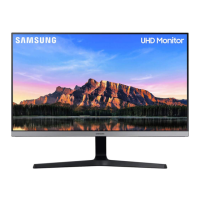
This document is a user manual for the Samsung U28R55* monitor, providing comprehensive information on its setup, operation, maintenance, and troubleshooting.

Function Description:

The Samsung U28R55* is a monitor designed for various applications, including PC and AV use. It supports multiple input sources and offers features to optimize display quality and user experience. Key functionalities include:
  • Display Modes: Supports PIP (Picture in Picture) and PBP (Picture by Picture) modes, allowing the display of content from two different source devices simultaneously. In PIP mode, one source is displayed on the main screen, and another in an inset window. In PBP mode, the screen is split in half to show output from two sources side-by-side.
  • Image Enhancement: Features SAMSUNG MAGIC Bright for optimizing picture quality based on the environment and content. It includes various modes like Custom, Standard, Cinema, Dynamic Contrast, and Game Mode.
  • Eye Saver Mode: Reduces blue light emissions to minimize eye strain, particularly useful for extended viewing periods.
  • Game Mode: Optimizes display settings for gaming, enhancing visual clarity and response time.
  • Screen Ratio Adjustment: Allows users to change the picture size for both PC and AV modes, with options like Auto, Wide, 4:3, 16:9, and Screen Fit.
  • OSD (On Screen Display) Settings: Provides a user-friendly interface to adjust various display parameters such as Transparency, Position (H-Position and V-Position), Language, and Display Time.
  • Audio Control: Includes volume adjustment and a Mute function to improve sound quality by suppressing noise from weak input signals.
  • Software Upgrade: Supports firmware upgrades via USB to ensure the product is running the latest software version.
  • Eco Saving Plus: Reduces power consumption by automatically adjusting brightness levels, offering options like Auto, Low, and High savings.
  • Off Timer Plus: Allows users to set a timer for the product to automatically power off after a specified duration, including an Eco Timer for energy saving.
  • Source Detection: Automatically or manually detects input sources.
  • Reset All: Resets all product settings to their default factory settings.

Important Technical Specifications:

  • Model Name: U28R55*
  • Size: 28 Class (27.9 Inches / 70.8 cm)
  • Display Area: 620.928 mm (H) x 341.28 mm (V)
  • Pixel Pitch: 0.16 mm (H) x 0.16 mm (V)
  • Maximum Pixel Clock: 600 MHz (HDMI, DisplayPort)
  • Power Supply: AC100-240V~50/60Hz (DC voltage based on adapter, refer to product label)
  • Signal Connectors: HDMI, DisplayPort
  • Environmental Conditions (Operating):
    • Temperature: 10 °C - 40 °C (50 °F - 104 °F)
    • Humidity: 10% - 80%, non-condensing
  • Environmental Conditions (Storage):
    • Temperature: -20 °C – 45 °C (-4 °F – 113 °F)
    • Humidity: 5% - 95%, non-condensing
  • Plug-and-Play: Compatible with Plug-and-Play systems for automatic installation and optimized settings.
  • Panel Dots (Pixels): Approximately 1 pixel per million (1ppm) may be brighter or darker on the LCD panel due to manufacturing nature, which does not affect performance.
  • HDR10 Support: Accessible on Windows 10 systems with graphic cards supporting Play Ready 3.0 Digital Rights Management. Compatible graphic cards include NVIDIA GeForce 1000 series or higher, AMD Radeon™ RX 400 series or higher, and Intel UHD Graphics 600 series or higher. Hardware-accelerated 10-bit video decoding for HDR video codecs is recommended.
  • FreeSync Support: Compatible with specific AMD graphics cards. Requires installation of the latest official graphics drivers from AMD.
  • VESA Mount Kit Specifications: U28R55* uses VESA screw hole specs (A * B) in millimetres of 75.0 x 75.0, with M4 standard screws and a quantity of 4.

Usage Features:

  • JOG Button: A multi-directional button located at the bottom center of the screen for navigation (UP/DOWN/LEFT/RIGHT/PRESS(ENTER)) and accessing the Function Key Guide.
  • Power LED: Indicates power status (Off for Power On, Blinking for Power Saving Mode, On for Power Off). The LED operation can be swapped in the menu.
  • Direct Key Guide: Provides quick access to common settings like Eye Saver Mode, Volume, and Features when the product is switched on or the input source is changed.
  • Adjusting Product Tilt: Allows adjustment of the screen angle from -2.0° to 15.0° (±2.0°).
  • Stand Installation and Removal: Detailed instructions are provided for assembling and disassembling the stand, emphasizing caution against holding the product upside down by the stand or pressing on the screen.
  • Cable Connections: Guides on connecting HDMI, HDMI-DVI, DP, and audio output devices (headphones/earphones).
  • Cable Management: Instructions for tidying up connected cables using the HOLDER-CABLE on the stand.
  • Ergonomic Posture: Recommendations for correct posture when using the product, including back straight, 45-50cm distance from screen, slight downward gaze, eyes directly in front, angle adjustment to avoid reflections, forearms perpendicular, elbows at a right angle, and appropriate product height.
  • Key Repeat Time: Controls the response rate of a button press, with options for Acceleration (1 sec, 2 sec) or No Repeat.

Maintenance Features:

  • Cleaning: Detailed steps for cleaning the product, including powering off, disconnecting the power cord, wiping with a clean, soft, dry cloth, and avoiding alcohol, solvents, or direct spraying of water/detergent. It also advises against pressing the screen with hands or objects.
  • Safety Precautions: Comprehensive warnings and cautions regarding electricity and safety, including avoiding damaged power cords, multiple products on one socket, wet hands on plugs, loose plugs, ungrounded sockets, bending/pulling cords, placing cords near heat sources, and disconnecting power during use.
  • Installation Space: Emphasizes maintaining adequate space around the product for ventilation to prevent overheating.
  • Anti-theft Lock: Provides instructions for securing the product to a desk using an anti-theft locking device.
  • Moving the Product: Precautions for moving the product, such as not applying pressure on the screen, not holding it upside down by the stand, and holding the lower corners or edges.
  • Troubleshooting Guide: Offers solutions for common issues like blurry text, choppy video playback, sound problems, and source device issues. It also addresses messages like "Check the cable connection" and "Not Optimum Mode."
  • Self-Diagnosis: A built-in test screen to help identify display issues.
  • Firmware Upgrade: Provides a method to update the monitor's firmware using a USB memory stick, with specific instructions on file format, naming conventions, and precautions during the upgrade process.

Samsung U28R550U Specifications

General IconGeneral
BrandSamsung
ModelU28R550U
CategoryMonitor
LanguageEnglish

Related product manuals