Recovery
(Optional)
Using the Recovery function, you can restore your computer
when a problem occurs with your computer. You can restore your
computer after creating an update image and using a USB ash
drive. For more information, refer to the Chrome OS Help.
(www.google.com/support/chromeos)
If you restore the Chromebook using a restore image, all the
data saved on the Chromebook will be deleted.
Performing the Update from a USB Flash Drive
1
Save the recovery image to be updated onto the SD card or
USB ash drive.
For the procedures to save a recovery image onto the SD
card or USB ash drive, refer to the Chrome OS Help (https://
support.google.com/chromebook/answer/1080595).
2
Open the LCD panel and press the power button to turn the
power o.
3
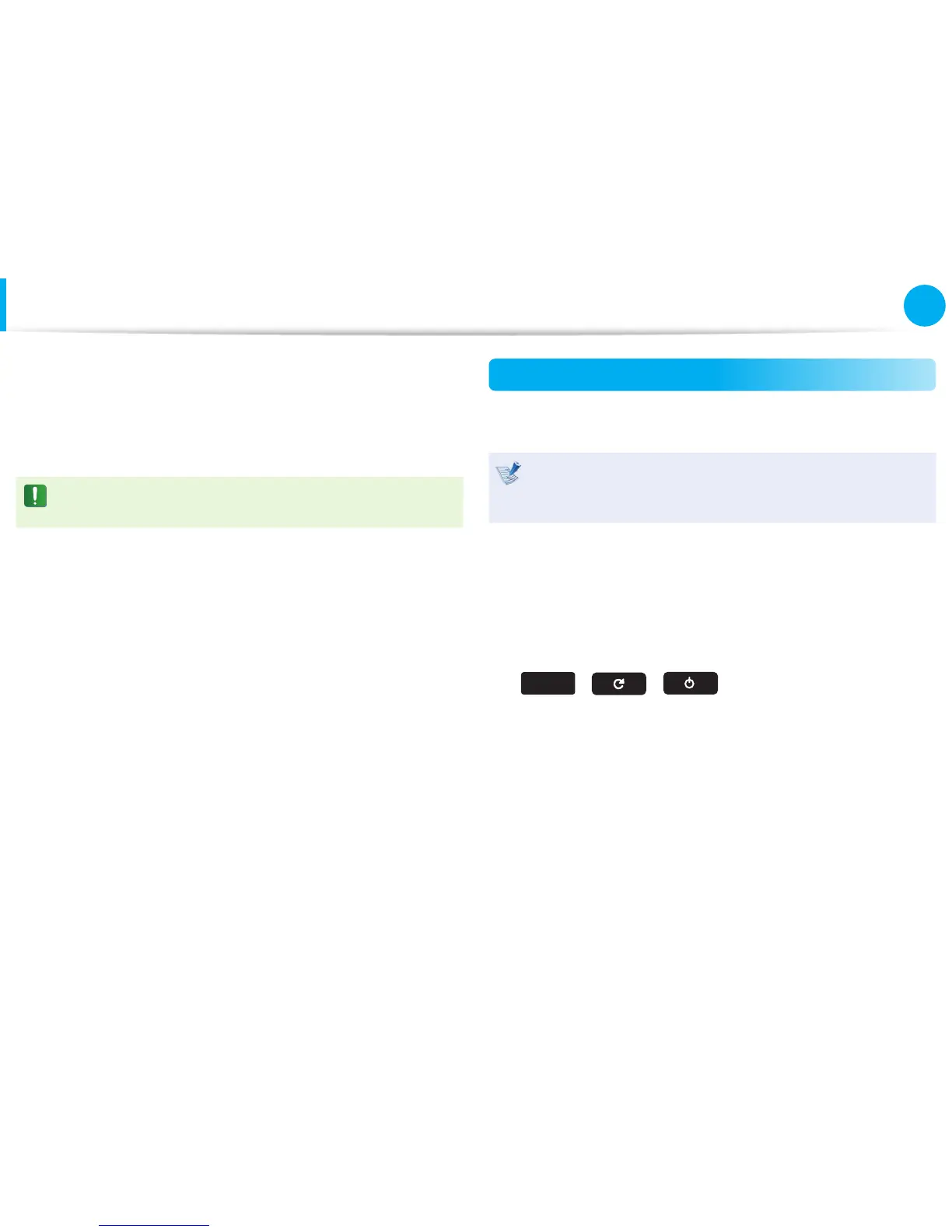
Insert the SD card or the USB ash drive containing the
recovery image, and press both the Refresh button and the
Power button while holding down the ESC key.
esc
+ +
4
When the Chromebook restarts, follow the onscreen
instructions to complete the recovery process.
5
Remove the SD card or the USB ash drive as instructed.
6
When the system has restarted, the update is successfully
completed.


 To Next Page