Put Comrex On The Line.
Toll Free in USA: 800-237-1776 • www.comrex.com
e-mail: info@comrex.com
19 Pine Road, Devens, MA 01434 USA
Tel: +1-978-784-1776 • Fax: +1-978-784-1717
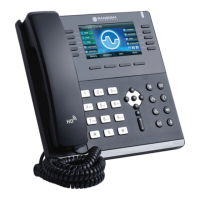
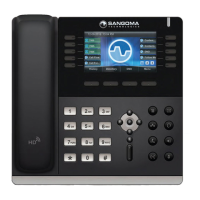
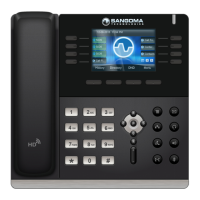
Sangoma s206: A Cheap Desktop VoIP Phone That
Makes Opus Calls to Comrex Codecs
Introduction
Hacking around with VoIP hardware is a fun thing
for us at Comrex. Recently, we noticed the Sangoma
s206 for sale online at a really low price (USD $58 at
voipsupply.com as of March, 2019) and saw that it
offered both Opus and G.722 encoding.
We were intrigued enough to buy one and take it for
a spin. Within a few minutes of setting it up, we were
making wideband calls to our ACCESS and BRIC-
Link codecs.
We immediately recognized that this phone might
make a good option for people who want a wired
“batphone” on their desks to make calls via codecs.
So here’s a four-step cheat sheet on how to get it
going.
Instructions
We didn’t bother registering the phone to a SIP
provider, but that’s certainly possible if you want to
call from the codec into the phone.
Out of the box, the phone connected outbound fine
via G.722, and it only took a quick configuration
change to make it prefer the better-sounding Opus
encoder.
Step 1: Plug the phone into an internet connection
that supports PoE.
The phone doesn’t ship with a power supply, so it
needs to get its power from the network.
Step 2: Make sure your phone is running the latest
firmware from the Sangoma website.
The firmware that shipped with our phone didn’t
connect correctly, so we had to update it. (Our
working firmware update was 3.0.4.59.) You’ll need
to access the web interface on the phone for that.
Get the DHCP IP address the phone uses by selecting
Menu->Status->Network->IPV4. Open that address
on a browser (user/password = admin/admin), then
navigate to Management->Upgrade and send it
the latest firmware file.
The phone will reboot after the upgrade. After it
reboots, re-log into the web interface and choose
Account->Codec. Change the entry on “Choice 3”
to Opus. Change “Choice 4” to G.722. It should look
like this:
Select “SaveSet” at the bottom to save the changes.

 Need help?
 General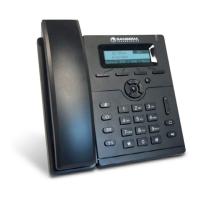

 To Next Page