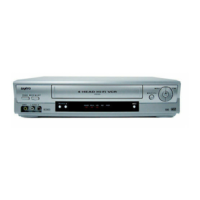
INSTRUCTION MANUAL
Video Cassette Recorder
81VMN20401--- / HJ420UD ★★★★★
Printed in China
1. Before Using Your VCR
If channel 3 is already occupied for broadcasting,
1) Set your TV to channel 4.
2) Insert a pre-recorded tape into this unit.
3) Press [PLAY
BB
] once to start playback.
4) After a few seconds, press [PLAY
BB
] on the unit for 3 seconds.
•
The RF output channel will change to channel 4 from channel 3 and
you will see a playback picture.
•
When a picture does not appear on the TV screen, repeat step 4).
5) Press [
CC
STOP] to stop playback.
ANT
IN
OUT
RF Cable (supplied)
(Back of VCR)
(Back of TV)
(Back of TV)
Plug the AC power cords of the VCR and TV into the AC outlets.
4
Disconnect
Antenna
or
2
Connect
3
Connect
Cable TV
Signal
Antenna
or
Cable TV
Signal
Basic TV Connection
RF Output Channel
Select this connection when you want to view or record a
scrambled channel.
With this connection, channels cannot
be changed on the VCR.You can view or record ONLY the
channels you have selected on the cable box or the satellite
box.
• While you are recording, only the recorded channel can
be viewed.
T
o select channels of the cable box or satellite box
1) Turn on the unit by pressing [POWER], then press
[VCR/TV]. The “POWER” and the “VCR/TV” lights on
the front panel will appear, then press
[CHANNEL ] to select channel 3 or 4 (the
same channel as the output channel of the cable box
or satellite box).
• If you use the channel 4, you need to change the
unit’s RF output to channel 4. Refer to “RF Output
Channel”.
2) On the TV, select channel 3 or 4 (the same channel as
you have selected at step 1).
3) On the cable box or satellite box, select the channel
you want to view or record.
Select this connection when you want to change channels
on the unit. With this connection, you may watch one
channel while recording another.
• You may not view or record a scrambled channel.
T
o select channels of the cable box
1) On the cable box, select channel 3 or 4 (the same
channel as the VCR’s RF output channel.)
• Refer to “RF Output Channel”.
2) On the TV, select the same channel as the output
channel (3 or 4) of the cable box.
3) Turn on the unit by pressing [POWER], then press
[VCR/TV]. The “POWER” and “VCR/TV” lights on the
front panel will appear, then select the channel you
want to view or record.
T
o play back a tape
Follow the steps 1) to 2) above, then play back a tape.
• Refer to “Playback” on page 4.
To view one channel while recording another
1)
While you are recording on the unit, press [VCR/TV].
2)On the cable box, select the channel you want to view.
Hints for Cable Box or Satellite Box
ANT
IN
OUT
RF cable
(supplied)
(Back of VCR)
IN
OUT
E
(Back of TV)
Antenna
or
Cable TV
signal
Connection A
(Cable box or
Satellite box)
ANT
IN
OUT
RF cable (supplied) RF cable
(Back of TV)
IN
OUT
(Cable box)
E
Connection B
Antenna
or
Cable TV
signal
(Back of VCR)
You can use the AUDIO OUT jacks and
VIDEO OUT jack on the back of the
unit if your TV has Audio/Video Input
jacks. In this case, you need to set the
TV to external Line Input Mode. Please
refer to your TV’s owner’s manual.
Front & Rear Terminals
Stereo TV Connection
ANT
AUDIO
VIDEO
IN
OUT
OUT IN
OUT
L
R
IN
LR
AUDIO OUTVIDEO
OUT
(Back of TV)
AUDIO
ANT
IN
OUT
VIDEO
OUT
L
R
IN
Audio/Video Cables
(not supplied)
LR
AUDIO INVIDEO
IN
INOUT
(Back of VCR)
• Remote control
(NA323) with
two AA batteries
• RF cable • Instruction manual
Supplied Accessory
Installing the Batteries for
the Remote Control
Install two AA batteries
(supplied) matching the
polarity indicated on
the bottom of the
remote control.
ANT
AUDIO
VIDEO
IN
OUT
OUT IN
OUT
L
R
IN
ANT
AUDIO
VIDEO
IN
OUT
OUT IN
OUT
L
R
IN
VIDEO IN jack
Connect the video cable coming from the
video output jack of a camcorder, another
VCR or an audio-visual source (laser disc
player, video disc player, etc.) here.
POWER
VCR/TV
TAPE IN
MENU
TIMER
REC
CHANNEL
POWER
L–AUDIO–RVIDEO
AV INPUT
VWM-950
VIDEO OUT jack
Connect the video cable here through the
video input jack of a camcorder, another
VCR or a TV.
ANT IN jack
Connect your antenna or cable box
here.
ANT OUT jack
Connect the supplied RF cable to the
antenna input jack on your TV.
AUDIO IN jacks
Connect the audio cables coming from the
audio output jacks of a camcorder, another
VCR or an audio source here.
AUDIO OUT jacks
Connect the audio cables here through to
the audio input jacks of a camcorder, another
VCR, a stereo amplifier or an audio system.
Hint
Hint
• The RF output channel may not
change when you adjust track-
ing during playback. In this
case, stop the playback, and
start the playback again. After
that, press [PLAY
BB
] on the
VCR for 3 seconds again.
HJ420UD_EN/SP.QX33 05.1.14 14:06 Page 1


 To Next Page

 General