10
ENGLISH
Last updated 14.02.2019 www.saphe.dk
Display
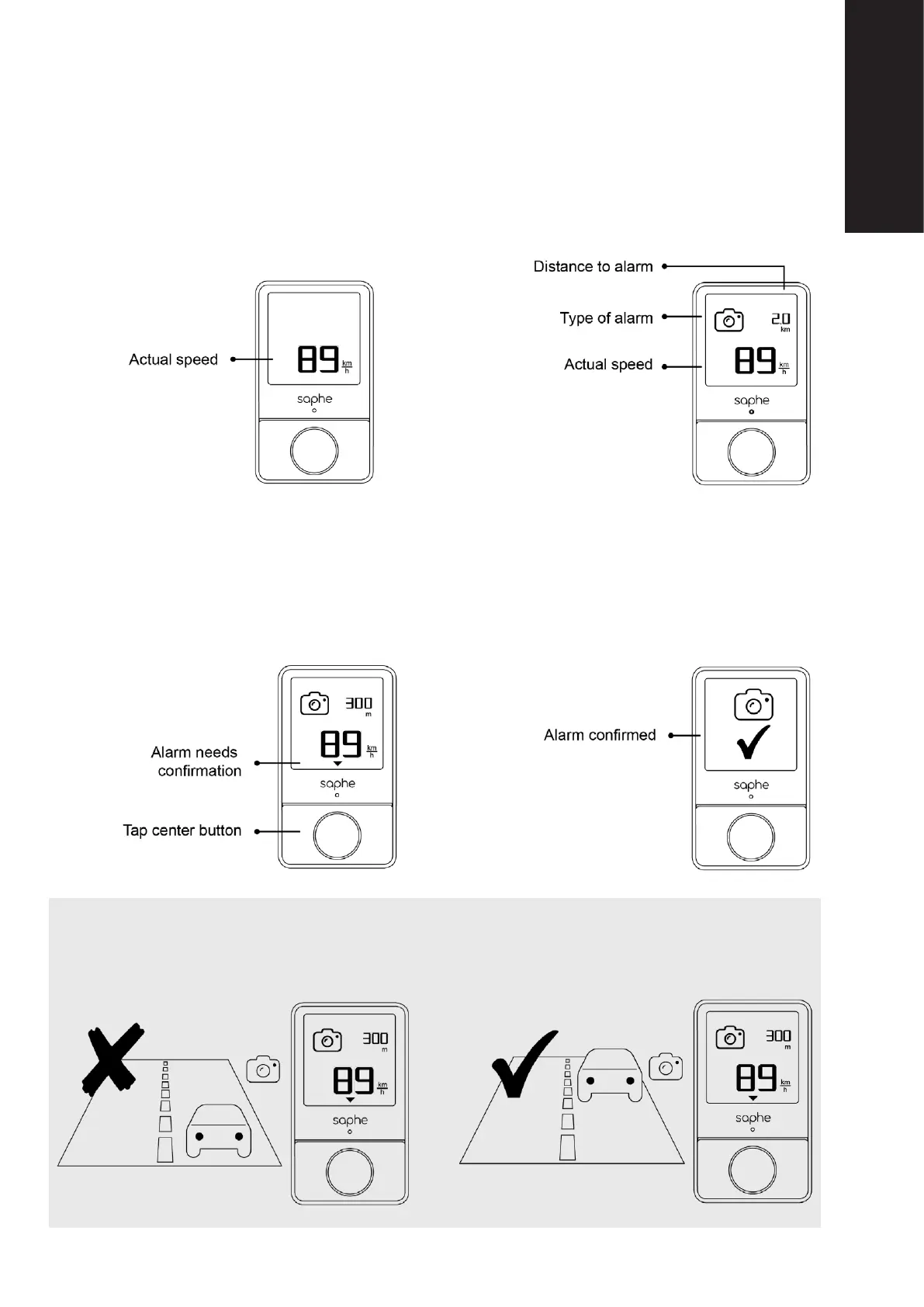
Saphe Drive has two main screens: the Home Screen and the Alarm Screen. The Home Screen is
only displayed if there are no incidents nearby, and it works as an extra speedometer. If there is an
alarm nearby, which has already been set up by other users or received from a third party, then the
Alarm Screen will be displayed. This is where you receive information about the type of alarm you
are approaching, and your current distance to the alarm. Your current speed will also still be shown.
Conrm Alarm
The Home Screen The Alarm Screen
There are four alarms that can be conrmed. They are the same alarms you can set-up: Congestion,
Speed Camera, Hazard and Car on shoulder. When an alarm is to be conrmed, an arrow will appear
below your current speed, and you conrm the alarm by pressing the centre button. If the alarm is no
longer relevant, then you do not need to take any further action. Saphe’s control system ensures the
alarm is deactivated if it hasn’t been conrmed after a while.
Note: You will be able to conrm the alarm approx. 300 metres before you reach it. However, we en-
courage you to rst conrm the alarm when you are right next to the alarm in question. This will allow
us to make the location of the alarm more accurate, so we can forward the exact location to other
users.


 To Next Page