76
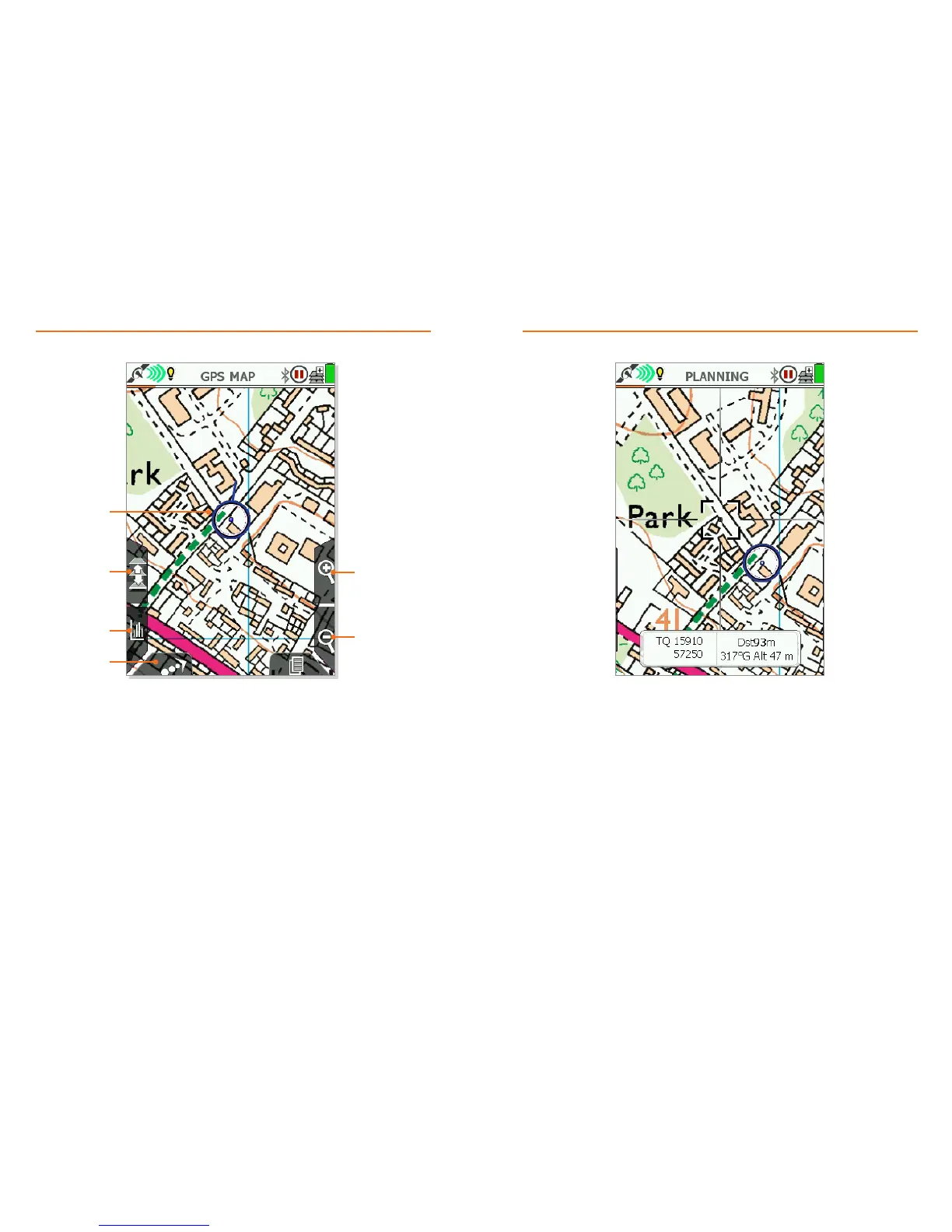
• Whilst in GPS MAP, moving the d-pad or dragging the map on the touchscreen will take you
into Planning mode and the blue Current Location circle changes to orange with crosshairs.
In this mode you can move about the map using the d-pad or touchscreen.
• Toggle Maps & Zoom In / Out work the same as in GPS Map mode.
• Centre press on the joystick to go to the POSITION INFO screen.
• Current Location is shown by the blue circle. If you are moving the Direction Indicator will
be displayed.
• Toggle Maps will switch the mapping between the base maps and any other mapping
scales from the inserted MapCard, if any are available at position and zoom level.
• Zoom In / Zoom Out to change the magnication of the map data on the screen.
Map layers will change at certain set levels (where available).
• Data Boxes These can be overlaid on the map in groups of two or four, and provide live
data on your current trip; the data displayed can be customized in the settings menu
(Main Menu > Settings > x Data Box Layout). There is also an option to overlay an altitude
graph; please see full user guide for more information.
• North Up / Trail Up / Trail Up (Low) This changes map orientation from North Up
(i.e. top of screen is xed north), Trail Up (map automatically orientates in direction of
travel), and Trail Up (Low) [as Trail Up, but with the Current Location indicator set lower on
the map screen; best for fast moving activities such as cycling].
Primary Screen: GPS Map Primary Screen: PLANNING mode
Current Location
Toggle Maps
Data Boxes
North Up / Trail Up /
Trail Up (Low)
Zoom out
Zoom in



 To Next Page