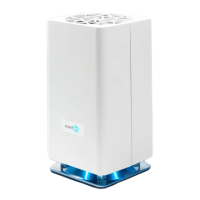
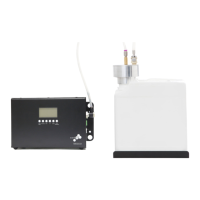
The ScentAir Direct is an atomization device designed to diffuse fragrance oil as a fine vapor, covering areas up to 3,000 square feet. It offers flexible control options, including manual buttons, a smartphone app (via Bluetooth or Wi-Fi), and a cloud-based platform (ScentConnect.com), making it suitable for various business environments.
Function Description:
The core function of the ScentAir Direct is to convert fragrance oil into a fine vapor, distributing scent evenly across a designated area. This process, known as atomization, ensures efficient and consistent fragrance delivery. The device is intended to enhance customer and employee experiences by creating a memorable ambiance through scent marketing.
Important Technical Specifications:
- Coverage Area: Up to 3,000 square feet.
- Connectivity:
- Bluetooth: Allows for quick, one-to-one device control within approximately 15 feet. Supports up to 6 different schedules.
- Wi-Fi: Enables remote control from anywhere, supports advanced Google & Alexa voice features, and allows for up to 14 different schedules.
- Wi-Fi Specifications: 802.11b/g/n, operating on the 2.4 GHz frequency range. It does not function on a 5 GHz frequency range.
- Power: The device requires a power connection to operate.
- Fragrance Delivery: Utilizes fragrance oil cartridges.
Usage Features:
LED Indicators:
The device features LED lights that provide visual feedback on its status:
- Power (Green LED):
- Off: No power.
- Blinking: Downloading a firmware update.
- Solid: Power is flowing (default from factory).
- Schedule (Orange LED):
- Off: No event running.
- Slow Pulsing: Device is paused.
- Fast Pulsing: Device is in a resting cycle of a schedule (default from factory).
- Solid: A scheduled event is running.
- Wi-Fi (Blue LED):
- Off: Not connected to Wi-Fi (default from factory).
- Slow Pulsing: Saved network, searching for Wi-Fi.
- Fast Pulsing: Connected to local Wi-Fi, but not online.
- Solid: Online and connected to a Wi-Fi network.
- Pause Fan: Holding the Pause button for 5 seconds pauses the device for 60 minutes. Holding it again for 5 seconds un-pauses it.
- Manual Schedules: Pressing the Pause button quickly 1, 2, or 3 times cycles through default 24/7 schedules when not connected to Bluetooth or Wi-Fi:
- Low (Pause LED blinks once): Runs in 40-second increments, totaling 10 minutes per hour (factory default).
- Medium (Pause LED blinks twice): Runs in 1-minute, 20-second increments, totaling 20 minutes per hour.
- High (Pause LED blinks three times): Runs in 2-minute increments, totaling 30 minutes per hour.
- Note: Manual schedules are unavailable when connected to Wi-Fi or Bluetooth; saved schedules will operate offline if connectivity is lost.
- Fan Speed: The Fan button adjusts the fan speed to 20%, 60%, or 100%, controlling fragrance diffusion. The factory default is Medium (60%).
Smartphone App Control (ScentAir App):
The free ScentAir app is available on Google Play and the Apple App Store.
- Bluetooth Connection:
- Ensure the device is plugged in and powered on.
- Download the ScentAir app.
- Select the Bluetooth option in the app.
- The app scans for devices; select your ScentAir Direct.
- Tips: For multiple devices, match the MAC address. Bluetooth requires proximity (within 15 feet).
- Wi-Fi Connection:
- Ensure the device is plugged in and powered on.
- Download the ScentAir app.
- Follow Wi-Fi account creation or select the "+" icon to "Add Device."
- Enter your local Network Name & Password.
- Name your device.
- Tips: Connect to a secure, password-protected 2.4 GHz Wi-Fi network (802.11b/g/n). Avoid open networks. The device does not support 5 GHz Wi-Fi.
- Google Assistant & Alexa Integration:
- Requires Wi-Fi connection.
- Google Assistant: Use the Google Home app, select "Set Up Device" > "Works with Google," search for "ScentAir," and input login credentials. The device appears as a "Fragrance Diffuser."
- Amazon Alexa: Use the Alexa app, select "Browse Skills," search for "ScentAir," "Enable to Use," and input login credentials. Then, "Add Device."
Cloud-Based Management (ScentConnect.com):
- ScentConnect is a platform for programming and managing ScentAir Direct devices from any internet-connected device.
- To use ScentConnect, the device must first be connected to Wi-Fi via the ScentAir smartphone app by selecting "Enterprise Setup."
- Access Levels:
- Manager: Edit device settings, create/modify/delete locations and users.
- Operator: Edit device settings.
- Viewer: View settings, but cannot make changes.
- Dashboards:
- Organization Dashboard: Overview of locations, assets, and their status.
- Location Dashboard: Displays name, MAC address, device type, and status of assets in a selected location.
- Asset Dashboard: Shows asset details, configuration, and schedule; allows modification of configuration and Scent Events.
Maintenance Features (Quick-Help):
- Buttons Not Working:
- Soft reset: Unplug the device, wait 30 seconds, then plug it back in.
- Hard software reset: Press and hold the PAUSE button for 30 seconds to force a restart.
- Blue LED On (Wi-Fi Connected): Indicates successful Wi-Fi connection.
- Erase Wi-Fi Network: Hold the PAUSE button for 15 seconds (e.g., to connect to a new network).
- No Fragrance Smell:
- Check if the fragrance cartridge contains oil; replace if empty.
- Confirm air is coming out of the top when the pump and fan are running; ensure the device is on.
- Increase pump speed using the Intensity button.
- If issues persist, contact ScentAir Technical Services.
- Cannot Connect to Wi-Fi:
- Confirm the Wi-Fi network is secure and password-protected.
- Verify the correct password (including capitalization/special characters).
- Check Wi-Fi signal strength; move the device if the signal is weak.
- Changed Wi-Fi Credentials:
- Hold the PAUSE button for 15 seconds while powered on.
- Reconnect to Wi-Fi following the instructions in the user manual.
- Alternatively, use "Manage Network" in the mobile app (under the three dots menu).
- Device Displaying OFFLINE Status:
- Ensure the local network is working properly.
- Try re-establishing the Wi-Fi connection.
- Using Without Company Wi-Fi: Wi-Fi is required for advanced scheduling and control. If never connected, it runs on a default 24/7 factory schedule. If Wi-Fi connection is lost, it defaults to Bluetooth schedules.

 Need help?
 General

 To Next Page