www.scheer-heizsysteme.de
MH-SERIES
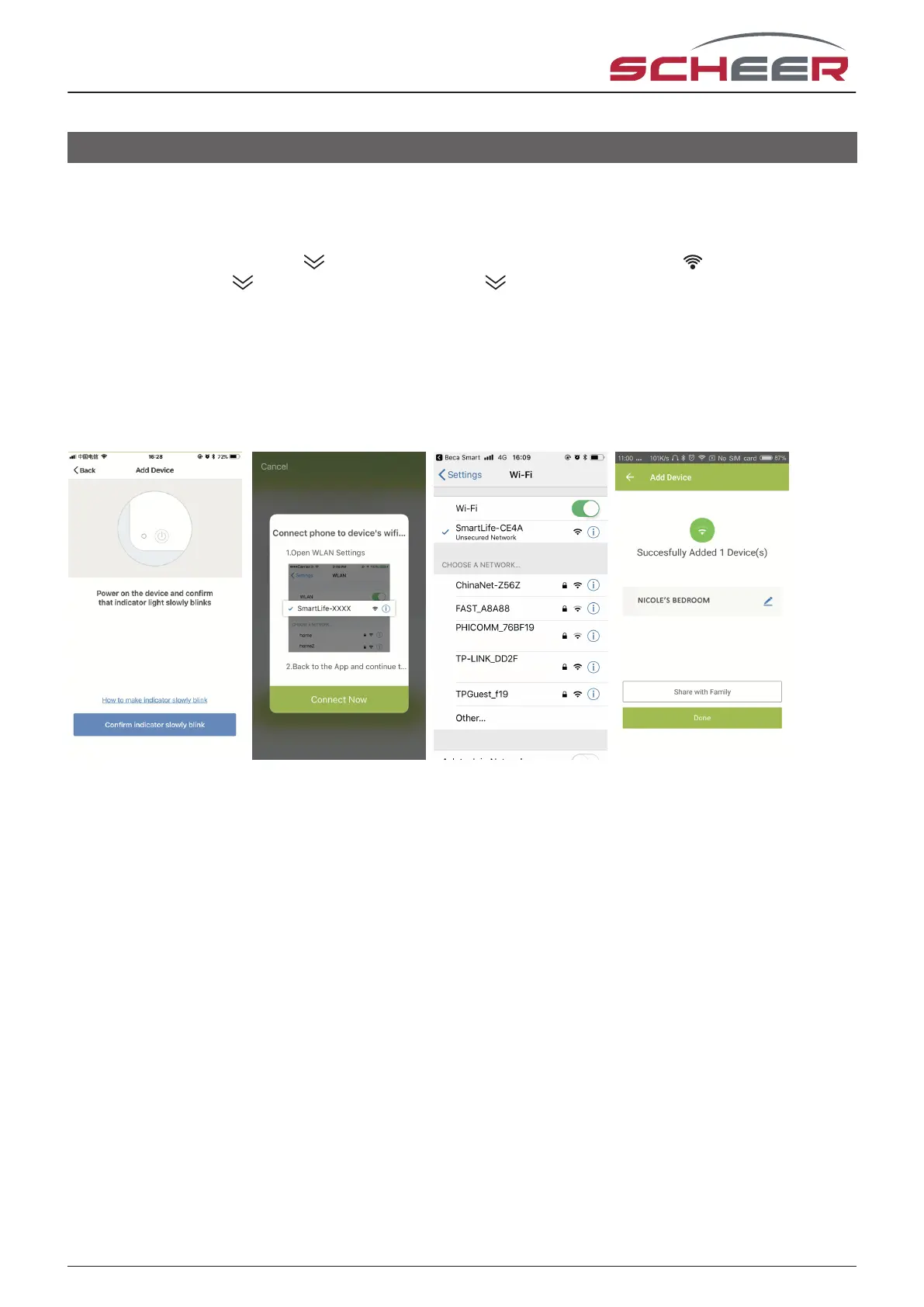
Fig. 4-1 Fig. 4-2 Fig. 4-3 Fig. 4-4
Then go to “Connect now” and establish a connection to the thermostat‘s WLAN network “SmartLife-XXXX” (Fig.
4-2 and 4-3). Return to the app and press „Connect now“ again. The app automatically connects to the room
thermostat (Fig. 3-4). This can take anywhere from 5 to 90 seconds. If the device is connected, you can change
the device name (Fig. 4-4) and add further thermostats.
AP-Modus
On you thermostat
With the device turned o, press for 8 seconds. The backlight turns on and the icon ashes once per
second. Press and hold again for 8 seconds. The symbol ashes every 3 seconds.
In the app
Press the „+“ symbol in the upper right corner of the app screen (Fig. 3-1-1 to 3-1-3) to add your device. Press
Conrm when the displayed indicator lamp ashes rapidly (Fig. 3-2). Select your WiFi network and enter your
WiFi password in the app to connect the thermostat to your WiFi network (Fig. 3-3).
Wi - connection
17



 To Next Page