SCUF Envision | 23 Quick Start Manual | English
THUMBSTICKS:
The thumbsticks section allows you to configure how your thumbsticks
behave when exercising it. You can use the available presets or create your
own preset to configure them.
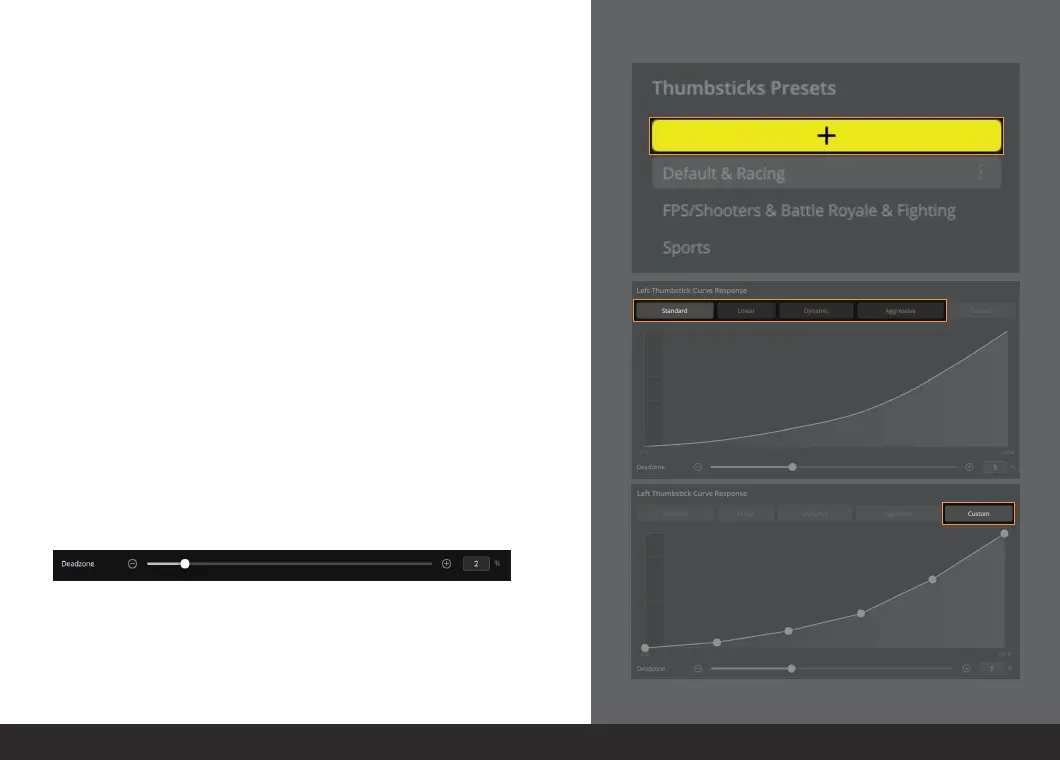
To create your own preset press the “+” button.
Next, choose a preset “curve response” for the desired thumbstick you want
to configure.
You can also create your own curve response but selecting the “Custom” tab.
You can fine tune your curve response by clicking and dragging the white
dots to your preference.
Please note that the X axis represents how much the thumbstick is moved
and the Y axis represents the registered value of the thumbstick. You
can tune the values of the thumbstick at 20%, 40%, 60%, 80%, and 100%
thumbstick movement.
You are also able to tune the deadzones of the thumbsticks. To do this,
adjust the deadzone slider, located at the bottom of the graph, for the
desired thumbstick.
Please note that adjusting your deadzones below 2% may cause unintended
thumbstick movement in-game or within menus. Having a large deadzone
will mean that you have to move the thumbstick much more before a game
recognizes the movement.


 To Next Page