MAN.200.EN--05--SDT200-user-manual-Eng.docx
Changing device settings
To access the Main menu, press the Enter button.
Use the arrow buttons to highlight the Settings icon:
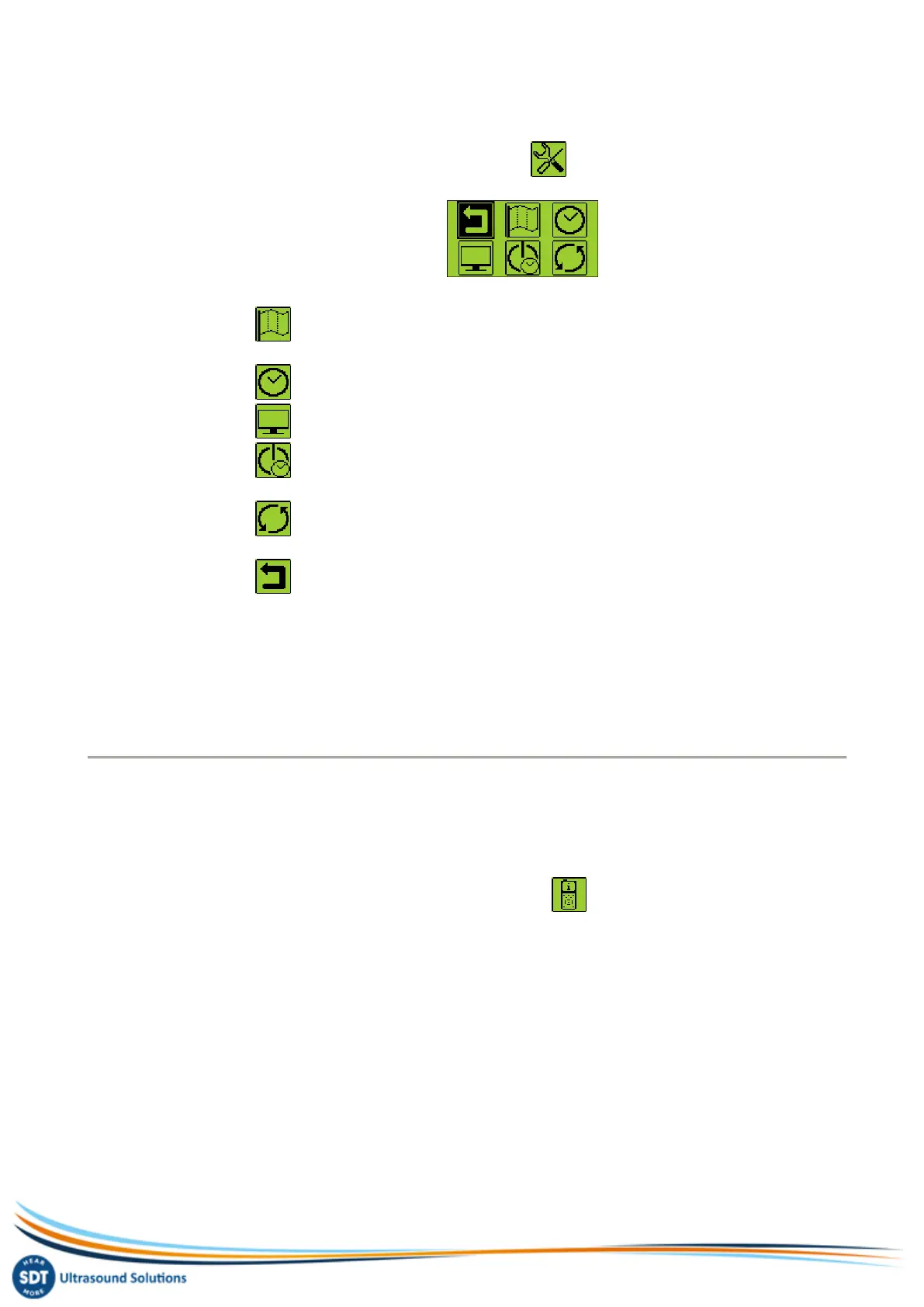
Press the Enter button to access the Settings menu:
Use the arrow buttons to select the desired icon and the Enter button to select the desired setting.
o Language icon: change device interface language (English, Nederlands, Français,
Deutsch, Italiano or Español).
o Date and time icon: set date, time and their format
o LCD icon: adjust the screen contrast and the operating time of the backlight
o Auto power down icon: adjust the time before device auto power down when it is
unused.
o Reset icon: force a factory reset of the SDT200 device. Note that this does not erase
saved measurements.
o Escape icon: to get back to the main menu. In the main menu, to get back to the
measurements screen, press the F1 button
To modify the parameters of the selected setting :
o Use the Up and Down arrow buttons to switch form one field to another.
o Use the Left and Right arrow buttons to modify the value of the selected field.
o Use the Enter button to save the changes and return to the previous menu.
o Use the F1 button to go back to the previous menu without saving the changes.
Device Info
From the Measurements screen press the Enter Button to access the Main Menu
Use the arrow buttons to highlight the Device Info icon:
Press the Enter Button to display device information:
o The version of your instrument (screen 1)
o Its calibration date (screen 2)
o The serial number of the battery and its remaining capacity (screen 4)
o The device and PCB serial numbers, the firmware version (screen 5)
Use the Up and down arrow buttons to switch between the different screens. Push the F1 button to
go back to the main menu and push once again the F1 button to go back to the measurements screen.


 To Next Page