Manage remote access for an exisng user
The owner can manage remote access on a user-by-user basis. Remote access allows users to access content
. while away from home
.You can also control remote access for all users
:To manage remote access for a specific, existing user
.Open the Users page .1
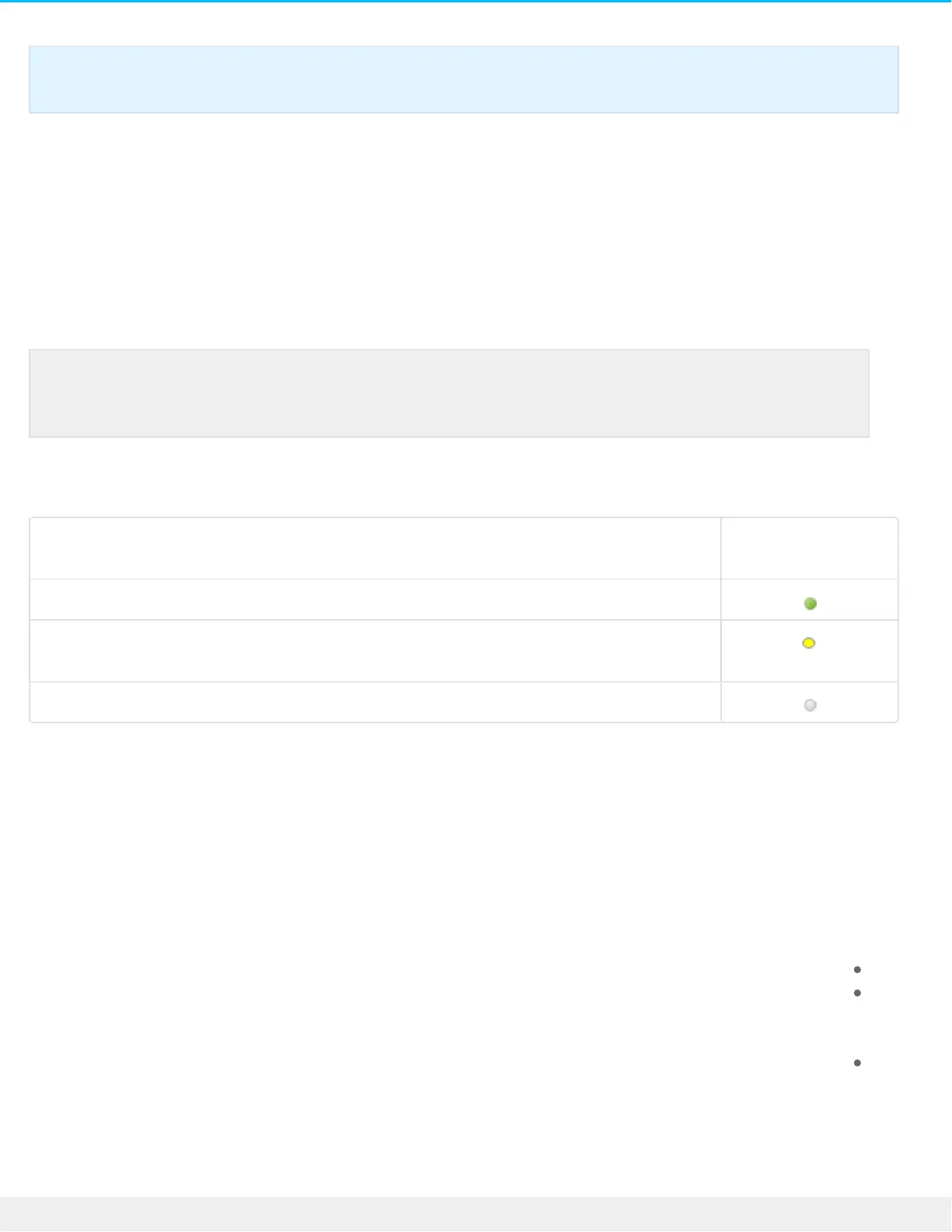
.Click the dot under Seagate Access to the right of the username .2
Seagate Access
Status
Description
Seagate Access is on
The owner has invited a user to create a Seagate Access, but the process is not
.* complete
Seagate Access is off
A yellow dot indicates a pending status. You have invited the user to create a Seagate Access account and the *
.Personal Cloud 2-Bay is waiting for the user to complete the process
Edit a user
.Only the Personal Cloud 2-Bay owner can change a user’s username and email address
.Open the Users page .1
.Click the item you want to change .2
.Username—Changing the username also changes the user’s private folder name
Password—Changes only the user’s private folder password. The option to change a user's password is
not available if the user has a Seagate Access account. The user can change her password by logging in to
(. the Personal Cloud (see Passwords
Email address—The email address is the user’s Seagate Access ID, which is used to remotely access
.your Personal Cloud
Delete a user
.Important info: Your Personal Cloud can have a maximum of 10 users
Note: If you want to enable remote access and you haven’t confirmed your Seagate Access
.account, do so now by clicking Confirm Email



 To Next Page