Owner Administraon
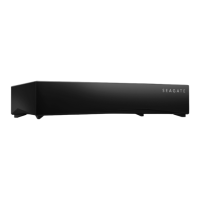
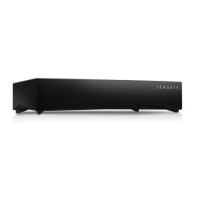
Your Personal Cloud has been configured with standard default settings. If you're the owner, you can modify
.settings such as the device name, time zone, and the services used
Access your Personal Cloud
(Access using a web browser (PC and Mac
.Open a web browser and go to PersonalCloud.seagate.com .1
.Log in with your email address and password .2
.Your NAS OS devices are listed. Click on the Personal Could you would like to access .3
(Access using Windows or File Explorer (PC only
.Open your File Explorer .1
.In the left window pane, click on Networks .2
. Under Networks, click PersonalCloud .3
Note: If you do not see the Personal Cloud listed under Networks, make sure your Wireless connection
.type is Private
.Open the Public folder, and then double-click PersonalCloud .4
.Enter your Personal Cloud username and password .5
(Access using the Finder (Mac only
.Open a Finder window .1
.Under Shared, click PersonalCloud .2
. ... Click Connect As .3
.Select Registered User .4
. Enter your Personal Cloud username and password .5
Note: Make sure you use the Personal Cloud username and password. Some Mac systems will autofill the
.field with your Mac username. Remove the default Mac username and enter your Personal Cloud username
.Open the Public Folder and then double-click Personal Cloud .6
.Enter your Personal Cloud username and password .7
Open the Device Manager
.Click on the Apps icon, and then click on Device Manager .1
LED Behavior



 To Next Page