separately to check whether the camera is normal.
3) Check if the resolution of the channel mode on the video recorder is smaller than that
of the camera. For example, the camera is 1920P while the channel mode of the video
recorder is 1080P, so there will be no image.
4) Generally speaking, the larger the bit rate is, the clearer video will become. But the bit
rate configuration should combine well with the network bandwidth. When the bandwidth
is very narrow, and bit rate is large, that will lead to video cannot play well. You can reset
the bit rate on Settings-> Record-> Stream.
8.2 Camera Management
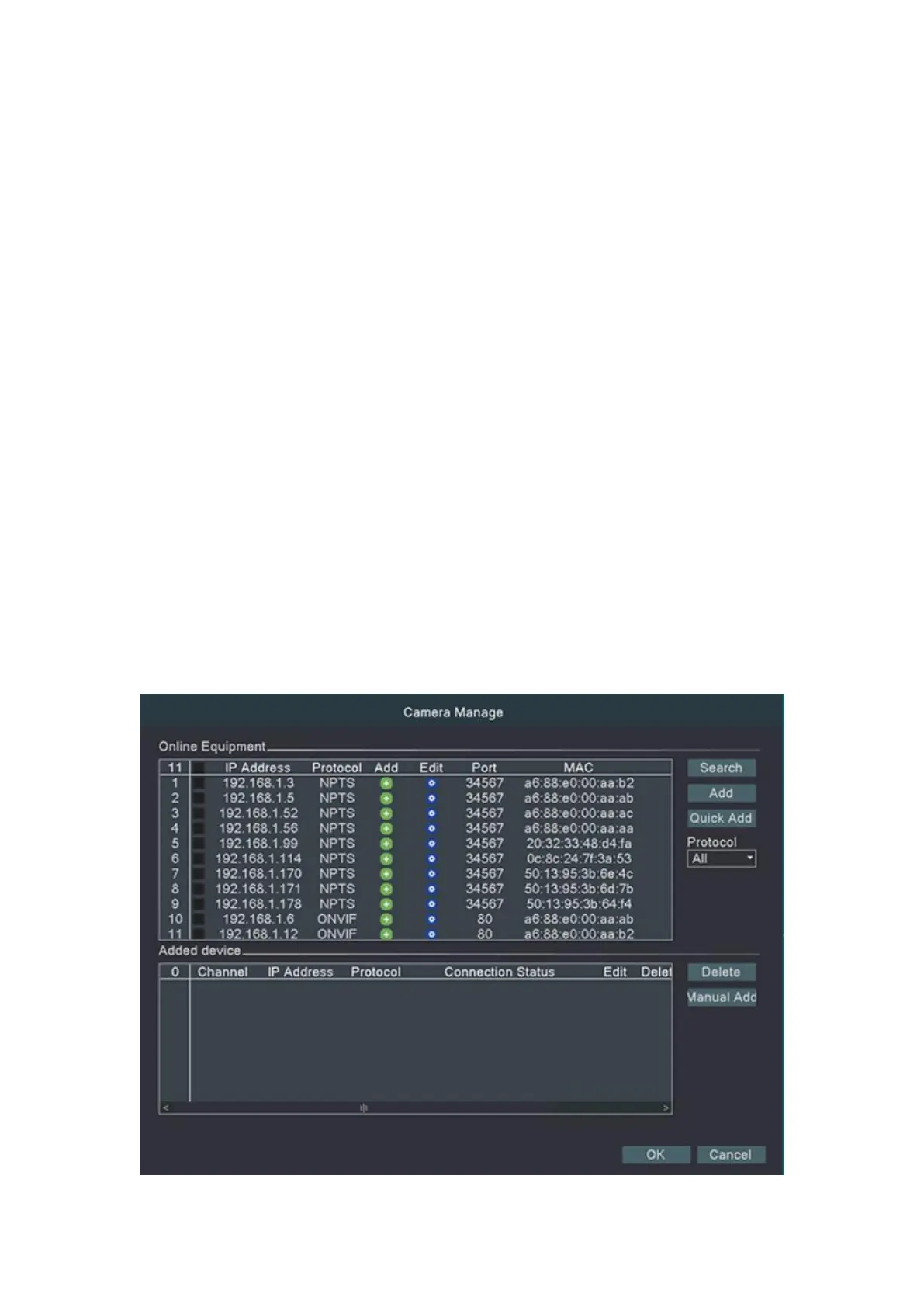
Right click the mouse on the monitoring interface, Quick Add button, you can enter into the
camera management.
Then, click on Device Search to locate the IP address for your cameras that should be
connected to the same network as your NVR.
A list of all connected cameras will appear. Select the camera from the list by clicking on
the checkbox, click Add to add the camera into the Added Devices menu.
When it has been added, the camera will be ready to view on your NVR.


 To Next Page