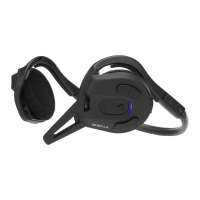
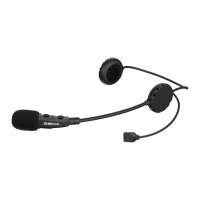
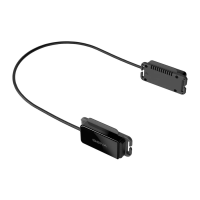
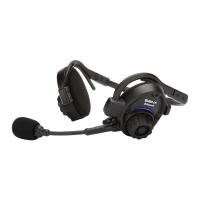
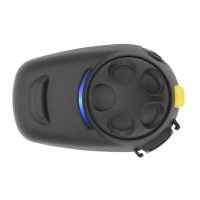
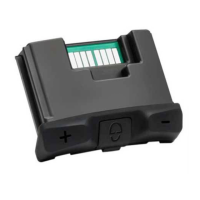
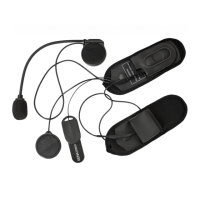
The Sena Expand Mesh is a Bluetooth® headset with Mesh Intercom™ technology, designed for seamless communication and entertainment. It offers a range of features for both individual use and group communication, making it suitable for various activities.
Function Description:
The Expand Mesh serves as a versatile communication device, integrating Bluetooth connectivity for mobile phones and music players with Sena's proprietary Mesh Intercom system. This allows users to make and answer calls, listen to stereo music, and engage in intercom conversations with other Expand Mesh users. The Mesh Intercom system is a dynamic communication network that facilitates instant and effortless bike-to-bike communication without the need for pre-grouping. It supports both Open Mesh, an open group intercom function for virtually unlimited users within a channel, and Group Mesh, a closed group intercom for private conversations with up to 24 users. The device also features Audio Multitasking™, enabling users to have intercom conversations while simultaneously listening to music, with the music volume intelligently adjusting during conversations.
Important Technical Specifications:
- Bluetooth®: 5.2
- Mesh Intercom Range: Up to 0.4 km (0.2 mi) in open terrain between each Expand Mesh. The range can be extended up to 1.6 km (1 mile) between a minimum of six users in open terrain.
- Charging Time: Approximately 2.0 hours for a full charge.
- Input Voltage: Compatible with 5 V input USB-charged devices.
Usage Features:
Getting Started:
- Sena Outdoor App: Users can pair their phone with the headset to use the Sena Outdoor App for quicker setup and management. Available on Google Play Store and App Store.
- Sena Device Manager: Firmware upgrades and configuration settings can be managed directly from a PC using the Sena Device Manager, downloadable from sena.com.
- Charging: The headset charges via a USB Power & Data Cable (USB-C). It automatically turns off during charging.
- Powering On/Off: The headset is powered on by pressing and holding the Center Button and the (+) Button for 1 second. To power off, press and hold the Center Button and the (-) Button for 1 second.
- Battery Level Check: The battery level can be checked when powering on the headset. A voice prompt "Low battery" will be heard when the battery is low.
- Volume Adjustment: Volume can be adjusted independently for each audio source (phone, intercom) by tapping the (+) Button or (-) Button. Settings are maintained even after rebooting.
Pairing with Other Bluetooth Devices:
- Phone Pairing:
- Initially Pairing: The headset automatically enters phone pairing mode when first turned on or after a Factory Reset. Users can also manually enter pairing mode by pressing and holding the Center Button and (+) Button for 1 second. The mode lasts for 3 minutes and can be canceled by tapping the Center Button.
- Pairing When Turned Off: While off, press and hold the Center Button and (+) Button until the LED flashes red and blue alternately, and the voice prompt "Phone pairing" is heard.
- Pairing When Turned On: While on, press and hold the Center Button for 5 seconds.
- In all cases, select "Expand Mesh" from the Bluetooth devices list on the mobile phone and enter "0000" if a PIN is requested.
- Second Mobile Phone Pairing / SR10 Pairing: Press and hold the Center Button for 10 seconds to enter the "Configuration menu," then tap the (+) Button to hear "Second mobile phone pairing." Select "Expand Mesh" on the second device.
Mobile Phone Usage:
- Making and Answering Calls:
- Answer a Call: Tap the Center Button once.
- End a Call: Press and hold the Center Button for 2 seconds.
- Reject a Call: Press and hold the Center Button for 2 seconds.
- Make a Call with Voice Dial: In stand-by mode, press and hold the Center Button for 3 seconds.
- Speed Dialing:
- Assigning Presets: Speed Dial Presets can be assigned via the Sena Device Manager or Sena Outdoor App.
- Using Presets: Enter the Speed Dial menu by pressing and holding the (+) Button and Center Button for 3 seconds. Navigate through preset numbers using the (+) Button (forward) or (-) Button (backward). Call a selected preset by tapping the Center Button once.
- Redial Last Number: Tap the Center Button once to redial the last number called.
Stereo Music:
- Play/Pause Music: Press and hold the Center Button for 1 second.
- Track Forward/Backward: Press and hold the (+) Button for 1 second for track forward, or press and hold the (-) Button for 1 second for track backward.
Mesh Intercom:
- Starting Mesh Intercom: When enabled, the Expand Mesh automatically connects to nearby users. Press the Mesh Intercom Button to talk.
- Mesh Intercom On: Tap the Mesh Intercom Button once. Voice prompt: "Mesh intercom on, Open Mesh, channel 1."
- Mesh Intercom Off: Tap the Mesh Intercom Button once. Voice prompt: "Mesh intercom off."
- Using Open Mesh:
- Channel Setting: Double tap the Mesh Intercom Button to enter channel setting. Navigate between channels (1-9) using the (+) Button (forward) or (-) Button (backward). The channel is automatically saved after 10 seconds of inactivity or by tapping the Center Button. The channel will be remembered even if the headset is turned off.
- Using Group Mesh:
- Creating a Group Mesh: Press and hold the Mesh Intercom Button for 5 seconds on all desired users' headsets to enter Mesh Grouping. Once completed, headsets switch from Open Mesh to Group Mesh.
- Joining an Existing Group Mesh: A current user in an Existing Group Mesh and new users in Open Mesh press and hold the Mesh Intercom Button for 5 seconds to enter Mesh Grouping. New users will switch to Group Mesh.
- Grouping Failure: If Mesh Grouping is not completed within 30 seconds, a "Grouping failed" voice prompt is heard. Grouping can be canceled by tapping the Mesh Intercom Button.
- Enable/Disable Mic: Press and hold the Mesh Intercom Button for 1 second to enable or disable the microphone.
- Toggling Open Mesh/Group Mesh: Press and hold the Mesh Intercom Button for 3 seconds to toggle between Open Mesh and Group Mesh. This preserves Group Mesh Network connection information. If a user has never participated in Group Mesh, "No Group Available" will be heard.
- Reset Mesh: Press and hold the Mesh Intercom Button for 8 seconds. The headset will automatically return to Open Mesh (default: channel 1).
Mesh Audio Multitasking (Always On):
- Allows intercom conversations while listening to music. Overlaid audio volume is reduced during intercom and returns to normal afterward.
- Configuration: Intercom-Audio Overlay Sensitivity and Audio Overlay Volume Management settings can be configured via the Sena Device Manager or Sena Outdoor App.
Function Priority:
- The headset prioritizes connected devices in the following order (highest to lowest): Mobile phone, Mesh Intercom, Bluetooth stereo music. Lower-priority functions are interrupted by higher-priority functions.
Maintenance Features:
Firmware Upgrades:
- Firmware can be upgraded using the Sena Device Manager. The USB Power & Data Cable (USB-C) is required to connect the headset to a PC. Downloads are available at sena.com.
Troubleshooting:
- Fault Reset: If the headset is not working properly, a fault reset can be performed by pushing the Pinhole Fault Reset Button. To access it, rotate the left speaker pad counter-clockwise to detach it, then insert a paper clip into the hole and tap the button for a second. The headset will turn off and needs to be manually turned back on. Note: Fault Reset does not restore factory default settings.
- Factory Reset: To erase all settings and restore factory defaults, press and hold the Center Button for 10 seconds to enter the "Configuration menu," then tap the (-) Button twice to hear "Factory reset." Tap the Center Button once to execute.

 Need help?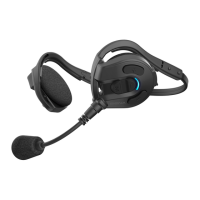

 To Next Page

 General