2.3 Intercom Pairing
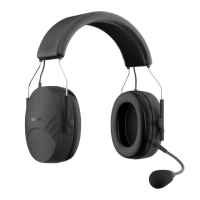
The Tufftalk Lite can be paired with up to three other headsets for Bluetooth intercom conversation.
1. Turn on the two Tufftalk Lite headsets (A and B) that you would like to pair with each other.
2. Press and hold the Center Button for 5 seconds, then you will hear a mid-tone single beep and
the voice prompt, “Intercom pairing”.
3. Simply tap the Center Button of any one of the two headsets A or B and wait until the LEDs
of both headsets turn to blue and intercom connection is automatically established.
The two 10R headsets A and B are paired with each other for intercom conversation.
If the pairing process is not completed within one minute, the 10R will return to stand-by mode
4. You can make other pairing between headsets A and C, and between headsets A and D by
following the same procedure as above.
5. The intercom pairing queue is ‘Last-Come, First-Served’. If a headset has multiple paired
headsets for intercom conversations, the last paired headset is set as first intercom friend.
The previous intercom friend becomes second intercom friend, and third intercom friend.
3. MOBILE PHONE
3.1 Mobile Phone Call Making and Answering
1. When you have an incoming call, tap the Center Button to answer the call.
2. To end a call, press the Center Button for 2 seconds until you hear a mid-tone single beep,
or wait for the called person to end the call.
3. To reject a call, press the Center Button for 2 seconds until you hear a beep while
the phone is ringing.
4. There are several ways to make a phone call:
- Enter numbers on your mobile phone’s keypad and make a call.
hen the call is automatically transferred to the headset.
- In stand-by mode, press the Center Button for 3 seconds, to activate the voice dialing of your
mobile phone. For this, the voice dialing function must be available on the mobile phone.
Refer to your mobile phone manual for further instruction.


 To Next Page