English
6
User Interface
1. Quick Installation
1.1 Setting Country and Language
User can select preferred country and language at Setup - Installation page.
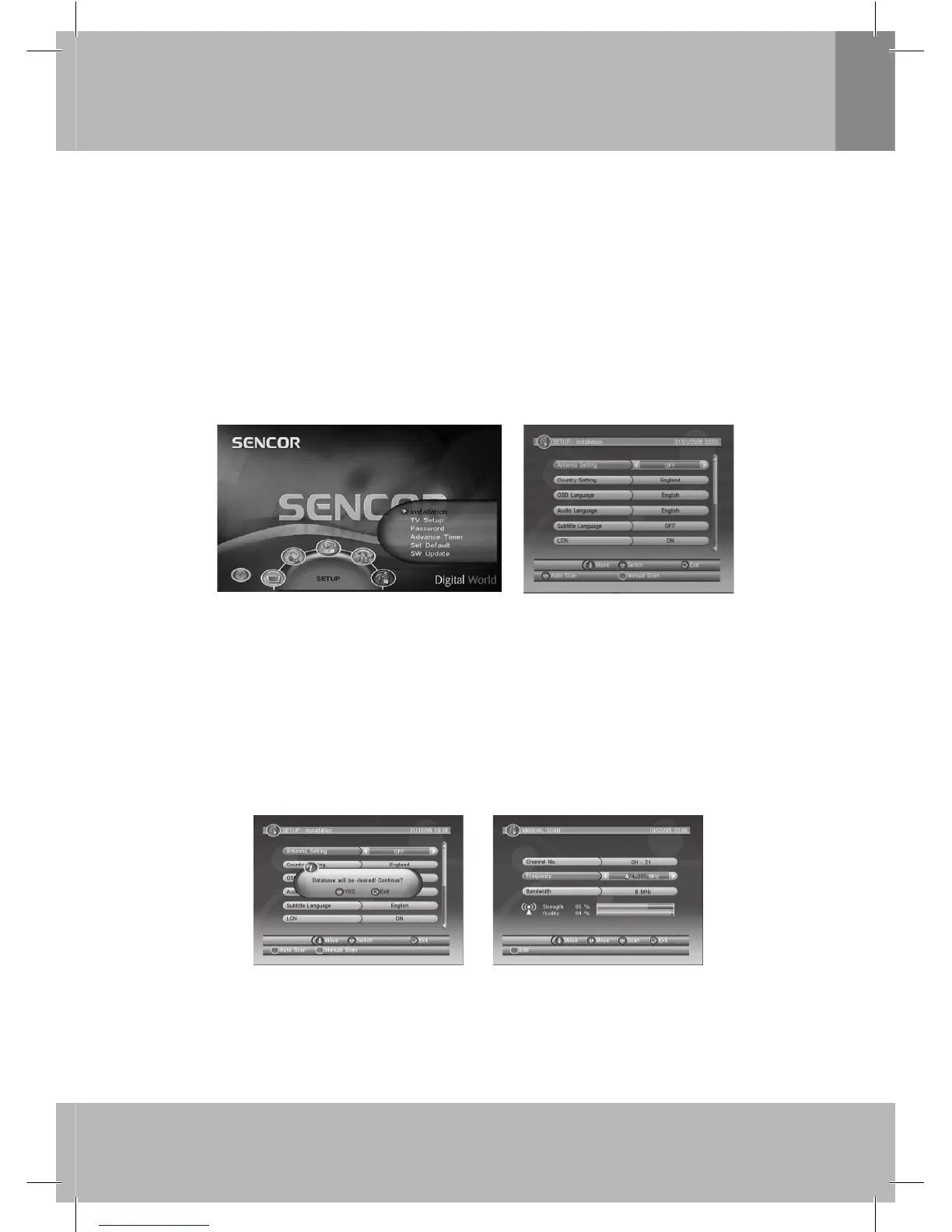
1. Press <Menu> button to enter Main Menu.
2. Press
/// to select different sub-menu.(See Figure 1)
3. Press <OK> button to enter the selected sub-menu.
4. Press
/
and choose a desire function. Use
/
to set up. Press OK to confi rm.
5. Press <Menu/Exit> to exit the current menu.
If there is no channel database in the STB, it will show Installation menu directly when booting. See
Figure 2. You can press <OK> button to start Auto Scan or <GREEN> button to start Manual Scan.
Warning:
Radio channels are scanned together with TV channels. These are saved in radio channel lists. Edit
functions and receiving functions are identical to edit and receiving functions on TV channels.
Figure 1. Main Menu - SETUP Figure 2. SETUP - Installation
1.2 How to receive the programs?
Scan the possible frequency and bandwidth to receive the programs.
Press <OK> or <GREEN> button to start Auto Scan or Manual Scan.
1.2.1 Auto Scan
Auto Scan will erase the database fi rst, and scans default frequency and bandwidth by Country Setting.
Follow the steps (1) - (4) at section 1.1. Then Press <OK> button to confi rm to clear the current database
and start Auto Scan.
It costs time to do Auto Scan, user can press <Exit> button to exit at anytime. See Figure 3. Later if you
want to scan again, you can follow above Quick Installation procedure.
Figure 3. Clear database message Figure 4. Manual Scan edit
1.2.2 Manual Scan
Manual Scan adds the scanning results into database, it doesn’t erase the database. But the User
has to know the Frequency and Bandwidth for scanning. If the user scans the same Frequency and
Bandwidth more than once, the previous programs will be overwritten. Follow the steps (1) - (4) at scetion
1.1.


 To Next Page
 Loading...