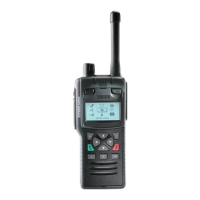
To adjust brightness:
1. Select Menu > Options > Settings > Display Settings > Day/Night
Mode.
2. Select Backlight Level.
3. Rotate the Navi-knob to adjust the intensity of the backlight and the
keypad illumination on a scale of 1–7 (max.).
Day/Night mode
When a call or message is received, and when you press any key, the
backlight lights up the display and keypad. A bright display can be a
potential distraction, particularly when driving at night or in poor
lighting conditions. Day/Night mode lets you adjust the intensity of the
backlight and keypad illumination to suit your working conditions. Night
mode reduces the glare from the display, making it ideally suited for
night time use.
When the preferences for day and night mode have been set, switching
between the modes automatically adjusts the backlight and display
settings.
To change Day/Night mode settings
1. Select Menu > Options > Settings > Display Settings > Day/Night
Mode.
2. Scroll to each option (highlight it) to make your adjustments:
Day Mode—to toggle between Day Mode and Night Mode press
the Toggle context key.
Backlight Enabled—to toggle the backlight on/off press the Toggle
context key. When a tick appears in the box, the backlight is on, and
when the box is empty, the backlight is off.
Backlight Level—to adjust the intensity of the backlight and the key
pad illumination on a scale of 1 to 7 .
46
SC21 Series – 10/2017



 To Next Page
 Loading...