SHANLING M5S – ADVANCED USER MANUAL
Page 3
System
MAIN MENU
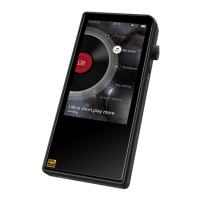
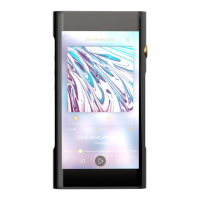
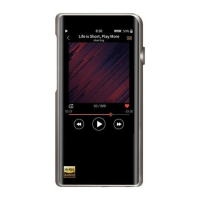
Main menu consists of twelve icons of submenus and Now playing bar, click on bar for quick jump
to now playing screen.
Swipe left or right to circle between two pages of menu.
Swipe left on second screen to open customization menu. Here you can customize look of main
menu, hiding unneeded icons and changing their order. To change order of menu, firstly hide all
icons and then enable them again in your desired order. Clicking “Reset” button will reset menu
to default setting.
For quick return back into main menu, swipe up from bottom edge of screen. This function is
available on all screens.
SUBMENU NAVIGATION
All twelve submenus are using same system of navigation.
Swipe up and down to scroll through the submenu.
To confirm, click on the item in submenu.
To go one step back, swipe right or click “Return” icon in upper left corner.
Right icon in upper right corner of screen serves as quick jump to Now playing screen
Left icon in upper right corner will enable multi-select to delete files or to add files to Playlist.
Items with displayed switch, to enable or disable, click on them once. Enabled = Switch in right
position and red color. Disabled = Switch in left position and white color.
QUICK ACCESS BAR
Slide down from top edge of screen to display Quick access bar.
Four icons represent Wi-Fi, Bluetooth, Buttons lock and Gain switch. Single click will enable or
disable given function.
Sliding bar serves for quick changes of Brightness.
Gear icon serves as quick jump into System settings.
To close Quick Access bar, slide up or click anywhere else on screen.


 To Next Page