EasyManua.ls Logo

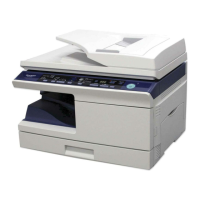
Sharp AL-2040 - User Manual

Sharp AL-2040
90 pages
Print Icon
To Next Page IconTo Next Page
Loading...
DIGITAL MULTIFUNCTIONAL
SYSTEM
OPERATION MANUAL
Page
INTRODUCTION
SETTING UP THE UNIT
LOADING PAPER
MAKING COPIES
SPECIAL FUNCTIONS
MAINTENANCE
TROUBLESHOOTING
THE UNIT
4
7
14
46
52
57
62
70
INSTALLING THE
SOFTWARE
19
APPENDIX
AL-2020
AL-2040
MODEL
AL-2040
AL-2020

Table of Contents

Other manuals for Sharp AL-2040

Questions and Answers

  • J
    johnsoncarrieAug 13, 2025
    How to remove dust and smudges from Sharp All in One Printer copies?
    • M
      Mark HansonAug 13, 2025
      If dust, dirt, or smudges appear on your Sharp All in One Printer copies: * Check if the document glass or SPF is dirty and clean it regularly. * Ensure the original is not smudged or blotchy and use a clean original.
  • L
    loganhortonAug 17, 2025
    Why does my Sharp All in One Printer keep misfeeding paper?
    • S
      Scott WilkinsAug 17, 2025
      Frequent paper misfeeds in your Sharp All in One Printer can occur due to several reasons: * Using non-standard paper. Use standard paper, or if using special papers, feed them through the multi-bypass tray. * Paper being curled or damp. Store paper flat in its wrapper in a dry location. * Pieces of paper inside the unit. Remove all pieces of misfed paper. * Paper guides in the paper tray not set properly. Ensure the guides are correctly set depending on the paper size. * Too much paper in the paper tray or multi-bypass tray. Remove excessive paper from the tray.
  • R
    Ronald LeeAug 21, 2025
    How to fix a Sharp AL-2040 All in One Printer that won't turn on?
    • L
      Lisa SnyderAug 21, 2025
      If your Sharp All in One Printer isn't operating, check the following: * Is the unit plugged in? Ensure the unit is plugged into a grounded outlet. * Is the power switch on? Turn the power switch on. * Is the side cover closed securely? Gently close the side cover. * Is the front cover closed? Gently close the front cover and then close the side cover.
  • Z
    Zachary KramerAug 25, 2025
    What to do if Sharp All in One Printer makes blank copies?
    • B
      Brian WrightAug 26, 2025
      If your Sharp All in One Printer is producing blank copies, consider these potential causes: * Is the original placed face down on the document glass or face up in the SPF? Place the original face down on the document glass or face up in the SPF. * Is the scan head locking switch locked? Unlock the scan head locking switch.
  • D
    Daisy BoyleAug 28, 2025
    How to adjust the copy darkness on a Sharp All in One Printer?
    • E
      Erika GomezAug 28, 2025
      If your copies are too dark or too light on your Sharp All in One Printer: * Check if the original image is too dark or too light and adjust the exposure manually. * If the unit is in automatic exposure mode, adjust the automatic exposure level. * If the unit is in photo exposure mode, cancel the photo exposure mode.
  • T
    timothykimSep 1, 2025
    Why do images rub off easily from copies on my Sharp All in One Printer?
    • C
      cyoungSep 1, 2025
      If images rub off the copy easily from your Sharp All in One Printer, it could be due to: * Using paper that is too heavy. Use paper within the specified range. * The fusing temperature is not appropriate. In the user programs, set "Fusing temperature setting when the bypass tray is used" (program 29) to "2 (High)". * Paper damp? Replace with dry paper. If the unit is not used for long time, remove the paper from the paper tray and store it in its wrapper in a dry location.
  • M
    Monica CarrSep 4, 2025
    How to fix striped copies from Sharp AL-2040 All in One Printer?
    • J
      Jennifer JohnsonSep 4, 2025
      If your Sharp All in One Printer is producing striped copies, the transfer charger may need cleaning. Clean the transfer charger.
  • R
    richard17Sep 9, 2025
    Why is printing not uniform on my Sharp AL-2040 All in One Printer?
    • S
      Sharon BartlettSep 9, 2025
      If printing is not uniform between the edges of the paper and the center on your Sharp All in One Printer, the fusing temperature may not be appropriate. In the user programs, set "Fusing temperature setting when the bypass tray is used" (program 29) to "1 (Low)".

Summary

Introduction to the Sharp Multifunctional System

Using the Manuals

Explains how to use the printed and online manuals for full feature utilization.

Manual Conventions

Details conventions for model operation, illustrations, and icon meanings.

Setting Up the Unit

Setup Procedure

Outlines the step-by-step procedure for initial unit setup and installation.

Component Check and Preparation

Guides users to verify components and prepare the unit for installation.

Installing the TD Cartridge

Detailed instructions for installing the TD cartridge.

Connecting the Power Cord

Steps for safely connecting the power cord and powering on the unit.

Loading Paper

Paper Specifications

Information on paper types, sizes, and weights recommended by SHARP.

Loading the Paper Tray

Step-by-step guide on how to load paper into the paper tray.

Bypass Feed Usage

Instructions for using the multi-bypass tray for various paper types.

Installing the Software

Software Overview

Lists the software included on the CD-ROM for printer and scanner functions.

Before Installation Requirements

Details hardware and software requirements for installing the software.

Software Installation Steps

Step-by-step guide for installing the machine's software.

Making Copies

Copying Process Flow

Outlines the basic steps for performing a copy operation.

Original Placement Guide

Instructions on how to place originals for copying using the document glass.

Copy Settings and Adjustments

Covers copy quantity, exposure, and zoom/reduction settings.

Selecting the Paper Tray

How to select the appropriate paper tray for copying.

Special Functions

Two-Sided Copying

Explains how to perform automatic two-sided copying.

Other Special Functions Overview

Details functions like Toner save mode and power save modes.

Maintenance

TD Cartridge Replacement

Steps for replacing the TD cartridge when toner is needed.

Drum Cartridge Replacement

Instructions for replacing the drum cartridge when it reaches its end of life.

Unit Cleaning Procedures

Guidelines for cleaning the unit's exterior and internal components.

Troubleshooting the Unit

Troubleshooting Guide

A guide to diagnosing and resolving common unit problems.

Status Indicators Explained

Explains the meaning of various indicators and error codes on the operation panel.

Misfeed Removal Procedures

Detailed procedures for removing misfed paper from different areas of the unit.

Appendix

Technical Specifications

Technical specifications for the AL-2020 and AL-2040 models.

Supplies and Options Information

Information on ordering genuine SHARP parts and supplies.

Moving and Storing Instructions

Instructions for safely moving and storing the unit.

Sharp AL-2040 Specifications

General IconGeneral
Print TechnologyLaser
TypeMonochrome
Print Speed20 ppm
Print Resolution600 x 600 dpi
Copy Speed20 cpm
Copy Resolution600 x 600 dpi
Paper Capacity250 sheets
ConnectivityUSB 2.0
Zoom Range25 - 400%
Maximum Paper SizeA4
Memory32 MB
FunctionsPrint, Copy, Scan
Original SizeA4
Copy SizeA4
Paper Capacity Standard250 sheets
Paper Weight60-163 g/m²
Scan DestinationsUSB

Related product manuals