EasyManua.ls Logo

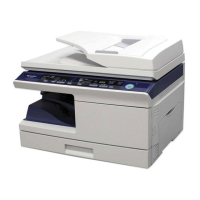
Sharp AL-2030 - User Manual

Sharp AL-2030
92 pages
Print Icon
To Next Page IconTo Next Page
Loading...
DIGITAL MULTIFUNCTIONAL
SYSTEM
OPERATION MANUAL
Page
INTRODUCTION
SETTING UP THE UNIT
LOADING PAPER
MAKING COPIES
SPECIAL FUNCTIONS
MAINTENANCE
TROUBLESHOOTING
THE UNIT
4
7
14
46
52
57
61
69
INSTALLING THE
SOFTWARE
19
APPENDIX
AL-2030
AL-2040CS
MODEL
AL-2040CS
AL-2030
NA
S1
ZZ
AL-2030/AL-2040CS OPERATION MANUAL
AL-2030_2040CS.book 1 ページ 2007年4月6日 金曜日 午前11時32分

Table of Contents

Other manuals for Sharp AL-2030

Questions and Answers

  • K
    Kelly BaxterAug 19, 2025
    How to clean dust, dirt, smudges that appear on copies from Sharp AL-2030?
    • M
      Michael HallAug 20, 2025
      If you notice dust, dirt, or smudges appearing on copies from your Sharp All in One Printer, the document glass or SPF may be dirty. Clean them regularly.
  • T
    Tammy BensonAug 21, 2025
    Why does my Sharp AL-2030 All in One Printer paper misfeed frequently?
    • D
      Devon CunninghamAug 22, 2025
      Frequent paper misfeeds in your Sharp All in One Printer may be due to several reasons: * Using non-standard paper. Use standard paper, or if using special papers, feed them through the multi-bypass tray. * Paper is curled or damp. Store paper flat in its wrapper in a dry location. * Pieces of paper are stuck inside the unit. Remove all pieces of misfed paper. * Paper guides in the paper tray are not set properly. Adjust the guides according to the paper size. * The paper tray or multi-bypass tray is overloaded. Remove excessive paper from the tray.
  • G
    Gregory MackAug 25, 2025
    What to do if my Sharp AL-2030 All in One Printer makes blank copies?
    • C
      Crystal MerrittAug 25, 2025
      If your Sharp All in One Printer is producing blank copies, check the following: * Ensure the original document is placed correctly. Place it face down on the document glass or face up in the SPF. * Verify the scan head locking switch. Make sure it is unlocked.
  • L
    leecandiceAug 26, 2025
    How to fix images that rub off the copy easily from Sharp AL-2030 All in One Printer?
    • T
      Thomas BaldwinAug 26, 2025
      If images rub off copies easily from your Sharp All in One Printer, consider these solutions: * The paper may be too heavy. Use paper within the specified weight range. * The fusing temperature may not be appropriate. In the user programs, set "Fusing temperature setting when the bypass tray is used" (program 29) to "2 (High)". * Paper may be damp. Replace with dry paper. If the unit is not used for a long time, remove the paper from the paper tray and store it in its wrapper in a dry location.
  • J
    Janet HooverAug 27, 2025
    What to do if my Sharp AL-2030 copies are too dark or too light?
    • H
      hansenanneAug 27, 2025
      If your Sharp All in One Printer copies are either too dark or too light, here's what you can do: * If the original image is too dark or too light, adjust the exposure manually. * If the unit is in automatic exposure mode, adjust the automatic exposure level. * If the unit is in photo exposure mode, cancel the photo exposure mode.
  • C
    Christine LangAug 29, 2025
    How to troubleshoot a Sharp AL-2030 that does not operate?
    • B
      Brandon TurnerAug 30, 2025
      If your Sharp All in One Printer is not operating, check these items: * Is the unit plugged in? Plug the unit into a grounded outlet. * Is the power switch on? Turn the power switch on. * Is the side cover closed securely? Gently close the side cover. * Is the front cover closed? Gently close the front cover and then close the side cover.
  • M
    Mr. James LewisSep 1, 2025
    What does it mean when the paper tray indicator is blinking on my Sharp All in One Printer?
    • D
      Douglas HarrisSep 1, 2025
      If the paper tray indicator is blinking on your Sharp All in One Printer, it means the paper tray is not pushed in correctly, or there is no paper in the tray. Push the tray all the way in or load paper in the tray.
  • T
    Travis RobertsSep 2, 2025
    Why does my Sharp All in One Printer have printing that is not uniform between the edges of the paper?
    • G
      gabriellebatesSep 3, 2025
      If the printing is not uniform between the edges of the paper, the fusing temperature may not be appropriate. In the user programs, set "Fusing temperature setting when the bypass tray is used" (program 29) to "1 (Low)".
  • C
    Cheryl HicksSep 5, 2025
    What does it mean when a letter and a number appear alternately on my Sharp All in One Printer?
    • J
      Jeffrey GardnerSep 5, 2025
      If a letter and a number appear alternately on your Sharp All in One Printer, the scan head locking switch is locked. Unlock the scan head locking switch.
  • M
    megan34Sep 7, 2025
    Why is the power save indicator steadily lit on my Sharp All in One Printer?
    • R
      rebecca30Sep 7, 2025
      If the power save indicator is steadily lit on your Sharp All in One Printer, the unit is either in the preheat mode or the auto power shut-off mode. * If it's in preheat mode, press any key to cancel it. * If it's in auto power shut-off mode, press the start key to cancel it.

Summary

Setting Up the Unit

Operation Panel Overview

Explains the function of each button and indicator on the unit's operation panel.

Initial Setup Procedure

Provides a step-by-step guide for the initial setup of the unit for first-time use.

Installing the TD Cartridge

Step-by-step guide for installing the TD cartridge into the unit.

Powering On and Initial Settings

Instructions for powering on, understanding initial indicators, and power saving modes.

Loading Paper

Paper Specifications

Specifies recommended paper types, sizes, and weights for the unit's trays.

Loading the Paper Tray

Step-by-step instructions for loading paper into the main paper tray.

Bypass Feed Operations

Instructions for using the multi-bypass tray for various paper types, including special media.

Installing the Software

Software Overview and Requirements

Lists included software and details hardware/software requirements for installation.

USB Connection Installation

Step-by-step guide for installing software using a USB connection to the computer.

Network Connection Setup

Steps for setting up the machine as a network printer or shared printer.

Making Copies

Special Functions

Maintenance

Troubleshooting the Unit

Troubleshooting Guide

A table listing common problems, their possible causes, and solutions.

Misfeed Removal Procedures

Comprehensive guide on how to remove paper misfeeds from various locations.

Appendix

Service and Warranty Information

Sharp AL-2030 Specifications

General IconGeneral
Print technologyLaser
Maximum resolution600 x 600 DPI
Print speed (black, normal quality, A4/US Letter)16 ppm
Copy speed (black, normal quality, A4)20 cpm
Multi-Purpose trayYes
Total input capacity250 sheets
Auto document feeder (ADF) input capacity50 sheets
Power requirements120 VAC +/- 10 %; 60 Hz +/- 2 %
All-in-one functionsCopy, Scan
Compatible operating systemsWindows 98, Me, 2000, XP, Vista
Market positioningBusiness

Related product manuals