INSTALLING THE SOFTWARE
44
10
You will return to the window of step 8. If you wish to install
Button Manager or Sharpdesk, click the "Utility Software"
button.
If you do not wish to install the Utility Software, click the "Close" button and
go to step 12.
Installing the Utility Software
11
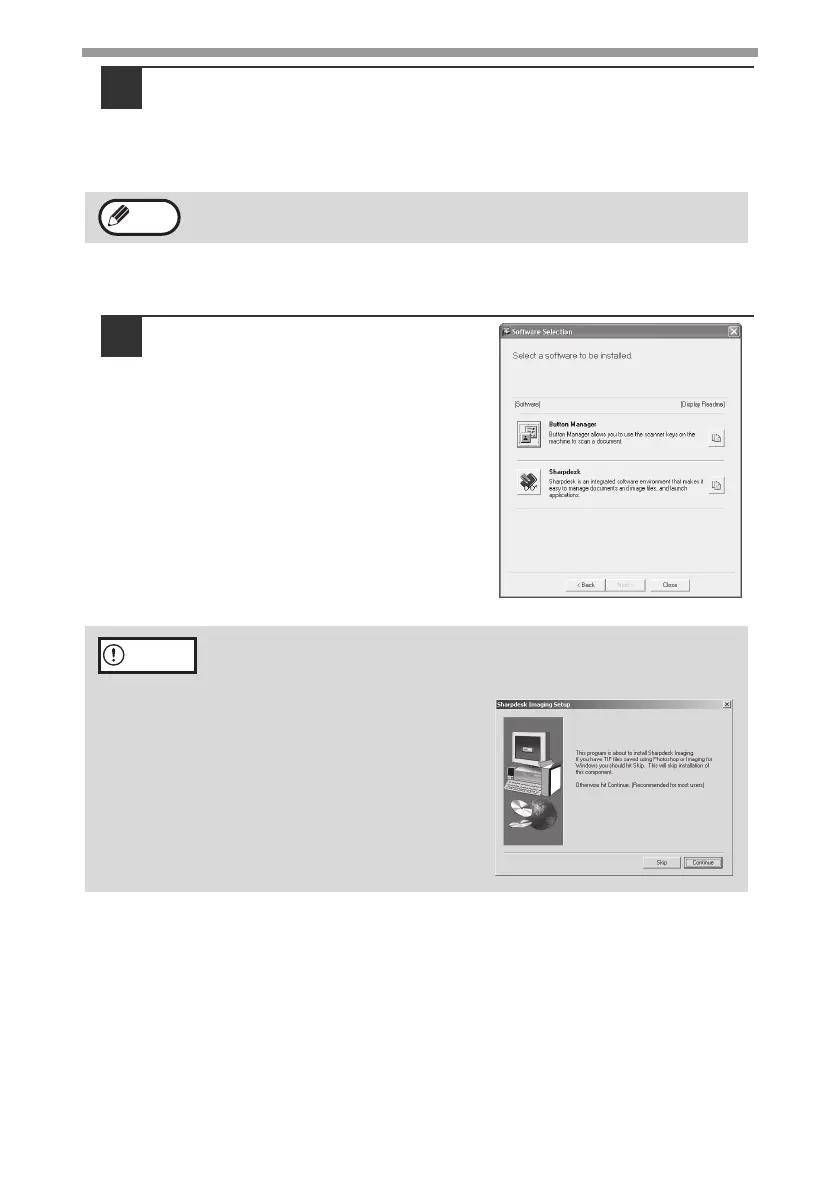
Click the "Button Manager" or the
"Sharpdesk" button.
Click the "Display Readme" button to
show information on packages that are
selected.
Follow the on-screen instructions.
After the installation, a message prompting you to restart your computer
may appear. In this case, click the "Yes" button to restart your computer.
In Windows 98/Me/2000, if the following screen appears, click the "Skip"
button or the "Continue" button as appropriate to continue the
Sharpdesk installation.
If "Skip" is selected, the Sharpdesk
installation will continue without
installing Sharpdesk Imaging.
If "Continue" is selected,
Sharpdesk Imaging will be
installed. If Imaging for Windows is
installed on your computer,
Sharpdesk Imaging will overwrite
Imaging for Windows.
Note
Caution
!AL-2050CS.book 44 ページ 2008年1月7日 月曜日 午後8時10分



 To Next Page