80
Useful adjustment settings
Rotate
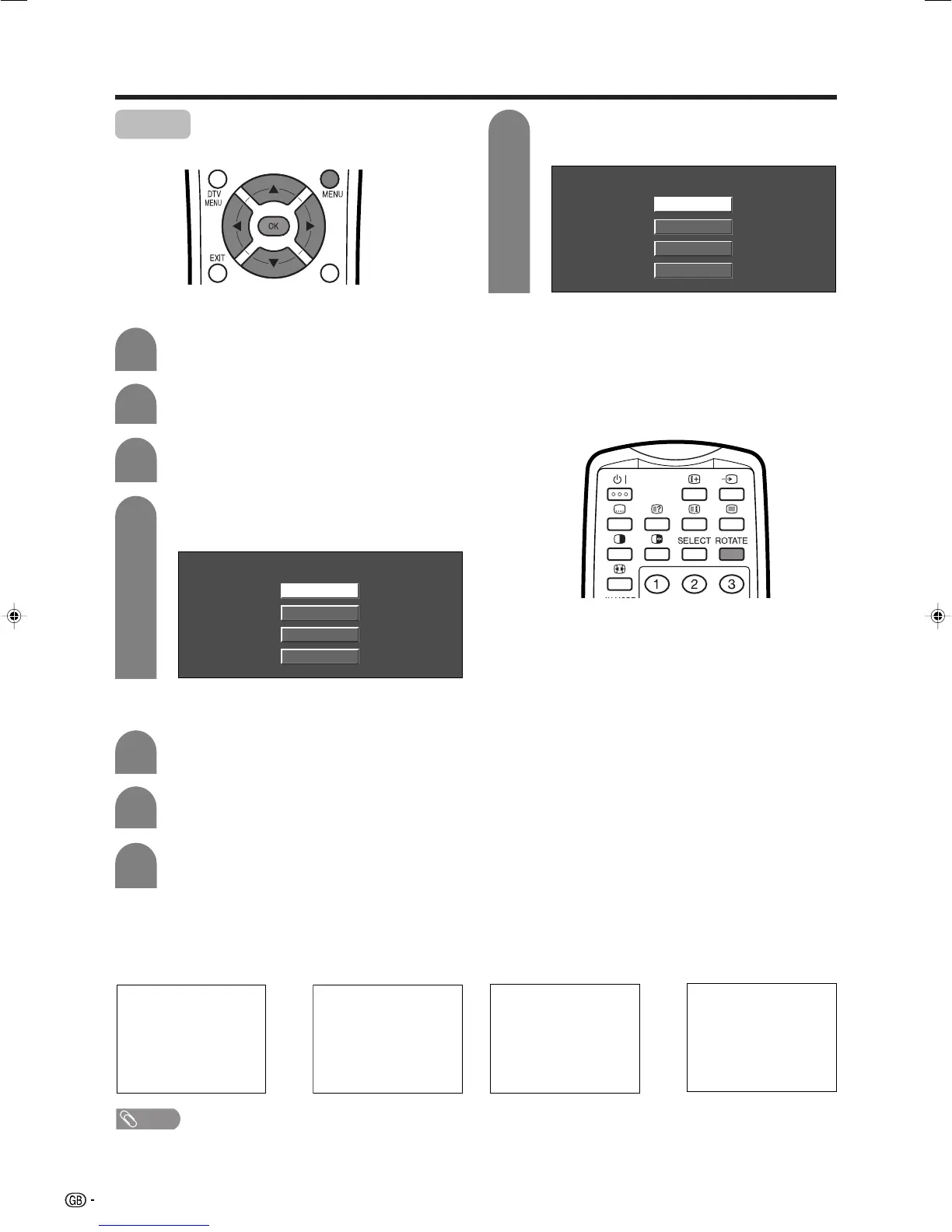
You can set the orientation of the picture.
Press MENU and the MENU screen displays.
1
2
NOTE
• If you choose “Mirror” or “Rotate”, the sound orientation also changes.
Press c/d to select “Setup”.
Press a/b to select “Rotate”, and then press
OK.
3
AV input mode
Press MENU and the MENU screen displays.
1
2
Press c/d to select “Setup”.
Press a/b to select “Rotate”, and then press
OK.
3
[Normal]: normal image. [Mirror]: mirror image.
ABC
ABC
4
Press a/b to select the desired mode, and
then press OK.
Normal
Mirror
Upside Down
Rotate
PC input mode
4
Press a/b to select the desired mode, and
then press OK.
Normal
Mirror
Upside Down
Rotate
[Upside Down]: upside
down image.
[Rotate]: rotated image.
ABC
ABC
When you press ROTATE the current mode displays.
While the indicator displays, each time you press the
button it will change as follows:
NormalsMirrorsUpside DownsRotate
Using ROTATE on the remote control
LC-37AD1E(E)-i 03.11.28, 8:36 AM80





 To Next Page