EasyManua.ls Logo

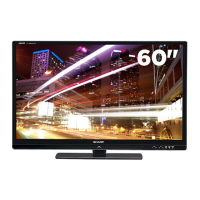
Sharp Aquos LC-60LE845U - User Manual

Sharp Aquos LC-60LE845U
94 pages
Print Icon
To Next Page IconTo Next Page
Loading...
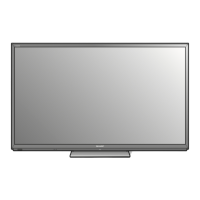
LC-70LE845U LC-60LE845U OPERATION MANUAL MODE D'EMPLOI MANUAL DE OPERACIÓN
SHARP ELECTRONICS CORPORATION
Sharp Plaza, Mahwah, New Jersey 07495-1163
SHARP CORPORATION
Printed in Mexico
Imprimé au Mexique
Impreso en México
TINS-F442WJZZ
12P03-MX-NM
ENGLISHFRANÇAISESPAÑOL
IMPORTANT : Please read this operation manual before starting operating the equipment.
IMPORTANT : Veuillez lire ce mode d'emploi avant de commencer à utiliser l'appareil.
IMPORTANTE : Lea este manual de operación antes de comenzar a operar el equipo.
LC-70LE845U
LC-60LE845U
LIQUID CRYSTAL TELEVISION
TÉLÉVISEUR ACL
TELEVISOR CON PANTALLA
DE CRISTAL LÍQUIDO
OPERATION MANUAL
MODE D’EMPLOI
MANUAL DE OPERACIÓN
ENGLISHFRANÇAISESPAÑOL
LC-7060LE845UECover.indd1LC-7060LE845UECover.indd1 2012/02/0211:03:452012/02/0211:03:45

Table of Contents

Questions and Answers

  • T
    Taylor VelezJul 29, 2025
    Why does my Sharp LCD TV have no sound?
    • R
      Rachel TranJul 29, 2025
      There could be several reasons why your Sharp LCD TV has no sound. Here are a few things to check: * Ensure the connection to other components is correct. * Verify that the volume isn't too low and that you haven't pressed MUTE on the remote. * Check the audio output of any connected external equipment to ensure it's not too low or muted. * If using HDMI, ensure the audio is configured to output through the HDMI cable. * Check the 'Audio Select' setting if using PC IN or HDMI 2.
  • R
    rodriguezaliciaAug 2, 2025
    What to do if my Sharp LCD TV has no power?
    • E
      ericrhodesAug 2, 2025
      First, ensure that you have pressed the POWER button on the remote control. Then, check if the AC cord is properly connected. Finally, verify that the main power switch on the TV is turned on.
  • C
    Crystal DavisAug 6, 2025
    How to fix a Sharp LCD TV remote that is not working?
    • R
      Rebekah HernandezAug 6, 2025
      If your Sharp LCD TV remote isn't working, try the following: * Ensure the equipment to be operated by the remote control unit is set correctly by pressing the TV button. * Check that the batteries are inserted with the correct polarity (+/-). * Replace worn-out batteries with new ones. * Avoid using the remote under strong or fluorescent lighting. * Make sure a fluorescent light isn't interfering with the remote control sensor. * Check if "RC Control Lock" is selected in "Operation Lock Out."
  • D
    David TannerAug 11, 2025
    Why does my Sharp Aquos LC-60LE845U LCD TV power off suddenly?
    • K
      kyle32Aug 11, 2025
      Your Sharp LCD TV might be turning off suddenly due to a few reasons. Check if the sleep timer is set. Also, review the power control settings. If the unit's internal temperature has increased, remove any objects blocking the vents or clean them to improve ventilation.
  • C
    christopher76Aug 15, 2025
    What to do if my Sharp Aquos LC-60LE845U LCD TV cannot be operated?
    • J
      james67Aug 15, 2025
      If your Sharp LCD TV isn't operating correctly, it might be due to external influences like lightning or static electricity. Turn off the power of the TV or unplug the AC cord, wait 1 or 2 minutes, and then plug it back in to restore operation.
  • S
    Samuel HamiltonAug 19, 2025
    How to correct strange colors on my Sharp LCD TV?
    • T
      Timothy GrantAug 19, 2025
      If you are experiencing strange colors, light colors, or color misalignment on your Sharp LCD TV, try adjusting the picture tone. Also, consider whether the room is too bright, as this can affect the picture's appearance.
  • S
    Shawn ClarkAug 25, 2025
    Why is the picture cut off on my Sharp LCD TV?
    • W
      William OdomAug 25, 2025
      If the picture is cut off or has a sidebar screen on your Sharp LCD TV, check if the image position is correct. Also, make sure screen mode adjustments, such as picture size, are set correctly.

Summary

IMPORTANT INFORMATION

IMPORTANT SAFETY INSTRUCTIONS

Crucial safety precautions for using the television.

QUICK REFERENCE

QUICK INSTALLATION TIPS

Introduction to Connections

Connecting to External Equipment

Connecting a Blu-ray Disc;DVD Player or HD Cable;Satellite Set-top Box

Instructions for connecting media players and set-top boxes via HDMI.

When using Component cable (COMPONENT)

Steps for connecting via component cables.

Connecting a VCR, Game Console, Camcorder or Cable;Satellite Set-top Box

How to connect older AV equipment using composite cables.

Connecting a Surround System;Audio System

Guidelines for connecting audio systems for surround sound.

Connecting a PC

Watching TV

Initial Installation

Guide for the first-time setup process.

CH Search (Channel search)

Network

Instructions for connecting the TV to a network.

Direct Button Operation

On-Screen Display Menu

Menu Items

Picture Settings

Audio Settings

Power Control

System Options

Initial Setup

EZ Setup

Re-running the initial setup process.

V-Chip

Information

Software Update

Procedures for updating the TV's system software.

Updating the Software via the Network

Updating the Software with a USB Memory Device

Enjoying 3 D Image Viewing

Viewing 3 D Images

Instructions on how to view 3D content.

Watching 2 D Images in 3 D

Configuring the TV Settings to Enhance 3 D Image Viewing

3 D Setup

Enjoying Photo;Music;Video Playback

Connecting a USB Memory Device;USB Hard Drive

How to connect USB storage devices for media playback.

Connecting a Home Network (DLNA) Server

Connecting to a DLNA server for media playback.

Selecting the Folders to Play Back

Photo Mode

USB Menu

Video Mode

DivX Setup

Playing Back Files from a Portable Device or PC

Set Up Home Network

Configuring network settings for remote playback.

Other Viewing Options

Presetting Remote Control Function

Programming the remote to control other devices.

Operating the Connected Equipment

Controlling connected AV devices via the remote.

Using AQUOS LINK

Controlling HDMI Equipment Using AQUOS LINK

Operating HDMI devices via AQUOS LINK.

AQUOS LINK Setup

Recorder Power On;Off

Using a PC

Displaying a PC Image on the Screen

Connecting and displaying a computer's screen output.

Setting Audio Input

Adjusting the PC Image

Auto Sync. (for Analog PC Input Mode Only)

Automatic adjustment of PC image for analog input.

Fine Sync.

Control of the TV

Controlling the TV via PC using RS-232C or IP.

Using the Internet

Connecting to the Internet

Requirements and methods for internet connection.

Using an ETHERNET cable

Connecting the TV to the internet using an Ethernet cable.

Using the wireless LAN

Connecting the TV to the internet via wireless LAN.

Internet Setup

Wireless Setup

Setting up a wireless LAN connection.

Checking Your Internet Connection

IP Setup

Configuring IP address settings for the TV.

Entering Text (Software Keyboard)

Using the Browser

Using the Toolbar

Browsing Web Contents

Viewing web content on the TV.

Browser Settings

Using Applications via the Internet

Using the Application Window

Managing and launching TV applications.

Enjoying Skype

Getting Started

Initial steps for using Skype on the TV.

Connecting the Communication Camera

How to connect the Skype camera to the TV.

Selecting Skype on the Application Window

Selecting a Contact and Starting a Video Call

Receiving Skype Calls

How to answer incoming Skype calls.

Appendix

Setting the TV on the Wall

Guidelines for mounting the TV on a wall.

Troubleshooting

Troubleshooting - 3 D Images

Solutions for issues related to 3D image display.

Troubleshooting - Error Message

Explanations and solutions for error codes.

Specifications

Calling for Service

LIMITED WARRANTY

Terms and conditions of the consumer limited warranty.

Sharp Aquos LC-60LE845U Specifications

General IconGeneral
BrandSharp
ModelAquos LC-60LE845U
CategoryLCD TV
LanguageEnglish

Related product manuals