172
Storage
Check memory space of internal storage, USB drive and SD
Card, mount or unmount SD Card, erase data on SD Card, etc.
Settable items are the following.
・Available items vary depending on USB drive status.
Item Description
Internal
shared
storage
View information on internal storage
usage.
(USB drive
name)
1
Check data saved on USB drive.
SD Card
Check data saved on SD Card.
Mount or unmount SD Card, encrypt SD
Card, etc.
For details on mounting/unmounting SD
Card, see "Internal Storage and SD Card."
1 Appears when the USB host function is in use. See "USB
ホスト機能を利用する (http://help.mb.softbank.jp/aquos-
sense5g/05-06-08.html)" (Japanese) for details.
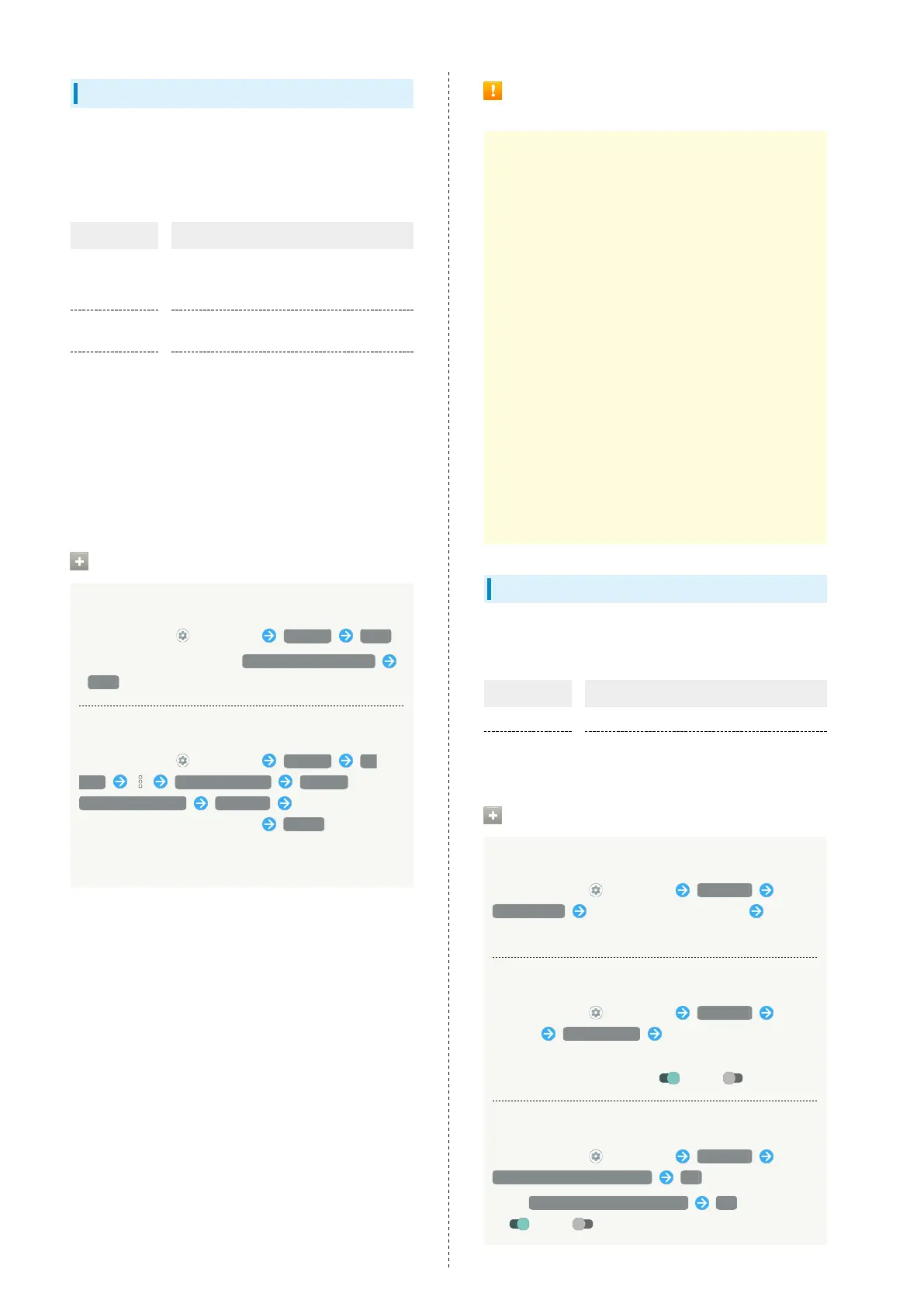
Storage Operations
Checking Data Saved in Internal Storage
In Home Screen, (Settings) Storage Files
・
If SD Card is installed, Tap Internal shared storage
Files .
Encrypting/Decrypting SD Card Data
In Home Screen, (Settings) Storage SD
card Storage settings Encrypt /
Release encryption CONFIRM Enter lock no.
(PIN)/password to unlock screen START
・Set lock no. (PIN)/password for unlocking screen
beforehand.
Cautions for SD Card Encryption/
Decryption
Observe the following when encrypting/decrypting SD Card
data.
・Charge handset adequately beforehand, and keep handset
charged during the process.
・Set lock no. (PIN)/password for unlocking screen
beforehand.
・Encryption/decryption is not available if there is not
enough free space on SD Card.
・Encrypted SD Card cannot be used on any device other
than the one used for encrypting the SD Card.
・To use encrypted SD Card normally, decrypt the SD Card.
・If you reset handset with SD Card encrypted, data on
the SD Card becomes unusable. Disable encryption before
resetting handset.
・An unencrypted SD Card becomes read-only when installed
in a device that has been used for encrypting another SD
Card.
・To write to read-only SD Card, encrypt it.
・SD Card encryption/decryption may take some time. Do
not stop charging or remove SD Card during the process.
If the process is interrupted, SD Card data may be lost.
Accounts
Create or add accounts. Make settings for syncing created or
added accounts. Settable items are the following.
Item Description
Add account Create or add accounts.
Automatically
sync app data
Set whether to automatically sync data.
Account Operations
Adding an Account
In Home Screen, (Settings) Accounts
Add account Tap type of account to add Follow
onscreen prompts
Setting Applications to Sync for Each Account
In Home Screen, (Settings) Accounts Tap
account Account sync Tap applications and data
to sync
・
Tap sync item to toggle on ( )/off ( ).
Setting Whether to Automatically Sync Data
In Home Screen, (Settings) Accounts
Automatically sync app data OK
・
Tap Automatically sync app data OK to toggle on
( )/off ( ).


 To Next Page
 Loading...