EasyManua.ls Logo

Sharp AR-151 - User Manual

Sharp AR-151
52 pages
Print Icon
To Next Page IconTo Next Page
Loading...
MODEL
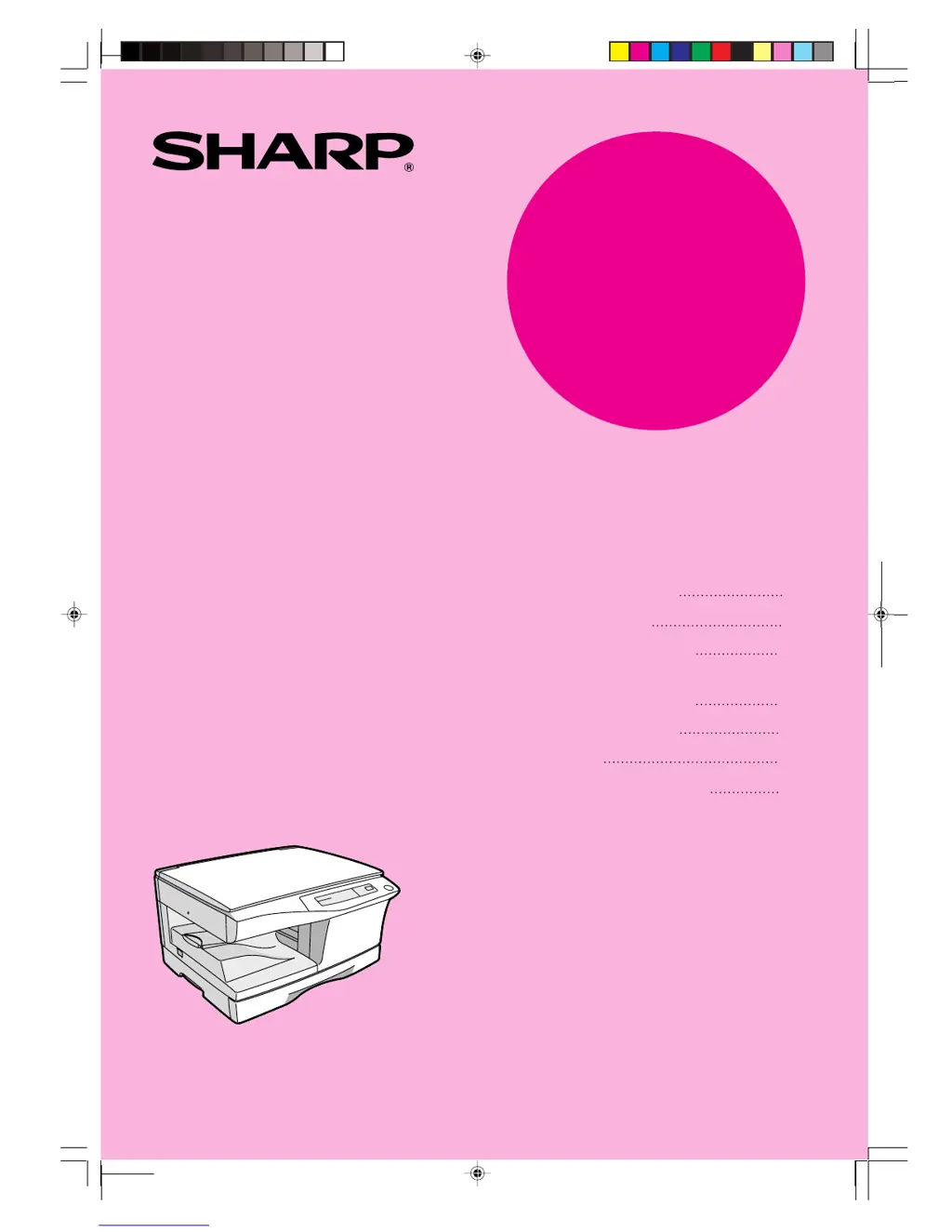
AR-151
GETTING STARTED
MAKING COPIES
SPECIAL FUNCTIONS
SUPPLIES AND
USER MAINTENANCE
COPIER TROUBLE?
APPENDIX
OPTIONAL EQUIPMENT
3
12
19
22
26
33
36
DIGITAL LASER COPIER
OPERATION MANUAL
Page

Other manuals for Sharp AR-151

Questions and Answers

  • P
    Patrick RoachAug 2, 2025
    How to troubleshoot a Sharp AR-151 that does not operate?
    • U
      umcbrideAug 2, 2025
      If your Sharp Copier is not operating, there are several things to check: * Ensure the copier is plugged into a grounded outlet. * Make sure the power switch is turned on. * Verify that the side cover is closed securely. * Confirm that the front cover is closed, and then close the side cover.
  • C
    Crystal BurchAug 7, 2025
    How to adjust the darkness/lightness of copies on a Sharp Copier?
    • C
      Cassandra BrownAug 7, 2025
      If copies from your Sharp Copier are too dark or too light, here's what you can do: * If the original image is too dark or too light, adjust the exposure manually. * If the copier is in automatic exposure mode, adjust the automatic exposure level. * If the copier is in photo exposure mode, cancel the photo exposure mode.
  • D
    Deanna JacksonAug 12, 2025
    What to do if images rub off easily from Sharp AR-151 copies?
    • C
      Courtney DominguezAug 12, 2025
      If images rub off the copy easily when using your Sharp Copier: * Check if the copy paper is too heavy and use paper within the specified range. * Make sure the paper isn't damp. Replace it with dry copy paper. If the copier is not used for a long time, remove the paper from the paper tray and store it in its wrapper in a dry location.
  • B
    brandi13Aug 17, 2025
    Why do dust, dirt, and smudges appear on my Sharp Copier copies?
    • Z
      Zachary ColeAug 18, 2025
      If you're getting dust, dirt, or smudges on your copies from the Sharp Copier: * Clean the original table or original cover regularly. * Ensure you are using a clean original; if it's smudged or blotchy, use a fresh one.
  • R
    Rebecca CampbellAug 22, 2025
    Why does my Sharp AR-151 paper misfeed frequently?
    • M
      mariahsmithAug 22, 2025
      If your Sharp Copier paper misfeeds frequently, here are several potential causes and solutions: 1. Ensure you are using standard paper. If using special papers, feed them through the bypass tray. 2. Make sure the paper is not curled or damp. Store copy paper flat in its wrapper in a dry location. 3. Remove any pieces of misfed paper from inside the copier. 4. Check that the paper guides in the paper tray are set properly according to the paper size. 5. Remove any excessive paper from the paper tray or bypass tray.
  • L
    lewisjosephAug 27, 2025
    What to do if the power save indicator is on on my Sharp AR-151?
    • C
      Carrie LloydAug 28, 2025
      If the power save indicator is on for your Sharp Copier: * If the copier is in preheat mode, press any key to cancel it. * If the copier is in auto power shut-off mode, press the print key to cancel it.

Summary

GETTING STARTED

CAUTIONS

Lists important safety precautions for operating the copier, including handling hot parts and electrical safety.

MAIN FEATURES

Highlights key functionalities like high-speed copying, digital image quality, and substantial copying functions.

OPERATION PANEL

Details the functions and indicators of the copier's control panel buttons and displays for effective operation.

COPIER INSTALLATION

Provides guidelines and precautions for properly installing the copier in a suitable environment.

MAKING COPIES

NORMAL COPYING

Explains the basic procedure for making standard copies using the copier's main functions.

EXPOSURE ADJUSTMENT;PHOTO COPYING

Guides on how to manually adjust copy density for optimal results, especially for photos and dark originals.

REDUCTION;ENLARGEMENT;ZOOM

Details how to select preset ratios or use the zoom function for resizing copies from 50% to 200%.

BYPASS FEED (including special paper)

Describes how to use the bypass tray for feeding standard and special paper types like transparency film.

SPECIAL FUNCTIONS

TONER SAVE MODE

Explains how to activate toner save mode to reduce toner consumption by approximately 10%.

USER PROGRAMS (power save modes, auto clear time, stream feeding mode)

Details how to set or change parameters for power save modes, auto clear time, and stream feeding.

DISPLAYING TOTAL NUMBER OF COPIES

Describes the procedure to view the total count of copies made by the machine via the display.

SUPPLIES AND USER MAINTENANCE

TONER CARTRIDGE REPLACEMENT

Step-by-step guide for safely replacing the toner cartridge when indicated.

USER MAINTENANCE

General advice on cleaning and maintaining the copier for optimal performance and copy quality.

Transfer charger

Procedure for cleaning the transfer charger to resolve streaky or blotchy copy quality issues.

COPIER TROUBLE?

MISFEED REMOVAL

Detailed steps to remove paper jams from different areas of the copier, including paper feed, fusing, and transport.

TROUBLESHOOTING

A table listing common problems, their possible causes, and suggested solutions for quick reference.

STATUS INDICATORS

Explains the meaning of various indicators on the operation panel and display codes for diagnosing issues.

AUTOMATIC EXPOSURE ADJUSTMENT

Guides on how to adjust the automatic exposure level for better copy quality based on original type.

APPENDIX

SPECIFICATIONS

Lists detailed technical specifications of the copier, including dimensions, power, and speed.

SUPPLIES

Details types and sizes of copy paper recommended by SHARP for best results.

OPTIONAL EQUIPMENT

SYSTEM CONFIGURATION

Outlines available optional equipment and their compatibility for configuring a copier system.

SINGLE PASS FEEDER (AR-SP3)

Details the features, specifications, and usage of the Single Pass Feeder for automatic document feeding.

250-SHEET PAPER FEED UNIT (AR-DE9)

Describes the 250-Sheet Paper Feed Unit, its parts, loading, and misfeed removal.

Sharp AR-151 Specifications

General IconGeneral
BrandSharp
ModelAR-151
CategoryCopier
LanguageEnglish

Related product manuals