EasyManua.ls Logo

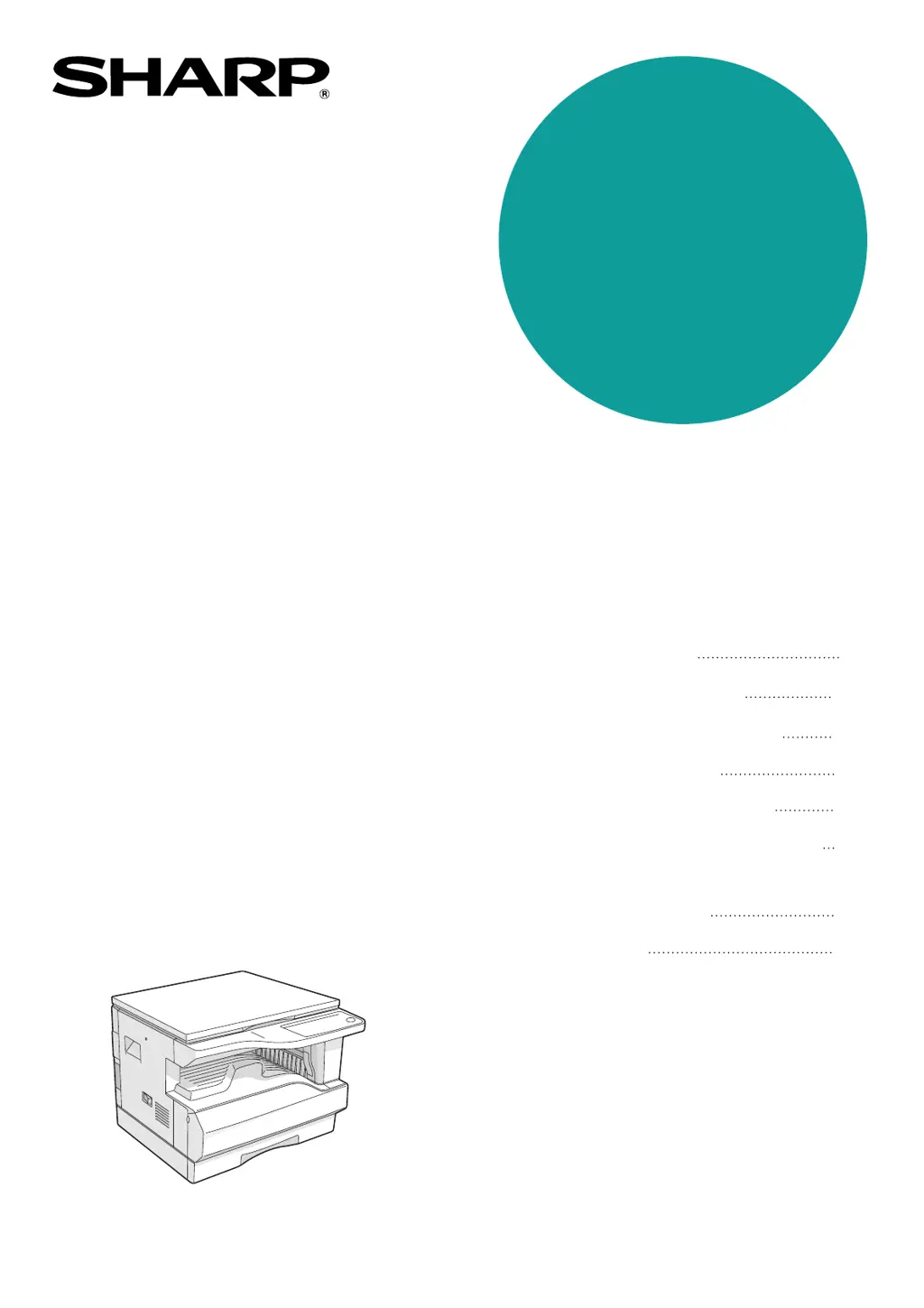
Sharp AR-5316 - User Manual

Sharp AR-5316
80 pages
Print Icon
To Next Page IconTo Next Page
Loading...
MODEL
AR-5316
DIGITAL MULTIFUNCTIONAL
SYSTEM
OPERATION MANUAL
BEFORE USING
THE MACHINE
COPY FUNCTIONS
PRINTER FUNCTIONS
USER SETTINGS
TROUBLESHOOTING
ROUTINE MAINTENANCE
PERIPHERAL DEVICES
AND SUPPLIES
APPENDIX
8
18
29
31
40
56
60
62
Page
HINA
KS2
QSZZ
AR-5316-5320-EX.book 1 ページ 2005年4月8日 金曜日 午前9時35

Table of Contents

Other manuals for Sharp AR-5316

Questions and Answers

  • B
    Benjamin RobinsonAug 16, 2025
    Why plug and play screen does not appear when using a USB cable with Sharp All in One Printer?
    • J
      Joseph HernandezAug 16, 2025
      If the Plug and Play screen does not appear when using a USB cable, and the "Universal Serial Bus controllers" shows a yellow exclamation point or does not appear, check your computer manual for USB troubleshooting or contact your computer manufacturer. Once you have verified that the USB port is enabled, install the software as explained in "INSTALLING THE PRINTER DRIVER".
  • R
    Ruth GreenAug 19, 2025
    Why does my Sharp All in One Printer not operate?
    • E
      Eric EvansAug 19, 2025
      Your Sharp All in One Printer might not be operating due to several reasons: it might not be plugged into a power outlet (plug it into a grounded outlet); the power switch might be off (turn the power switch on); the POWER SAVE indicator may be blinking, indicating the machine is warming up; the front or side cover might not be completely closed (close the cover); the machine might be in auto power shut-off mode (press the [START] key); or the PAPER SIZE indicator might be blinking (change the paper size setting by using the [TRAY SELECT] key, opening and closing the tray, or pressing the [CLEAR ALL] key).
  • S
    Stacey ConradAug 22, 2025
    What to do if my Sharp All in One Printer does not print and the ON LINE indicator does not blink?
    • X
      xgrayAug 22, 2025
      If your Sharp All in One Printer isn't printing and the ON LINE indicator isn't blinking, it could be due to several reasons. The machine might be set to off-line mode (press the [ON LINE] key), the connection with your computer might be faulty (check the printer cable), a copy job might be in progress (wait until it is complete), the port setting might be incorrect (set the port correctly), the wrong machine might be selected in the application for the print job (select the SHARP AR-5316 printer in the Print dialog box), or the printer driver might not be installed properly (delete the AR-5316 software and reinstall it).
  • Z
    Zachary WatsonAug 28, 2025
    Why are copies from my Sharp All in One Printer too dark or too light?
    • C
      christophergibsonAug 28, 2025
      If copies from your Sharp All in One Printer are too dark or too light, ensure you've selected the correct original type using the [AUTO/TEXT/PHOTO] key or manually adjust the exposure with the [Light] and [Dark] keys. Also, adjust the automatic exposure level if the copy is still too light or dark even when AUTO is selected.
  • M
    Megan HarveyAug 31, 2025
    What to do if my Sharp All in One Printer does not print and the ON LINE indicator is blinking?
    • S
      Sarah ShepherdAug 31, 2025
      If your Sharp All in One Printer is not printing and the ON LINE indicator is blinking, it might be due to mismatched tray size settings between the machine and the printer driver (ensure they match). It could also be that the specified paper size hasn't been loaded (load the correct paper size). Additionally, if the PAPER SIZE indicator is blinking, you can manually select a tray using the [TRAY SELECT] key or load paper in the bypass tray and press the [ON LINE] key to begin printing.
  • M
    Mr. Jeffrey Evans MDSep 3, 2025
    Why are there wrinkles on paper from my Sharp All in One Printer, or why does the image disappear?
    • S
      Samuel ReedSep 3, 2025
      Wrinkles and image disappearance on paper from your Sharp All in One Printer can occur if the paper is outside the specified size and weight range (use paper within the specified range). Also, paper that is curled or damp can cause this issue (avoid using curled or crimped paper; replace with dry paper and store it properly).
  • D
    Debbie CastroSep 6, 2025
    Why are there blank copies from my Sharp All in One Printer?
    • W
      William WilliamsSep 6, 2025
      Blank copies from your Sharp All in One Printer are likely because the original is not placed correctly. Ensure the original is face up in the SPF or face down on the document glass.
  • E
    Elizabeth AndersonSep 9, 2025
    Why is part of the image cut off or why is there too much blank space on copies from my Sharp All in One Printer?
    • M
      Mary MartinezSep 9, 2025
      If part of the image is cut off or there's too much blank space on copies from your Sharp All in One Printer, it could be due to incorrect placement of the original (place the original correctly). It might also be due to an inappropriate ratio used for the original and paper size (press the [AUTO IMAGE] key). Another reason could be changing the paper size in the tray without updating the tray's paper size setting (always change the tray's paper size setting when you change the paper size).
  • I
    iunderwoodSep 12, 2025
    What to do if another printer is using the parallel port on my Sharp All in One Printer?
    • A
      Ann LeeSep 13, 2025
      If another printer is using the parallel port, change the port setting of the other printer driver. Ensure that the port of the Sharp All in One Printer driver is set to LPT1.
  • J
    Jill JonesNov 24, 2025
    Why is my Sharp All in One Printer paper misfeeding?
    • E
      elucasNov 24, 2025
      Paper misfeeds in your Sharp All in One Printer can be caused by several factors: - The paper is outside of the specified size and weight range (use copy paper within the specified range). - The paper is curled or damp (do not use curled or crimped paper; replace with dry copy paper and store paper properly). - The paper is not loaded properly (ensure correct installation). - There are pieces of paper inside the machine (remove all pieces of misfed paper). - Too much paper is loaded in the tray (remove excess paper). - Some sheets of paper stick together (fan the paper well before loading). - The guides on the bypass tray do not match the paper width (adjust the guides). - The bypass tray extension is not pulled out (pull it out when loading large paper). - The bypass paper feed roller i...

Summary

CAUTIONS

CAUTIONS ON USING

Safety precautions to follow when operating the machine, including warnings about hot surfaces and proper usage.

IMPORTANT POINTS WHEN SELECTING AN INSTALLATION SITE

Guidelines for choosing a suitable location for the machine to prevent damage and ensure optimal performance.

BEFORE USING THE MACHINE

PART NAMES AND FUNCTIONS

Identifies and explains the various parts of the machine, including the document glass, trays, and covers.

OPERATION PANEL

Details the keys, indicators, and display on the operation panel for controlling machine functions.

POWER ON AND OFF

Instructions for turning the machine on and off, and explanations of power save modes like Preheat and Auto shut-off.

LOADING PAPER

Procedures for loading paper into the paper tray and bypass tray, including guidelines for special papers.

CHANGING A TRAYS PAPER SIZE SETTING

How to adjust the machine's setting to match the paper size loaded in a tray.

COPY FUNCTIONS

NORMAL COPYING

Step-by-step guide for making standard copies from the document glass or the SPF.

Copying from the SPF

Instructions for copying using the Single Pass Feeder (SPF), including original placement and guides.

MAKING A COPY DARKER OR LIGHTER

How to adjust copy exposure manually for different original types (AUTO, TEXT, PHOTO).

SELECTING THE TRAY

How to manually select the paper tray or bypass tray for copying.

SETTING THE NUMBER OF COPIES

How to set the desired quantity of copies to be made, up to a maximum.

REDUCTION;ENLARGEMENT;ZOOM

Explains methods for resizing copies using automatic, preset, or manual zoom ratios.

AUTOMATIC RATIO SELECTION

How to automatically select copy ratios based on original and paper size.

MANUAL RATIO SELECTION

How to manually set copy ratios using preset ratio keys or zoom keys.

SELECTING THE VERTICAL AND HORIZONTAL COPY RATIOS SEPARATELY

How to adjust horizontal and vertical copy ratios independently (XY ZOOM copying).

TWO-SIDED COPYING USING THE BYPASS TRAY

Instructions for performing manual two-sided copying using the bypass tray.

DUAL PAGE COPYING

Feature for automatically separating dual-page originals into two pages for copying.

INTERRUPTING A COPY RUN

How to temporarily pause a copy job to perform another, and then resume the original job.

PRINTER FUNCTIONS

USING THE PRINTER MODE

Explains how to use the machine as a printer via USB or parallel connection.

BASIC PROCEDURE FOR PRINTING

Steps to send a print job from a computer to the machine, including driver setup.

USER SETTINGS

ADJUSTING THE AUTOMATIC EXPOSURE LEVEL

How to fine-tune automatic exposure settings for better copy quality.

TONER SAVE MODE AND HIGH IMAGE QUALITY MODE

Adjusting settings to reduce toner usage or improve image quality.

USER PROGRAMS

Customizing machine operations like auto clear time, preheat mode, and stream feeding.

SELECTING A SETTING FOR A USER PROGRAM

Procedure for selecting and changing specific user program settings.

SETTINGS FOR AUDITING MODE

Configuration options for tracking copy usage and managing accounts.

TROUBLESHOOTING

MACHINE;COPYING PROBLEMS

Troubleshooting common issues related to machine operation and copying.

PRINTING PROBLEMS

Solutions for issues encountered when the machine is used as a printer.

INDICATORS AND DISPLAY MESSAGES

Explains the meaning of various indicators and display messages and how to resolve them.

MISFEED REMOVAL

Detailed instructions for removing paper jams from different parts of the machine.

REPLACING THE TD CARTRIDGE

Step-by-step guide for replacing the TD cartridge when toner is low or depleted.

REPLACING THE DRUM CARTRIDGE

Step-by-step guide for replacing the drum cartridge when it reaches the end of its life.

ROUTINE MAINTENANCE

CHECKING THE TOTAL OUTPUT COUNT AND TONER LEVEL

How to check the total copy/print count and the toner level.

CLEANING THE DOCUMENT GLASS AND SPF;DOCUMENT COVER

Instructions for cleaning the glass surfaces to ensure copy quality.

CLEANING THE BYPASS TRAY PAPER FEED ROLLER

Procedure for cleaning the roller to prevent misfeeds from the bypass tray.

CLEANING THE TRANSFER CHARGER

Procedure for cleaning the transfer charger to resolve streaky or blotchy copies.

PERIPHERAL DEVICES AND SUPPLIES

PERIPHERAL DEVICES

Information about optional equipment such as the single pass feeder.

SINGLE PASS FEEDER

Specifications and information about the optional single pass feeder.

STORAGE OF SUPPLIES

Guidelines for proper storage of consumables like toner and drum cartridges.

APPENDIX

SPECIFICATIONS

Technical specifications of the machine, including dimensions, speed, and power requirements.

SOFTWARE LICENSE

Legal terms and conditions for using the machine's software.

For users in the USA

FCC Compliance Information

Information regarding compliance with FCC regulations for radio frequency interference.

WARRANTY AND DEALER INFORMATION

Details about the limited warranty and the role of authorized dealers.

Sharp AR-5316 Specifications

General IconGeneral
Copying ProcessLaser
Copy Speed16 ppm
Resolution600 x 600 dpi
Warm-up Time45 seconds
Print Resolution600 x 600 dpi
Max Paper SizeA3
Power Consumption1.2 kW
FunctionsCopy
Original SizeMax. A3
Paper WeightTray: 56 - 90 gsm, Bypass tray: 56 - 128 gsm
Paper Capacity350 sheets (250-sheet tray + 100-sheet multi-bypass tray)
Zoom Range25% to 400% in 1% increments

Videos

How to reset service man in Sharp AR 5316

How to add Toner in Sharp AR 5316 by programing

Related product manuals