EasyManua.ls Logo

Sharp AR-208S - User Manual

Sharp AR-208S
43 pages
Print Icon
To Next Page IconTo Next Page
Loading...
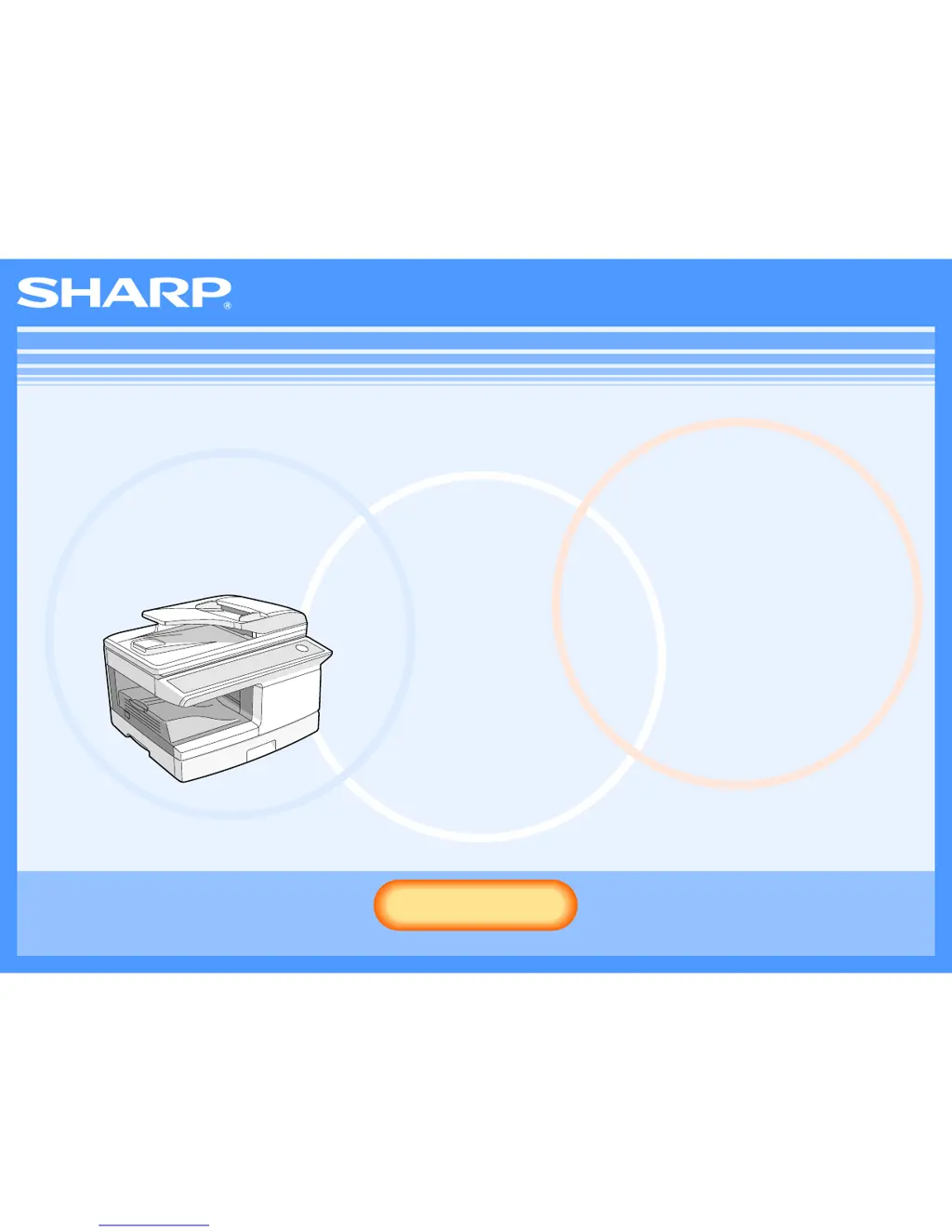
AR-208S/208D
Online Manual
Start
Start
Click this "Start" button.

Other manuals for Sharp AR-208S

Questions and Answers

  • J
    Jonathan WardJul 31, 2025
    Why is the printed image skewed on my Sharp All in One Printer?
    • A
      Andrew LambertJul 31, 2025
      If the printed image from your Sharp All in One Printer is skewed or runs off the paper, check that the "Paper Size" options match the paper loaded in the tray. Also, in the printer driver setup, go to the "Paper" tab and verify that the "Image Orientation" is correctly set. Ensure that the paper is properly loaded and that the document margins and paper size settings in your application are correctly specified.
  • D
    dhallAug 5, 2025
    How to improve scanning quality on Sharp All in One Printer?
    • P
      phillipsjenniferAug 5, 2025
      If you're experiencing poor scanning quality with your Sharp All in One Printer, regularly clean the document glass and the underside of the RSPF. Ensure that you are using a clean original document. Also, check that the resolution setting in the scanner driver is appropriate for the original you are scanning.
  • E
    erussellAug 9, 2025
    Why is my Sharp All in One Printer unable to scan the image?
    • C
      candicemartinAug 9, 2025
      If you are unable to scan images with your Sharp All in One Printer, restart your computer, turn off the printer, unplug it, then restore power and try scanning again. If your application is not TWAIN/WIA compliant, scanning will not be possible. Scanning a large area in full color at high resolution results in a large amount of data and extended scanning times.
  • P
    Penny BrownAug 14, 2025
    What to do if specified paper size has not been loaded in Sharp All in One Printer?
    • E
      Erin KellyAug 14, 2025
      Load the specified size of paper in the paper tray of your Sharp All in One Printer.
  • N
    nicholashunterAug 20, 2025
    How to increase scanner transfer speed on Sharp All in One Printer?
    • J
      Julia WarnerAug 20, 2025
      To improve the scanner transfer speed of your Sharp All in One Printer, see "System requirements for USB 2.0 (Hi-Speed mode)" in the Operation Manual to configure your system as required for USB 2.0, and then set "USB2.0 MODE SWITCH" in the user programs to "HI-SPEED".
  • K
    Keith RussellAug 25, 2025
    How to disable ROPM function on Sharp All in One Printer?
    • S
      Stephen DanielsAug 26, 2025
      If a Notice Page is printed from your Sharp All in One Printer, disable the ROPM function by removing the checkmark from "ROPM" in the "Configuration" tab of the printer driver setup screen.

Summary

Introduction

Trademark Acknowledgments

How to Use the Online Manual

How to Control the Online Manual

Details the use of navigation buttons like CONTENTS and INDEX for quick page access.

Following Links

Describes how to use hyperlinks within the manual to jump to related pages.

Using Bookmarks

Explains how to use the bookmark feature in the left pane to navigate sections.

How to Print Out This Manual

Provides instructions on how to print the manual using Acrobat Reader's print function.

PRINT

Basic Printing

Step-by-step guide on how to print a document from an application like WordPad.

Opening the Printer Driver From the Start Button

Instructions for accessing the printer driver setup screen via the Windows Start menu.

Printer Driver Settings

Explains the various settings available in the printer driver setup screen.

Printing Multiple Pages on One Page

Describes how to print two or four document pages onto a single sheet of paper.

Fitting the Printed Image to the Paper

Details how to adjust the printed image size to match the loaded paper size.

Two-sided Printing

Covers how to enable and configure two-sided (duplex) printing.

Rotating the Print Image 180 Degrees

Explains the feature to rotate the print image by 180 degrees for specific paper types.

Printing a Watermark

Guides on how to add text-based watermarks to printed documents.

Outline of the Print Status Window

Describes the Print Status Window utility that monitors printing jobs and displays errors.

PRINTER SHARING

Sharing the Printer Using Windows Networking

Explains how to set up the machine as a shared printer in a Windows network.

Shared Printer Settings

Provides steps for configuring a computer as a print server for sharing.

Client Settings

Details the procedure for installing the printer driver on client computers.

SCAN

Scanning Overview

Provides a flowchart overview of different scanning methods.

Scanning from a TWAIN-Compliant Application

Step-by-step guide for scanning using TWAIN-compliant applications.

Scanning from a WIA-Compliant Application (Windows XP;Vista)

Instructions for scanning using WIA drivers on Windows XP/Vista.

Scanning from the Scanner and Camera Wizard (Windows XP)

Guide on using the Windows XP Scanner and Camera Wizard for scanning.

Outline of Button Manager

Explains the Button Manager utility for configuring scan settings.

Button Manager Settings

Details how to configure Button Manager settings for scan menus.

TROUBLESHOOTING

PRINTING AND SCANNING PROBLEMS

Troubleshoots common issues related to printing and scanning.

If a Notice Page is printed

Addresses the issue of a notice page appearing after a print job.

PRINTER DRIVER FEATURES

Printer Driver Features

Details the various settings and options available in the printer driver.

Sharp AR-208S Specifications

General IconGeneral
FunctionsPrint, Copy, Scan
TypeLaser
Print Speed20 ppm
Print Resolution600 x 600 dpi
Copy Speed20 cpm
Copy Resolution600 x 600 dpi
Scan Resolution600 x 600 dpi
Paper Capacity250 sheets
InterfaceUSB 2.0
Memory32 MB
Scanner TypeFlatbed
Automatic Document FeederNo
Warm-up Time30 seconds
First Copy Out Time10 seconds
Zoom Range25% - 400%
Paper SizeA4, Letter, Legal

Related product manuals