EasyManua.ls Logo

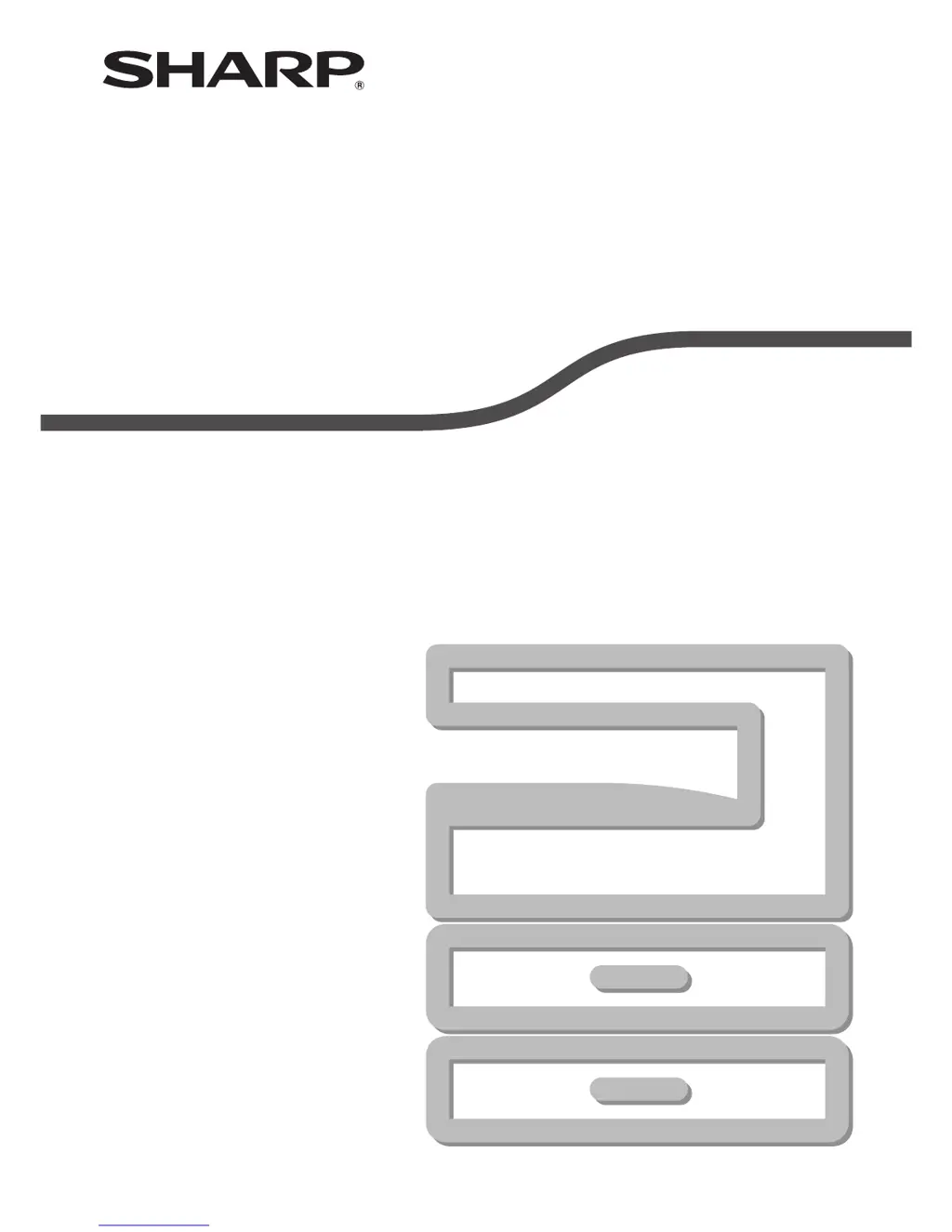
Sharp AR-5520 - User Manual

Sharp AR-5520
90 pages
Print Icon
To Next Page IconTo Next Page
Loading...
MODEL: AR-5516
AR-5520
AR-5516D
AR-5520D
DIGITAL MULTIFUNCTIONAL SYSTEM
OPERATION GUIDE

Table of Contents

Other manuals for Sharp AR-5520

Questions and Answers

  • T
    Tonya Lucas MDAug 18, 2025
    How to adjust the darkness on Sharp All in One Printer?
    • T
      Terry RogersAug 18, 2025
      To address copies that are too dark or too light on your Sharp All in One Printer, you can select AUTO using the [AUTO/TEXT/PHOTO] key, or manually adjust the exposure by pressing the [Light] or [Dark] keys. You can also adjust the automatic exposure level.
  • R
    Renee LaneAug 21, 2025
    What to do if Sharp All in One Printer does not print?
    • K
      kenneth30Aug 21, 2025
      If your Sharp All in One Printer is not printing and the ON LINE indicator is not blinking, ensure the machine is not in off-line mode by pressing the [ON LINE] key to illuminate the ON LINE indicator. Also, verify that the printer cable is securely connected to both the printer and your computer, and consider testing with a known good cable to rule out cable issues.
  • D
    David ValenzuelaAug 26, 2025
    How to troubleshoot Sharp AR-5520 that does not operate?
    • M
      Mark DeanAug 26, 2025
      If the Sharp All in One Printer is not operating, try the following: * Ensure the machine is plugged into a grounded outlet. * Turn the power switch ON. * Wait for the machine to finish warming up. * Close the front cover or the side cover. * If in auto power shut-off mode, press the [START] key. * Change the paper size setting or clear the display using the [PAPER SELECT] key, opening/closing the tray, or pressing the [CLEAR ALL] key.
  • H
    Haley MarquezAug 28, 2025
    Why Sharp All in One Printer copies are smudged?
    • A
      Alexander BrockAug 28, 2025
      If your Sharp All in One Printer produces copies that are smudged or dirty, regularly clean the document glass and the underside of the document cover or SPF/RSPF. Also, ensure you are using a clean original document.
  • J
    johnwintersAug 30, 2025
    What to do if Sharp All in One Printer makes blank copies?
    • W
      Wendy SotoAug 30, 2025
      If you're getting blank copies from your Sharp All in One Printer, make sure you place the original document face up in the SPF/RSPF or face down on the document glass.
  • P
    perkinsannSep 1, 2025
    How to remove black lines from Sharp AR-5520 copies?
    • W
      whitetanyaSep 1, 2025
      If white or black lines appear on copies from your Sharp All in One Printer, clean the long, narrow scanning glass for the SPF/RSPF. Also, clean the transfer charger.
  • M
    Mike HorneSep 4, 2025
    Why Sharp All in One Printer cuts off part of image when copying?
    • V
      Victor BowmanSep 4, 2025
      If part of the image is cut off or there is too much blank space on copies from your Sharp All in One Printer, ensure the original is placed correctly. You can also press the [AUTO IMAGE] key to use the appropriate ratio. Verify that the tray's paper size setting matches the paper loaded in the tray.
  • C
    carol16Sep 6, 2025
    Why Sharp AR-5520 All in One Printer produces wrinkled copies?
    • A
      Angela HernandezSep 6, 2025
      If wrinkles appear in the paper or the image disappears in places when using your Sharp All in One Printer, it might be due to the paper being outside the specified size and weight range. Use copy paper within the recommended range. Also, avoid using curled or damp paper; replace it with dry paper. When the machine is not in use for extended periods, remove the paper from the tray and store it in a dark place in a bag to prevent moisture absorption.
  • T
    Theodore AlvaradoSep 8, 2025
    Why Sharp AR-5520 doesn't automatically detect original size?
    • T
      Tammy EdwardsSep 8, 2025
      If the Sharp All in One Printer does not automatically select the original size when the SPF/RSPF is installed, straighten any curled originals. Also, ensure the machine is not directly exposed to sunlight.
  • M
    Matthew ScottSep 12, 2025
    What does Notice Page NP-001 mean on Sharp AR-5520?
    • D
      Darlene ConleySep 12, 2025
      If a Notice Page (NP-001) is printed, but the print data is incomplete on your Sharp All in One Printer, it means the print job contains more data than the printer memory can handle. To resolve this, disable the ROPM function in the "Configuration" tab of the printer driver setup screen. If you need to use the ROPM function, divide the print data into smaller print jobs.

Summary

Powering the Machine On and Off

Loading Paper into the Machine

Changing Tray Paper Size Settings

Copy Functions Overview

Normal Copying Procedure

How to make a regular copy using the document glass or SPF/RSPF.

Reduction, Enlargement, and Zoom Options

Explains how to enlarge or reduce copy images using various methods.

Automatic Two-Sided Copying

How to perform automatic two-sided copying on duplex models.

Printer Functions Guide

Basic Printing Procedure

Step-by-step guide for printing a document from a computer.

Two-Sided Printing Options

How to perform two-sided printing (Book or Tablet style).

Scanner Functions Guide

Button Manager Settings Configuration

How to configure Button Manager settings for scan menus.

Scanning via TWAIN-Compliant Applications

How to scan using TWAIN-compliant applications.

Scanning via WIA-Compliant Applications

How to scan using WIA-compliant applications like Paint.

User Settings and Customization

Customizing Settings Overview

Explains system settings for customizing machine functions.

System Settings Configuration

Details of various system settings and their explanations.

Troubleshooting Common Issues

Machine and Copying Problems

Lists and addresses common machine and copying problems.

Printing and Scanning Problems

Lists and addresses problems related to printing and scanning.

Indicators and Display Messages Guide

Explains the meaning of indicators and display messages.

Misfeed Removal Procedures

Procedures for removing paper misfeeds from various locations.

Misfeed in SPF;RSPF

How to remove misfeeds from the SPF/RSPF.

Misfeed in Bypass Tray

How to remove misfeeds from the bypass tray.

Misfeed in the Machine

How to remove misfeeds from within the machine.

Misfeed in Upper Paper Tray

How to remove misfeeds from the upper paper tray.

Misfeed in Lower Paper Tray

How to remove misfeeds from the lower paper tray.

Replacing the Toner Cartridge

Routine Maintenance Procedures

Cleaning Document Glass and Covers

How to clean the document glass and related parts.

Cleaning Bypass Tray Paper Feed Roller

How to clean the bypass tray paper feed roller.

Cleaning the Transfer Charger

How to clean the transfer charger for image quality.

Sharp AR-5520 Specifications

General IconGeneral
TypeAll in One Printer
FunctionsPrint, Copy, Scan
Print TechnologyLaser
Print Resolution600 x 600 dpi
Copy Resolution600 x 600 dpi
Scan Resolution600 x 600 dpi
Print Speed20 ppm
Copy Speed20 cpm
Fax Speed33.6 kbps
Network ConnectivityOptional
Operating System CompatibilityWindows, Mac
Paper SizeA3, A4, A5

Related product manuals