EasyManua.ls Logo

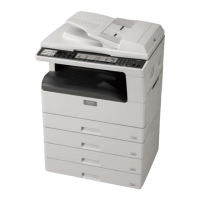
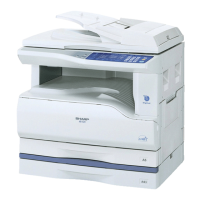
Sharp AR-5516S - User Manual

Sharp AR-5516S
67 pages
Print Icon
To Next Page IconTo Next Page
Loading...
MODEL: AR-5516S
AR-5520S
DIGITAL MULTIFUNCTIONAL SYSTEM
OPERATION GUIDE

Table of Contents

Other manuals for Sharp AR-5516S

Questions and Answers

  • J
    Jennifer DiazAug 19, 2025
    Why is my Sharp AR-5516S not operating?
    • S
      silvalaurenAug 19, 2025
      There could be several reasons why your Sharp All in One Printer is not operating: * It might not be plugged into a power outlet. Ensure it is plugged into a grounded outlet. * The power switch could be off. Turn the power switch on. * The POWER SAVE indicator might be blinking, indicating that the machine is warming up. Wait until it finishes warming up. * The front or side cover might not be completely closed. Make sure to close them completely. * The machine might be in auto power shut-off mode. Press the [START] key to resume normal operation. * The PAPER SIZE indicator might be blinking, indicating a paper size mismatch. Change the paper size setting or clear the display by using the [PAPER SELECT] key, opening and closing the tray, or pressing the [CLEAR ALL] key.
  • M
    mendezsummerAug 23, 2025
    What to do if my Sharp All in One Printer is not printing? (ON LINE indicator was blinking.)
    • M
      Mr. Steven MosesAug 23, 2025
      If your Sharp All in One Printer is not printing and the ON LINE indicator is blinking: * Ensure that the tray size settings are the same on the machine and in the printer driver. * Make sure the specified size of paper has been loaded in the paper tray. * If the PAPER SIZE indicator is blinking, you can press the [PAPER SELECT] key to select a tray manually, or load paper in the bypass tray and press the [ON LINE] key to begin printing. When "Use close paper size" is enabled, printing will take place using a size of paper that is close to the size of the print image.
  • M
    Michelle SteeleAug 26, 2025
    Why are my Sharp AR-5516S All in One Printer copies too dark or too light?
    • N
      Nina NorrisAug 26, 2025
      If your copies are too dark or too light, ensure you select the correct original type for the original. You can select AUTO with the [AUTO/TEXT/PHOTO] key or manually adjust the exposure using the [Light] and [Dark] keys. If the copy is still too light or too dark even with AUTO selected, adjust the automatic exposure level.
  • A
    Austin BellAug 30, 2025
    Why does my Sharp AR-5516S produce blank copies?
    • M
      Maureen ThomasAug 30, 2025
      If your Sharp All in One Printer is producing blank copies, ensure that the original is placed face up in the SPF or face down on the document glass.
  • G
    gonzaleselizabethSep 1, 2025
    Why does my Sharp AR-5516S cut off part of the image or leave too much blank space?
    • F
      fchristensenSep 1, 2025
      If part of the image is cut off or there is too much blank space when copying with your Sharp All in One Printer: * Make sure to place the original correctly. * Press the [AUTO IMAGE] key to have the copy made using the appropriate ratio for the original and paper. * Whenever you change the size of paper loaded in the tray, be sure to change the tray's paper size setting.
  • W
    woodangelaSep 3, 2025
    Why does my Sharp All in One Printer produce copies with smudges or dirt?
    • C
      Christopher ThompsonSep 3, 2025
      If your Sharp All in One Printer produces smudged or dirty copies, regularly clean the document glass or the underside of the document cover/SPF. Also, ensure you are using a clean original.
  • K
    Kevin JohnsonSep 5, 2025
    Why does my Sharp All in One Printer produce copies with white or black lines?
    • R
      Roger VargasSep 5, 2025
      If white or black lines appear on copies from your Sharp All in One Printer, clean the long, narrow scanning glass and the transfer charger.
  • S
    Sarah MillsSep 7, 2025
    Why does the POWER SAVE indicator light up on my Sharp AR-5516S All in One Printer?
    • W
      Walter WillisSep 7, 2025
      If the POWER SAVE indicator is lit on your Sharp All in One Printer: * If other indicators are also lit, the machine is in "Preheat mode". Press any key on the operation panel to resume normal operation. * If only the POWER SAVE indicator and ON LINE indicator are lit, the machine is in auto power shut-off mode. Press the [START] key to resume normal operation.
  • M
    Melissa CampbellSep 9, 2025
    Why does my Sharp AR-5516S All in One Printer display wrinkles on the paper or the image disappears in places?
    • K
      karla53Sep 9, 2025
      If wrinkles appear in the paper or the image disappears in places when using your Sharp All in One Printer: * Use copy paper within the specified size and weight range. * Do not use curled or crimped paper. Replace with dry copy paper. During periods when the machine is not used for a long time, remove the paper from the tray and store it in a dark place in a bag to prevent moisture absorption.
  • M
    Michael JohnsonSep 12, 2025
    Why is my Sharp All in One Printer not automatically selecting the original size? (When the SPF is installed.)
    • M
      Michael CombsSep 12, 2025
      If your Sharp All in One Printer is not automatically selecting the original size, straighten the original if it is curled or folded. Also, install the machine in a location that is not exposed to sunlight.

Summary

BEFORE USING THE MACHINE

PART NAMES AND FUNCTIONS

Identifies and explains the various physical components of the machine.

LOADING PAPER

Details the procedures for loading paper into the machine's trays and bypass.

COPY FUNCTIONS

NORMAL COPYING

Explains the basic steps for making a standard copy from document glass or SPF.

PRINTER FUNCTIONS

BASIC PRINTING

Outlines the fundamental steps for printing documents from a computer.

USER SETTINGS

TROUBLESHOOTING

TROUBLESHOOTING

Provides a guide to resolving common machine and copying problems.

MISFEED REMOVAL

Step-by-step instructions for removing paper jams from various locations.

Sharp AR-5516S Specifications

General IconGeneral
Print TechnologyLaser
TypeMonochrome
FunctionsPrint, Copy, Scan
Print Speed16 ppm
Print Resolution600 x 600 dpi
Copy Speed16 cpm
Copy Resolution600 x 600 dpi
Scan Resolution600 x 600 dpi
Max Paper SizeA3
Warm-up Time25 seconds
First Copy Out Time7.2 seconds
ADF Capacity40 sheets
Duplex PrintingManual
InterfaceUSB 2.0
Dimensions599 x 612 x 511 mm
Paper Input250-sheet tray

Related product manuals