EasyManua.ls Logo

Sharp AR-5516 - User Manual

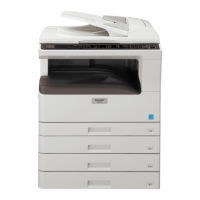
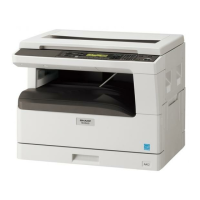
Sharp AR-5516
90 pages
Print Icon
To Next Page IconTo Next Page
Loading...
MODEL: AR-5516
AR-5520
AR-5516D
AR-5520D
DIGITAL MULTIFUNCTIONAL SYSTEM
OPERATION GUIDE

Table of Contents

Other manuals for Sharp AR-5516

Questions and Answers

  • H
    Heather SingletonAug 18, 2025
    How to adjust the darkness on Sharp All in One Printer?
    • B
      Bradley RuizAug 19, 2025
      To address copies that are too dark or too light on your Sharp All in One Printer, you can select AUTO using the [AUTO/TEXT/PHOTO] key, or manually adjust the exposure by pressing the [Light] or [Dark] keys. You can also adjust the automatic exposure level.
  • M
    Mark SingletonAug 20, 2025
    What to do if Sharp AR-5516 All in One Printer does not print?
    • B
      Bruce HowardAug 21, 2025
      If your Sharp All in One Printer is not printing and the ON LINE indicator is not blinking, ensure the machine is not in off-line mode by pressing the [ON LINE] key to illuminate the ON LINE indicator. Also, verify that the printer cable is securely connected to both the printer and your computer, and consider testing with a known good cable to rule out cable issues.
  • Q
    qwalkerAug 26, 2025
    How to troubleshoot Sharp All in One Printer that does not operate?
    • P
      phillAug 26, 2025
      If the Sharp All in One Printer is not operating, try the following: * Ensure the machine is plugged into a grounded outlet. * Turn the power switch ON. * Wait for the machine to finish warming up. * Close the front cover or the side cover. * If in auto power shut-off mode, press the [START] key. * Change the paper size setting or clear the display using the [PAPER SELECT] key, opening/closing the tray, or pressing the [CLEAR ALL] key.
  • L
    Lisa Petty MDAug 28, 2025
    Why Sharp All in One Printer copies are smudged?
    • R
      Roberta MorrowAug 28, 2025
      If your Sharp All in One Printer produces copies that are smudged or dirty, regularly clean the document glass and the underside of the document cover or SPF/RSPF. Also, ensure you are using a clean original document.
  • T
    Timothy RuizAug 30, 2025
    What to do if Sharp AR-5516 makes blank copies?
    • A
      Amanda WilliamsAug 30, 2025
      If you're getting blank copies from your Sharp All in One Printer, make sure you place the original document face up in the SPF/RSPF or face down on the document glass.
  • K
    Kelly BrooksSep 1, 2025
    How to remove black lines from Sharp AR-5516 copies?
    • A
      areedSep 1, 2025
      If white or black lines appear on copies from your Sharp All in One Printer, clean the long, narrow scanning glass for the SPF/RSPF. Also, clean the transfer charger.
  • B
    brianericksonSep 3, 2025
    Why Sharp AR-5516 All in One Printer cuts off part of image when copying?
    • M
      Michelle RobinsonSep 3, 2025
      If part of the image is cut off or there is too much blank space on copies from your Sharp All in One Printer, ensure the original is placed correctly. You can also press the [AUTO IMAGE] key to use the appropriate ratio. Verify that the tray's paper size setting matches the paper loaded in the tray.
  • R
    Robert KlineSep 6, 2025
    Why Sharp All in One Printer produces wrinkled copies?
    • M
      mharrisSep 6, 2025
      If wrinkles appear in the paper or the image disappears in places when using your Sharp All in One Printer, it might be due to the paper being outside the specified size and weight range. Use copy paper within the recommended range. Also, avoid using curled or damp paper; replace it with dry paper. When the machine is not in use for extended periods, remove the paper from the tray and store it in a dark place in a bag to prevent moisture absorption.
  • M
    Michael YangSep 8, 2025
    Why Sharp AR-5516 All in One Printer doesn't automatically detect original size?
    • A
      Andrew AcostaSep 8, 2025
      If the Sharp All in One Printer does not automatically select the original size when the SPF/RSPF is installed, straighten any curled originals. Also, ensure the machine is not directly exposed to sunlight.
  • N
    Natasha LeonSep 12, 2025
    What does Notice Page NP-001 mean on Sharp AR-5516 All in One Printer?
    • F
      fmoralesSep 12, 2025
      If a Notice Page (NP-001) is printed, but the print data is incomplete on your Sharp All in One Printer, it means the print job contains more data than the printer memory can handle. To resolve this, disable the ROPM function in the "Configuration" tab of the printer driver setup screen. If you need to use the ROPM function, divide the print data into smaller print jobs.

Summary

Chapter 1 Before Using the Machine

Part Names and Functions

Identifies and explains the various parts of the machine.

Operation Panel

Details the keys, indicators, and displays on the machine's operation panel.

Power On and Off

Describes the procedures for turning the machine on and off, including power save modes.

Loading Paper

Provides instructions on how to load paper into different trays and the bypass tray.

Chapter 2 Copy Functions

Normal Copying

Explains how to make a standard copy using the document glass or SPF/RSPF.

Setting the Number of Copies

Explains how to set the desired number of copies for a print job.

Reduction;Enlargement;Zoom

Covers options for resizing images during copying.

Automatic Two-Sided Copying (AR-5516 D;AR-5520 D)

Explains duplex copying for models with this feature.

Interrupting a Copy Run (Interrupt Copying)

Details how to temporarily pause a copy job to perform another task.

Copying Multiple Originals Onto a Single Sheet of Paper (2 In 1; 4 In 1 Copy)

Explains combining multiple originals onto one sheet for compact output.

Chapter 3 Printer Functions

Basic Printing

Explains the fundamental steps for printing documents from a computer.

Opening the Printer Driver from the Start Button

Guides on accessing printer settings via the Windows Start menu.

Printer Driver Setting Screen

Explains the layout and functions of the printer driver configuration window.

Setting Advanced Print Functions

Covers advanced printing options and their configurations.

Two-Sided Printing (AR-5516 D;AR-5520 D)

Describes the process of duplex printing for supported models.

Chapter 4 Scanner Functions

Scanning Using the Keys on the Machine

Details how to initiate scans directly from the machine's control panel.

Chapter 5 User Settings

Chapter 6 Troubleshooting

Misfeed Removal

Provides instructions for removing paper misfeeds from different locations.

Replacing the Toner Cartridge

Step-by-step guide for replacing the toner cartridge.

Chapter 7 Routine Maintenance

Sharp AR-5516 Specifications

General IconGeneral
Print TechnologyLaser
FunctionsPrint, Copy, Scan
Print Speed16 ppm
Max Print Resolution600 x 600 dpi
Copy Speed16 cpm
Copy Resolution600 x 600 dpi
Scan Resolution600 x 600 dpi
Duplex PrintingManual
InterfaceUSB 2.0
Dimensions599 x 612 x 511 mm
Fax ResolutionNot available
Paper SizeA3

Related product manuals