EasyManua.ls Logo

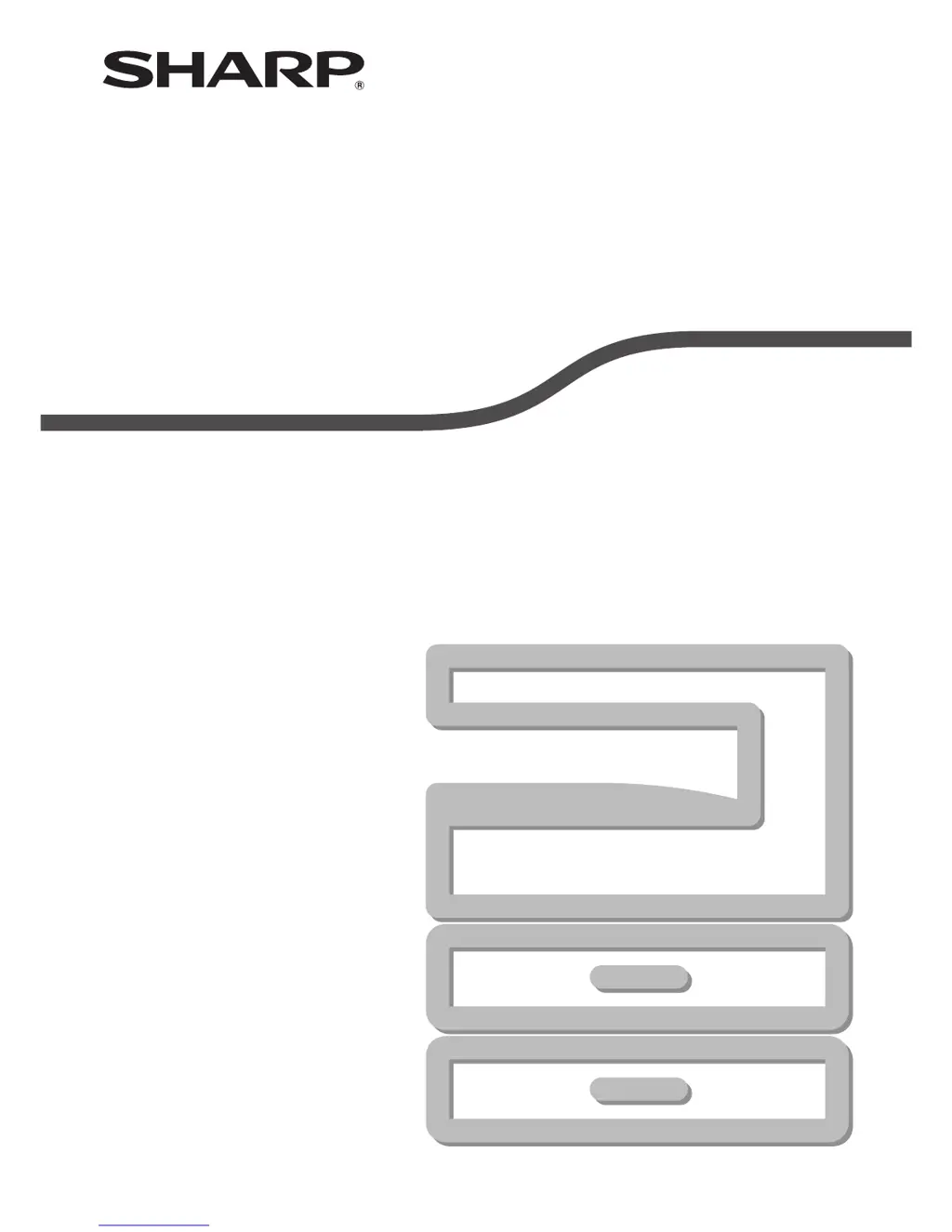
Sharp AR-5520 - User Manual

Sharp AR-5520
90 pages
Print Icon
To Next Page IconTo Next Page
Loading...
MODEL: AR-5516
AR-5520
AR-5516D
AR-5520D
DIGITAL MULTIFUNCTIONAL SYSTEM
OPERATION GUIDE

Table of Contents

Other manuals for Sharp AR-5520

Questions and Answers

  • D
    Dustin RamirezSep 13, 2025
    How to improve scanning quality on Sharp AR-5520?
    • C
      Christine WarrenSep 13, 2025
      To improve poor scanning quality on your Sharp All in One Printer, regularly clean the document glass and the underside of the document cover/SPF/RSPF. Use a clean original document. Ensure that the resolution setting in the scanner driver is appropriate for the original. If scanning a large area at high resolution, use a lower resolution setting or scan a smaller area. If using a TWAIN-compliant application, specify a suitable value for the "B/W Threshold" setting. Adjust the brightness and contrast settings or click the "Auto Brightness/Contrast Adjustment" button.
  • M
    Mia GrossSep 15, 2025
    Why Sharp All in One Printer is unable to scan the image?
    • L
      lambfrankSep 15, 2025
      To resolve issues with being unable to scan images on your Sharp All in One Printer, ensure that your application is TWAIN/WIA compliant. Also, verify that the machine’s scanner driver is selected in your application and that all scanning preferences are set appropriately for the type of original being scanned.
  • B
    Benjamin SawyerNov 22, 2025
    How to fix paper misfeed on Sharp All in One Printer?
    • D
      daniel28Nov 22, 2025
      If your Sharp All in One Printer is experiencing paper misfeeds, there are several potential causes and solutions: * Consult the "MISFEED REMOVAL" section for instructions on removing the misfed paper. * Ensure you are using copy paper within the specified size and weight range. * Avoid using curled or damp paper; replace with dry copy paper, and store paper in a dark, dry place when the printer is not in use. * Verify that the paper is loaded properly in the tray. * Do not overload the paper tray beyond the indicator line. * Adjust the guides on the bypass tray to match the width of the paper. * Pull out the bypass tray extension when loading large paper sizes. * Clean the bypass paper feed roller. * Load A5 size paper in the upper paper tray or bypass tray, not in the ...

Summary

Powering the Machine On and Off

Loading Paper into the Machine

Changing Tray Paper Size Settings

Copy Functions Overview

Normal Copying Procedure

How to make a regular copy using the document glass or SPF/RSPF.

Reduction, Enlargement, and Zoom Options

Explains how to enlarge or reduce copy images using various methods.

Automatic Two-Sided Copying

How to perform automatic two-sided copying on duplex models.

Printer Functions Guide

Basic Printing Procedure

Step-by-step guide for printing a document from a computer.

Two-Sided Printing Options

How to perform two-sided printing (Book or Tablet style).

Scanner Functions Guide

Button Manager Settings Configuration

How to configure Button Manager settings for scan menus.

Scanning via TWAIN-Compliant Applications

How to scan using TWAIN-compliant applications.

Scanning via WIA-Compliant Applications

How to scan using WIA-compliant applications like Paint.

User Settings and Customization

Customizing Settings Overview

Explains system settings for customizing machine functions.

System Settings Configuration

Details of various system settings and their explanations.

Troubleshooting Common Issues

Machine and Copying Problems

Lists and addresses common machine and copying problems.

Printing and Scanning Problems

Lists and addresses problems related to printing and scanning.

Indicators and Display Messages Guide

Explains the meaning of indicators and display messages.

Misfeed Removal Procedures

Procedures for removing paper misfeeds from various locations.

Misfeed in SPF;RSPF

How to remove misfeeds from the SPF/RSPF.

Misfeed in Bypass Tray

How to remove misfeeds from the bypass tray.

Misfeed in the Machine

How to remove misfeeds from within the machine.

Misfeed in Upper Paper Tray

How to remove misfeeds from the upper paper tray.

Misfeed in Lower Paper Tray

How to remove misfeeds from the lower paper tray.

Replacing the Toner Cartridge

Routine Maintenance Procedures

Cleaning Document Glass and Covers

How to clean the document glass and related parts.

Cleaning Bypass Tray Paper Feed Roller

How to clean the bypass tray paper feed roller.

Cleaning the Transfer Charger

How to clean the transfer charger for image quality.

Sharp AR-5520 Specifications

General IconGeneral
TypeAll in One Printer
FunctionsPrint, Copy, Scan
Print TechnologyLaser
Print Resolution600 x 600 dpi
Copy Resolution600 x 600 dpi
Scan Resolution600 x 600 dpi
Print Speed20 ppm
Copy Speed20 cpm
Fax Speed33.6 kbps
Network ConnectivityOptional
Operating System CompatibilityWindows, Mac
Paper SizeA3, A4, A5

Related product manuals