SETUP
–
9
–
EN
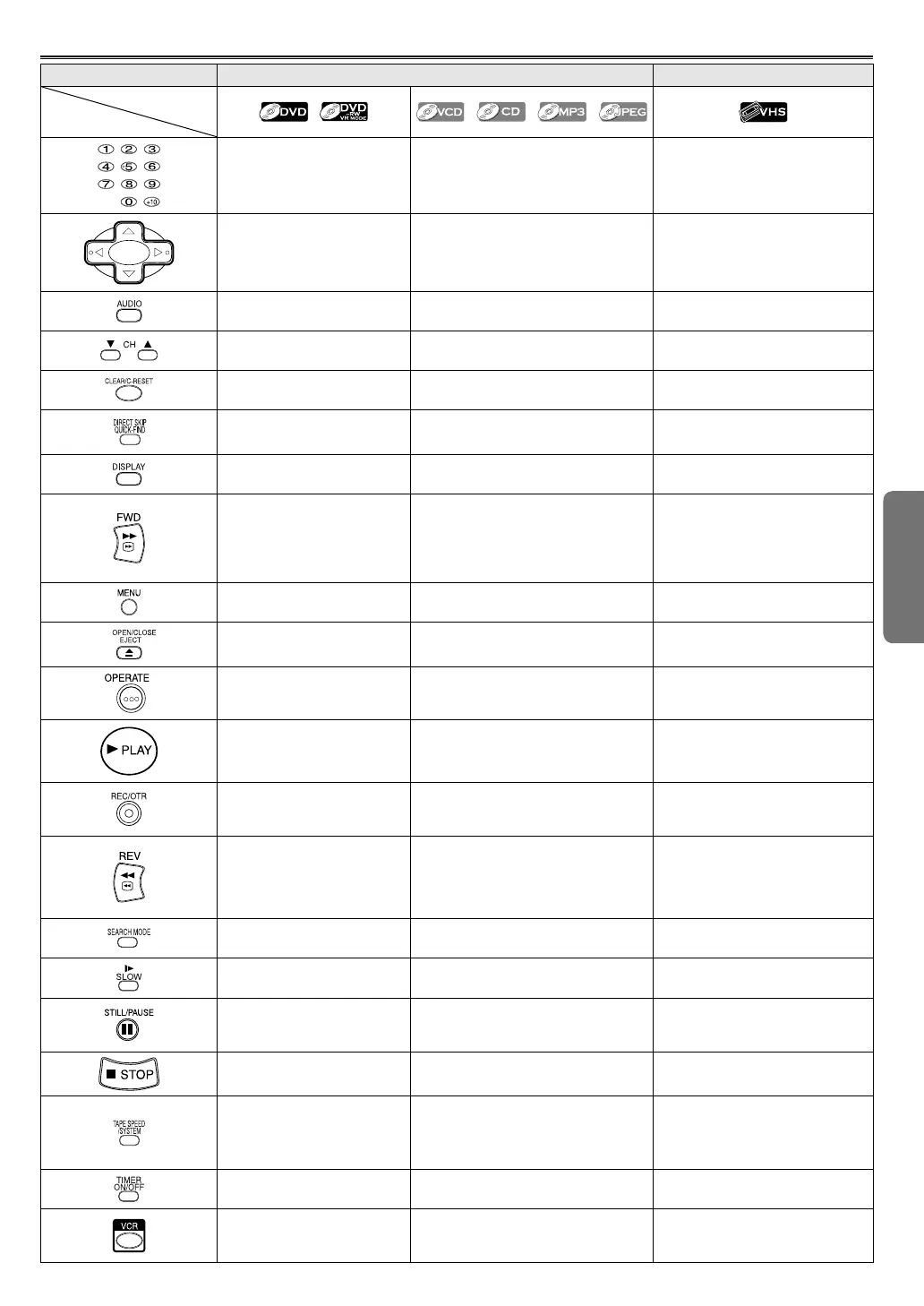
Buttons for Both VCR and DVD
DVD mode VCR mode
Media type
Button
(Alphabetical order)
• Press to select chapter or title
directly.
• Press to select track directly.
• Press to select channel
(except for +10 key).
• (up/down/left/right) Press to
select an item in the menu
and to move the cursor.
• (up/down/left/right) Press to select
an item in the menu and to move the
cursor.
• (up/down/left/right) Press to
select an item in the menu and to
move the cursor.
• Press to select a desired audio
language or sound mode.
• Press to select a desired sound mode
(VCD, CD)
.
• Press to select a desired sound
mode.
——
• Press to change TV channels or to
adjust the tracking manual.
• Press to clear the markers or
the incorrect input.
• Press to clear the markers or the incor-
rect input.
• Press to reset the counter.
• Press to search chapter, title
or time.
• Press to search track.
• Press to search time (VCD, CD).
• Press to skip to the beginning of
the next programme.
• Press to display the current
playback mode.
• Press to display the current playback
mode.
• P
ress to display the current time,
tape counter and channel number.
• Press to begin fast forward
playback to a desired point.
• Press to begin slow forward
playback during the pause
mode.
• Press to begin fast forward playback to
a desired point (VCD, CD, MP3).
• Press to begin slow forward playback
during the pause mode (VCD).
• Fast forwards playback to a desired
point.
• Press to forward in slow motion
faster.
• Press to display the DVD
menus.
•
Press to display the MP3 or JPEG file lists.
• Press to display the VCR menu.
• Press to insert discs into or
remove them from the tray.
• Press to insert discs into or remove
them from the tray.
• Press to remove the tape from the
VCR.
• Press to turn the power on
and off.
• Press to turn the power on and off. • Press to turn the power on and off.
• Press to begin playback. • Press to begin playback. • Press to begin playback.
——
• Press once to start recording or
repeatedly to start One Touch
Recording.
• Press to begin fast reverse
playback to a desired point.
• Press to begin slow reverse
playback during the pause
mode.
• Press to begin fast reverse playback to
a desired point (VCD, CD, MP3).
• Fast reverse playback to a desired
point.
• Press to reverse in slow motion
slower.
——
• Press to call up the index or time
search menu.
——
• Press to view the video tape in
slow motion.
• Press to pause playback or to
advance playback one frame
at a time.
• Press to pause playback.
• Press to pause playback or record-
ing or to advance playback one
frame at a time.
• Press to stop playback. • Press to stop playback.
• Press to stop playback or record-
ing.
——
• Press to select the VCR’s recording
speed (SP or LP).
• To change the VCR system for match-
ing recorded system
(AUTO, MESECAM or PAL).
——
• Press to put the VCR into standby
mode for a Timer Recording.
——
• Press to select VCR output mode
and to use the remote control in
VCR mode.
Downloaded from: http://www.usersmanualguide.com/



 To Next Page