EasyManua.ls Logo

Sharp MX-2310U - User Manual

Sharp MX-2310U
832 pages
Print Icon
To Next Page IconTo Next Page
Loading...
COPIER
PRINTER
FACSIMILE
SCANNER / INTERNET FAX
DOCUMENT FILING
TROUBLESHOOTING
BEFORE USING THE MACHINE
SYSTEM SETTINGS
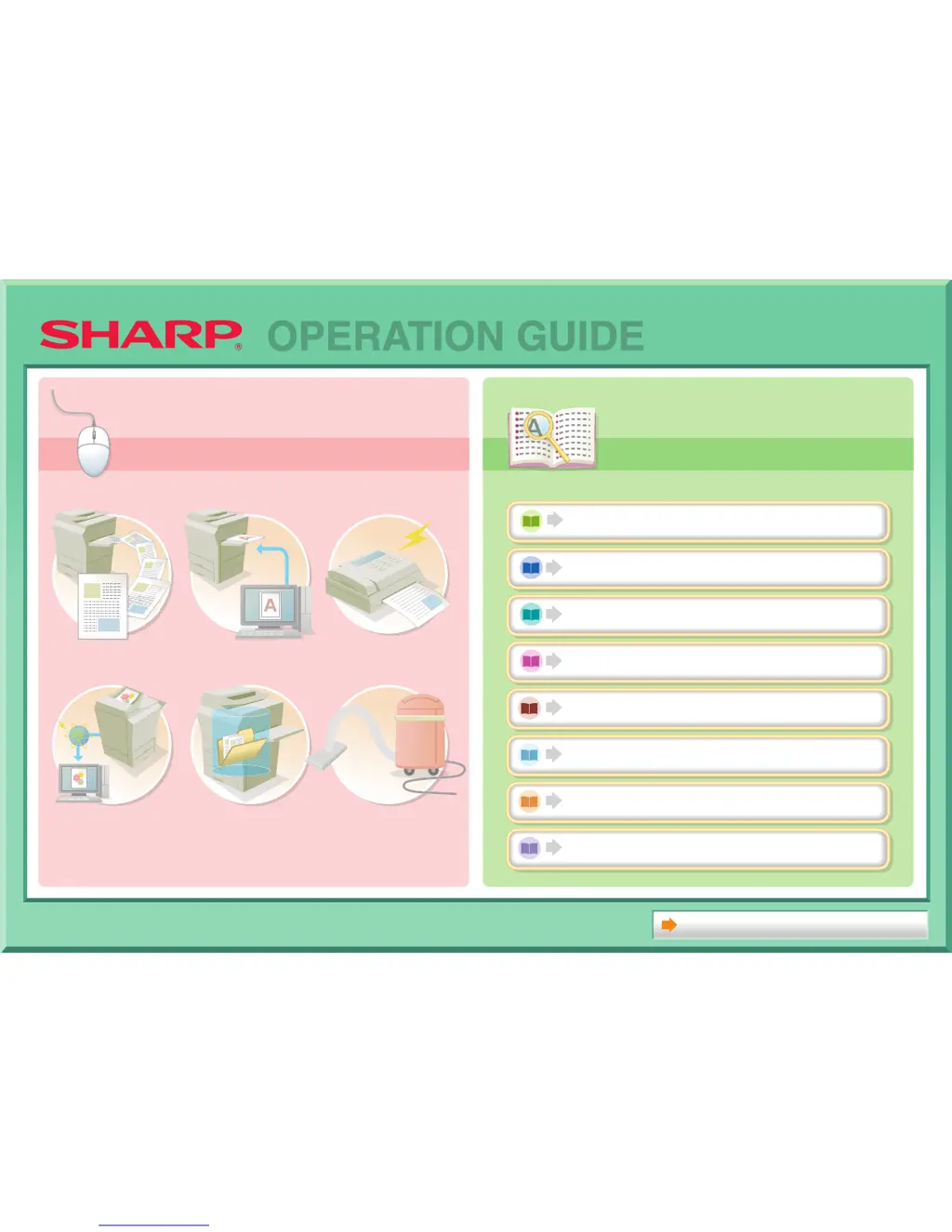
About Operation Guide
MAKE A COPY PRINT A DOCUMENT SEND A FAX
SCAN AN IMAGE /
SEND AN INTERNET FAX
SAVE A JOB AND
REUSE IT LATER
MAINTAIN
THE MACHINE
Search based on
what you want to do
Search based on
what you want to do
Search using the
table of contents
Search using the
table of contents
OPERATION GUIDE

Table of Contents

Other manuals for Sharp MX-2310U

Questions and Answers

  • S
    Sarah HowellJul 26, 2025
    Why is my Sharp MX-2310U All in One Printer not being detected on the network?
    • E
      Edward MooreJul 26, 2025
      If your Sharp All in One Printer is not being detected on the network, first ensure that the machine is powered on. If it was off, switch on the main power switch and then the power key. If you are using Windows, search again after powering on the machine. Also, verify that the network cable is securely connected to the LAN connectors on both your computer and the printer, and check the connections at the network hub as well.
  • G
    gabriellelopezAug 1, 2025
    What to do if the plug and play screen does not appear for my Sharp MX-2310U (USB connection in Windows)?
    • K
      Kelly PetersonAug 1, 2025
      If the plug and play screen is not appearing when you connect your Sharp All in One Printer via USB in Windows, make sure the printer is powered on. Switch on the main power switch and then the power key. Also, check in your computer's Device Manager to confirm that your computer supports a USB connection.
  • C
    Crystal GarciaAug 6, 2025
    Why is the printer driver not installing correctly for my Sharp All in One Printer via plug and play (USB connection in Windows)?
    • D
      David AdamsAug 7, 2025
      If the printer driver for your Sharp All in One Printer is not installed correctly by plug and play via USB in Windows, it might be because the printer was connected to your computer before the driver installation. In Windows 2000/XP/Server 2003/Vista/Server 2008/7, check 'Device Manager' for any unsuccessful installation information. If the printer's model name appears under 'Other devices', delete it, restart your computer, and then reinstall the printer driver.
  • C
    Carrie CarrilloAug 13, 2025
    How to fix software installation issues for a Sharp All in One Printer?
    • K
      Kelli PittmanAug 13, 2025
      If you cannot install the software for your Sharp All in One Printer, it might be due to insufficient free space on your hard drive. Delete any unnecessary files and applications to free up space. Also, ensure that your operating system is supported by the software.
  • C
    Crystal DoyleAug 18, 2025
    What to do if the printer driver cannot be installed on Windows 2000/XP/Server 2003 for a Sharp MX-2310U?
    • Z
      Zoe BenitezAug 19, 2025
      If the printer driver cannot be installed on Windows 2000/XP/Server 2003 for your Sharp All in One Printer, ensure that '[Warn]' is selected instead of '[Block]' during the installation process. If '[Block]' is selected, the printer driver will not install. Select '[Warn]' and try installing the driver again.

Summary

BEFORE USING THE MACHINE

MAINTENANCE

Explains how to perform regular maintenance tasks to ensure optimal machine performance.

COPIER

BASIC PROCEDURE FOR MAKING COPIES

Explains the fundamental steps for making copies, including basic settings selection.

PRINTER

PRINTING FROM WINDOWS

Provides a basic procedure for printing documents from Windows applications.

PRINTING FROM A MACINTOSH

Details the basic procedure for printing documents from Macintosh applications.

FACSIMILE

FAX TRANSMISSION SEQUENCE

Explains the basic procedure for sending a fax using different transmission methods.

BASIC TRANSMISSION METHODS

Explains various methods for sending faxes, including ADF and document glass usage.

FAX RECEPTION

Explains the procedures for receiving faxes automatically and manually.

SCANNER;INTERNET FAX

SCAN SEND SEQUENCE

Details the basic procedure for scanning and transmission, including destination and settings.

ENTERING DESTINATIONS

Explains how to specify destination addresses using the address book or search functions.

TRANSMITTING AN IMAGE

Covers transmitting images in various modes like Scan, USB Memory, and Internet Fax.

INTERNET FAX RECEPTION FUNCTIONS

Explains procedures for receiving Internet faxes, including manual reception and handling received data.

DOCUMENT FILING

SAVING FILES WITH DOCUMENT FILING

Explains how to save files using Quick File, File, and Scan to HDD functions.

USING STORED FILES

Details the sequence for retrieving and using files stored via document filing.

SYSTEM SETTINGS

SYSTEM SETTINGS (ADMINISTRATOR)

Details system settings configurable only by administrators, including security, device control, and OSA settings.

TROUBLESHOOTING

TROUBLESHOOTING PROBLEMS

Provides a chart for following procedures when problems occur during machine operation.

REMOVING MISFEEDS

Explains how to identify and remove paper misfeeds from various locations within the machine.

Sharp MX-2310U Specifications

General IconGeneral
Print technologyLaser printing
TypeOriginal
CompatibilityMX-2310 F MX-2310 N MX-2310 U
Printing colorsBlack
Quantity per pack1 pc(s)
Black toner page yield18000 pages
Harmonized System (HS) code84439990

Related product manuals