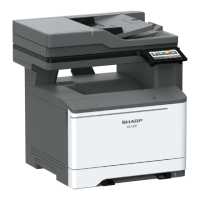
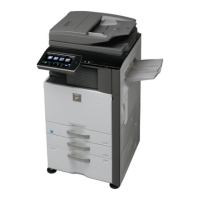
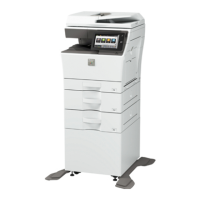
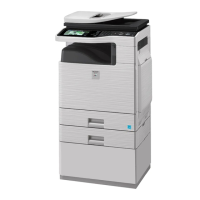
Using the control panel
Panel with 4.3‑inch touch‑screen display
Use the To
1 Display
• View the printer messages and supply status.
• Set up and operate the printer.
2 Home button Go to the home screen.
3 Numeric keypad Enter numbers or symbols in an input field.
4 Power button
• Turn on or turn o the printer.
Note: To turn o the printer, press and hold the power button for five
seconds.
• Set the printer to Sleep or Hibernate mode.
• Wake the printer from Sleep or Hibernate mode.
5 Clear all or Reset button Reset the default settings of a function such as copying, faxing, or scanning.
6 Stop or Cancel button Stop the current printer task.
7 Start button Start a job, depending on which mode is selected.
8 Pause button Place a dial pause in a fax number.
9 Backspace button Move the cursor backward and delete a character in an input field.
10 Indicator light Check the printer status.
11 Volume buttons Adjust the speaker volume.
Understanding the status of the power button and
indicator light
Indicator light Printer status
O The printer is o or in Hibernate mode.
Blue The printer is ready or processing data.
Using the control panel 14



 To Next Page