EasyManua.ls Logo

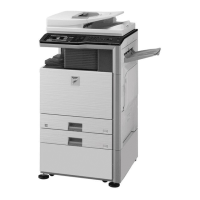
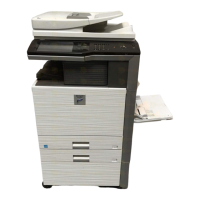
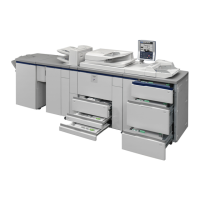
Sharp MX-M850 - User Manual

Sharp MX-M850
108 pages
Print Icon
To Next Page IconTo Next Page
Loading...
MODEL:
Image sending
Using the Image Send function.
Image sending
Using the Image Send function.
MX-M850
MX-M950
MX-M1100
DIGITAL MULTIFUNCTIONAL SYSTEM
Quick Start Guide
Quick Start Guide
Quick Start Guide
General information
Functions of the machine and
procedures for placing originals and
loading paper.
Copying
Using the copy function.
Printing
Using the printer function.
Document filing
Storing jobs as files on the hard
drive.
Manual finishing
Finishing functions using the
inserter.
System settings
Configuring settings to make the
machine easier to use.
Keep this manual close at hand for reference
whenever needed.
Downloaded From ManualsPrinter.com Manuals

Table of Contents

Other manuals for Sharp MX-M850

Questions and Answers

  • G
    Gary AustinSep 1, 2025
    Why can't I specify a destination on my Sharp MX-M850?
    • D
      Douglas MackSep 1, 2025
      Some functions may have been disabled in the system settings (administrator). Check with your administrator. When user authentication is enabled, the functions that you can use and page counts may be restricted in your user settings. Check with your administrator.
  • A
    Ashley BakerSep 12, 2025
    How to fix Sharp All in One Printer printing on the wrong side of the paper?
    • D
      David FitzgeraldSep 12, 2025
      If printing takes place on the wrong side of the paper, load the paper with the front side facing down in trays 1 to 4. For the bypass tray and trays 5, 6, and 7, load the paper with the front side facing up.
  • D
    Daniel DanielAug 30, 2025
    Why does auto selection of the color mode not take place correctly on my Sharp MX-M850 All in One Printer?
    • D
      Diana ConwayAug 30, 2025
      When the color mode is set to "Auto", the machine detects whether the original is black and white or color when the [START] key is pressed; however, automatic detection may not give the correct result. In this event, specify the color mode manually.
  • J
    James RossSep 14, 2025
    Why punching does not take place on Sharp All in One Printer?
    • M
      milesandreaSep 14, 2025
      If punching does not take place, dispose of punch scraps if a message appears instructing you to check the punch module. Ensure paper of different sizes is not mixed together. Verify that the paper size can be punched (see the specifications in the Safety Guide) and that the tray selected in the printer driver is set to a paper type that can be punched. Also, some functions may have been disabled in the system settings by the administrator, so check with your administrator.
  • K
    kelly90Sep 14, 2025
    Why stapling does not take place on Sharp All in One Printer?
    • S
      Shirley McmillanSep 14, 2025
      If stapling does not take place, remove jammed staples or replace the staple cartridge, including the staple case, if a message appears instructing you to do so. Ensure paper of different widths is not mixed; use the [Same Width] setting for mixed size stapling. Check that the number of sheets does not exceed the maximum stapling capacity (refer to the Safety Guide). Verify that the paper size can be stapled (refer to the Safety Guide) and that the paper type setting of the tray selected in the printer driver is set to a paper type that can be stapled. Note that saddle stitch is not possible on heavy paper. Some functions may have been disabled in the system settings by the administrator, so check with your administrator.
  • B
    Barbara BlevinsSep 18, 2025
    How to fix part of the image being cut off on Sharp All in One Printer?
    • K
      Kelsey PatrickSep 18, 2025
      If part of the image is cut off, ensure the correct paper size is set, especially if using a special size. If using the document glass, place the original in the far left corner.
  • J
    James GrantAug 27, 2025
    How to fix poor quality of scanned image on Sharp MX-M850?
    • J
      James McbrideAug 27, 2025
      If the original is printed matter such as a book or magazine, vertical patterns (moiré) may occur. Touch the [Exposure] key in the base screen to open the exposure setting screen; the [Moiré Reduction] checkbox appears in this screen. Also, if you are scanning a color or grayscale original, ensure that the color mode is not set to "Mono2". Setting the color mode to "Mono2" replaces the colors in the original with either black or white, which is suitable for text-only originals; however, originals with illustrations should be scanned with the color mode set to [Grayscale], [Full Color], or [Auto] - [Grayscale].
  • B
    Brian HayesAug 27, 2025
    Why is the scanned image clipped on my Sharp MX-M850?
    • D
      Denise ThomasAug 27, 2025
      The original scan size setting might be smaller than the actual original size. Set the scan size to the actual original size. If you have intentionally set a smaller size than the actual original size, note carefully the placement position of the selected scan size when placing the original.
  • D
    Daniel GilmoreAug 26, 2025
    Why does my Sharp MX-M850 All in One Printer not print after reception?
    • J
      John MitchellAug 26, 2025
      If a message appears on the display indicating that you need to add toner or paper, printing will not be possible. Restore printing capability by following the instructions provided in the message.
  • G
    gmurrayAug 25, 2025
    What to do if my Sharp All in One Printer transmitted fax prints out blank at the receiving side?
    • J
      James PattersonAug 26, 2025
      Ensure the original is placed correctly (face up or face down, as required by the sending method) and send the fax again.

Summary

General Information and Machine Overview

Part Names and Functions

Identifies and describes all physical parts of the machine and its peripheral devices.

Operation Panel Overview

Details the function of each key and indicator on the machine's operation panel.

Using the Touch Panel Interface

Explains the layout and functions of touch keys for easy operation and mode selection.

Machine Login and User Authentication

Describes methods for logging into the machine and securing access via user authentication.

Home Screen Customization

Explains how to register and use frequently accessed functions as shortcuts on the home screen.

Placing Originals for Scanning

Provides instructions on how to place originals using the automatic document feeder or document glass.

Changing Paper in Trays

Guides on how to load paper into various trays, including tray names and paper orientation.

Output Finishing Options

Details different output finishing functions like sort, group, and offset for processed documents.

Copying Functions and Procedures

Copy Mode Base Screen

Explains the main screen layout and selection of copy settings in copy mode.

Making Basic Copies

Outlines the fundamental steps for performing a copy job.

2-Sided Copying with Document Feeder

Instructions for creating automatic 2-sided copies from single-sided originals using the ADF.

Copying on Special Paper Types

Guides on using the bypass tray for copying on special media like recycled paper or envelopes.

Adjusting Exposure and Image Type

Details how to select exposure levels and image types for optimal copy clarity.

Fitting Image to Paper Size

Explains automatic enlargement/reduction to fit the original image onto the selected paper size.

Enlargement and Reduction Ratios

Covers using preset ratios or zoom to adjust the size of copied images.

Proof Copy for Checking

Function to print only the first set of copies for review before printing the entire batch.

Copy Finishing Options

Details finishing functions applicable to copy output, such as sorting and stapling.

Interrupting Copy Jobs

Allows temporary interruption of a print job to perform a higher priority copy job.

Storing Copy Operations (Job Programs)

Enables saving and retrieving frequently used copy settings as job programs for efficiency.

Special Modes for Copying

Introduces various special modes that offer advanced copying capabilities and effects.

Selecting a Special Copy Mode

Provides guidance on how to select and configure specific special modes for copying.

Convenient Copy Functions

Highlights useful functions that enhance copying, such as margin shift and pamphlet creation.

Printing Procedures and Settings

Basic Printing Operations

Explains the fundamental steps for printing documents using the printer driver.

Using Printer Driver Help

Guides on accessing help within the printer driver properties window for setting explanations.

Printing a File from Applications

Details how to print files from applications like TextEdit on Macintosh systems.

Cancelling Print Jobs at the Machine

Describes how to cancel a print job initiated directly from the machine's operation panel.

Selecting Print Settings

Guides on configuring various print settings like paper size, orientation, and layout within the driver.

Convenient Printer Functions

Covers advanced printing features like 2-sided printing, fit-to-page, and N-up printing.

Image Sending Functions

Image Send Function Overview

Introduces the image send function and its various modes like Scan to E-mail, FTP, and Fax.

Image Send Mode Base Screen

Details the main screen for image sending operations and mode selection.

Scanning Originals for Sending

Explains the basic procedure for scanning originals to send via e-mail or other methods.

Sending Faxes

Provides the basic procedure for sending faxes from the machine.

Convenient Transmission Methods

Covers efficient methods like one-touch keys and search number sending for transmissions.

Storing Transmission Destinations

Guides on saving destinations in the address book for quick retrieval and use.

Broadcast Transmission

Enables sending the same image to multiple destinations in a single operation.

Adjusting Exposure and Image Type

Details how to change exposure and select original image types for scanned documents.

Changing Scan Resolution

Explains how to set the scan resolution to improve image clarity.

Changing File Format

Guides on changing the file type and compression method for scanned images.

Special Image Send Modes

Introduces special modes for advanced image sending tasks.

Selecting a Special Image Send Mode

Provides instructions on selecting and configuring specific special modes for image sending.

Convenient Image Send Functions

Highlights helpful image sending functions like erasing shadows and dual page scanning.

Document Filing Functions

Document Filing Overview

Explains the document filing function for storing and managing documents on the hard drive.

Quickly Saving Jobs (Quick File)

Describes the easiest method to save a file without specifying detailed settings.

Appending Information to Stored Files

Guides on adding file names, user names, and folders when saving files.

Saving Documents Directly to HDD

Explains how to save documents to the hard drive without printing or transmitting.

Printing Saved Files

Details how to retrieve and print files that have been stored on the machine's hard drive.

Manual Finishing Operations

Manual Finishing Functions

Details the base screen and options for manual finishing tasks like stapling and punching.

Using Manual Finishing (Stapling Example)

Provides a step-by-step guide on using manual finishing, using stapling as an example.

System Settings and Configuration

System Settings Overview

Introduces system settings for adjusting machine operations to suit workplace needs.

System Settings Menu Structure

Presents the structure and available items within the machine's system settings menu.

Sharp MX-M850 Specifications

General IconGeneral
Print Resolution1200 x 1200 dpi
ConnectivityEthernet, USB
Copy Resolution600 x 600 dpi
FunctionsCopier, Printer, Scanner
Print Speed85 ppm
Scanner TypeColor
Display10.1-inch color touch-screen
Hard Drive320 GB
Scan Resolution600 dpi
Copy Speed85 ppm (black)
Network ConnectivityEthernet (10Base-T/100Base-TX/1000Base-T)
USB ConnectivityUSB 2.0
Operating Systems SupportedWindows

Related product manuals