25
E
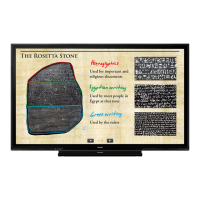
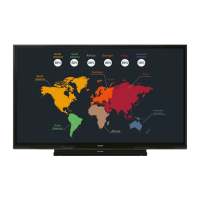
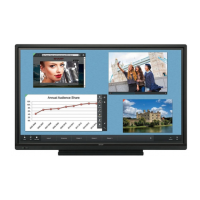
You can use E-board/Note to draw in the same way as on a whiteboard.
• Thedrawnlinesandtheimagespastedontheboardarehandledinthesoftwareasan“object”.
• Youcanwrite/drawlettersandlinesontheimagedisplayedonthismonitor.
• Intheseapplications,thedataofonescreenisreferredtoasa“sheet”.
Caution
• Whenthepoweristurnedoff,anydataislost.
• PleaseinsertaUSBflashdriveintherearUSBportwhenyousavedata.
E-board
Touch E-board in the home screen of APPLICATION mode to start.
You can use the screen as a whiteboard.
You can draw on a maximum of 20 sheets.
(1) Used for drawing. (See page 26.)
(2) Touch to display a menu.
Create a new board.
Open a saved board. You can re-draw it. Open function is compatible with saved E-board files only.
Save a board that is being drawn. The board will be saved with zip file of original format in the Whiteboard folder.
You can re-draw on a saved board.
Save a board that is being drawn as an image. Board drawings are saved at a maximum size of 1920 x 1080
image file which cannot be open again within E-board. Please use another image application to view saved files.
Read in an image and set as the background.
Exit the application.
E-board / Note


 To Next Page