Caption (default) Function
(x)/EX Used to go to the function menu 1
keyboard (q’ty/exchange entry).
%/(–) Used to go to the function menu 2
keyboard (discount/percentage entry).
MISC Used to go to the function menu 3
keyboard (the miscellaneous function
keyboard).
GUEST CHECK Used to go to the function menu 4
keyboard (guest check entry).
TEXT Used to go to the function menu 5
keyboard (text entry).
PGM COMMAND Used to go to the function menu 6
keyboard (PGM mode command).
X/Z COMMAND Used to go to the function menu 7
keyboard (X/Z mode command).
PAYMENT Used to go to the payment menu
keyboard.
WAIT Used to shift the corresponding guest
check to the wait mode (for drive-thru).
RECALL Used to re-call the corresponding guest
check to the registration mode (for
drive-thru).
WASTE Used to enter/release the WASTE mode.
NEXT COMMAND Used to skip the next table of condiments.
D-THRU Used to go to the drive-thru menu
keyboard (guest check entry for
drive-thru).
ENTERTAINMENT Used to print the entertainment bill.
Clerk Keys
This POS terminal allows the operator to use the following four clerk
identification systems:
• Real clerk keys (standard 6 clerks/max. 126 clerks)
• Clerk code entry (max. 255 clerks)
• Clerk entry keys (max. 10 clerks)
• WMF clerk keys (max. 127 clerks)
The standard POS terminal has been shipped with the real clerk key
system being programmed. If you want to change the clerk identifica-
tion system, contact your authorized SHARP dealer.
Real clerk keys (1, 2, 3, 4, 5, and 6)
These keys serve to identify clerks. Put one of the 1 through 6 keys in
the clerk switch.
Clerk code entry (1 through 9999)
Enter the clerk code by using the following procedure:
XXXX
Clerk code
→ CLK# →
Clerk entry keys
CLK1 ∼ CLK10
These keys identify clerks. Touch any one of these keys.
WMF clerk keys
Put one of the WMF clerk keys in the WMF clerk switch.
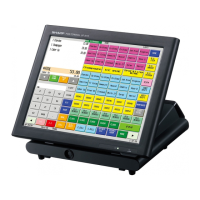
2) Screen save mode
To save electrical power or the display’s life, your POS terminal is
provided with the screen save function. This function can turn the
LCD backlight off when the POS terminal is left idle for an extended
period of time. You can program the time for which your POS terminal
should keep the normal status (in which the backlight is "ON") before
it goes into the screen save mode.
To exit the screen save mode, touch a key.
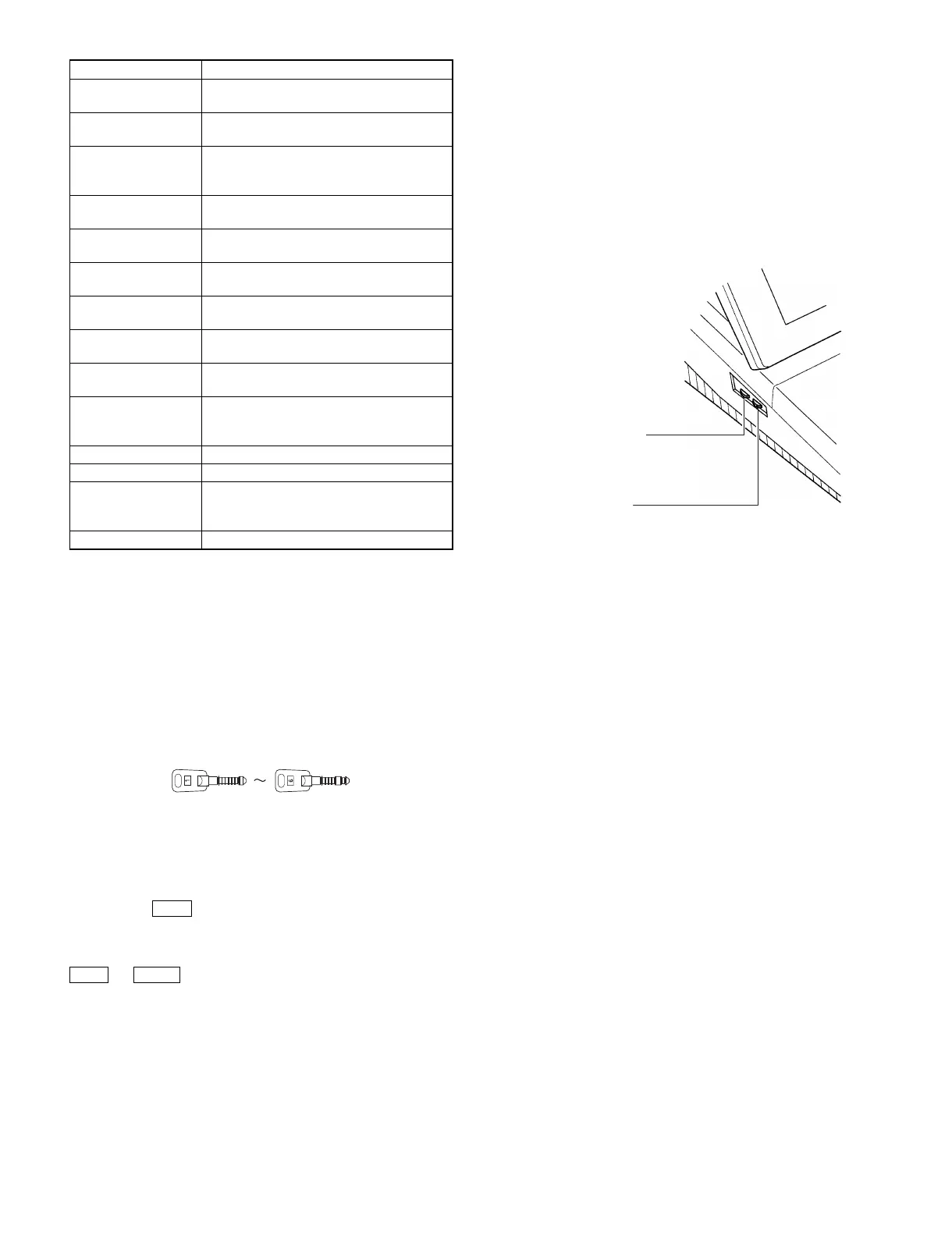
3) Display Adjustment
You can adjust the brightness and contrast of the display by using the
corresponding controls.
Contrast control
Turning the control backwards
darkens the display and turning
it forwards lightens the display.
Brightness control
Turning the control backwards
darkens the display and turning it
forwards brightens the display.
1 – 7



 To Next Page