EasyManua.ls Logo

Sharp ZQ-6100M - Page 59

Sharp ZQ-6100M
194 pages
Print Icon
To Next Page IconTo Next Page
To Previous Page IconTo Previous Page
Loading...
Keyword
search
The
keyword
search
will
return
each
and
every
entry
containing
the
specified
keyword
in
any
of
the
fields,
including
the
priority
field.
As
for
the
direct
search,
enter
the
keyword,
but
then
press
followed
by
or
.
Repeated
pressing
of
or
will
retrieve
each
subsequent
entry
containing
the
keyword
until
the
end
of
the
list
is
reached.
e
If
there
are
no
more,
NOT
FOUND!
is
displayed,
and
you
return
to
the
initial
entry
display.
e
Upper-
and
lowercase
letters,
and
other
letters
of
the
same
group
are
treated
as
the
same.
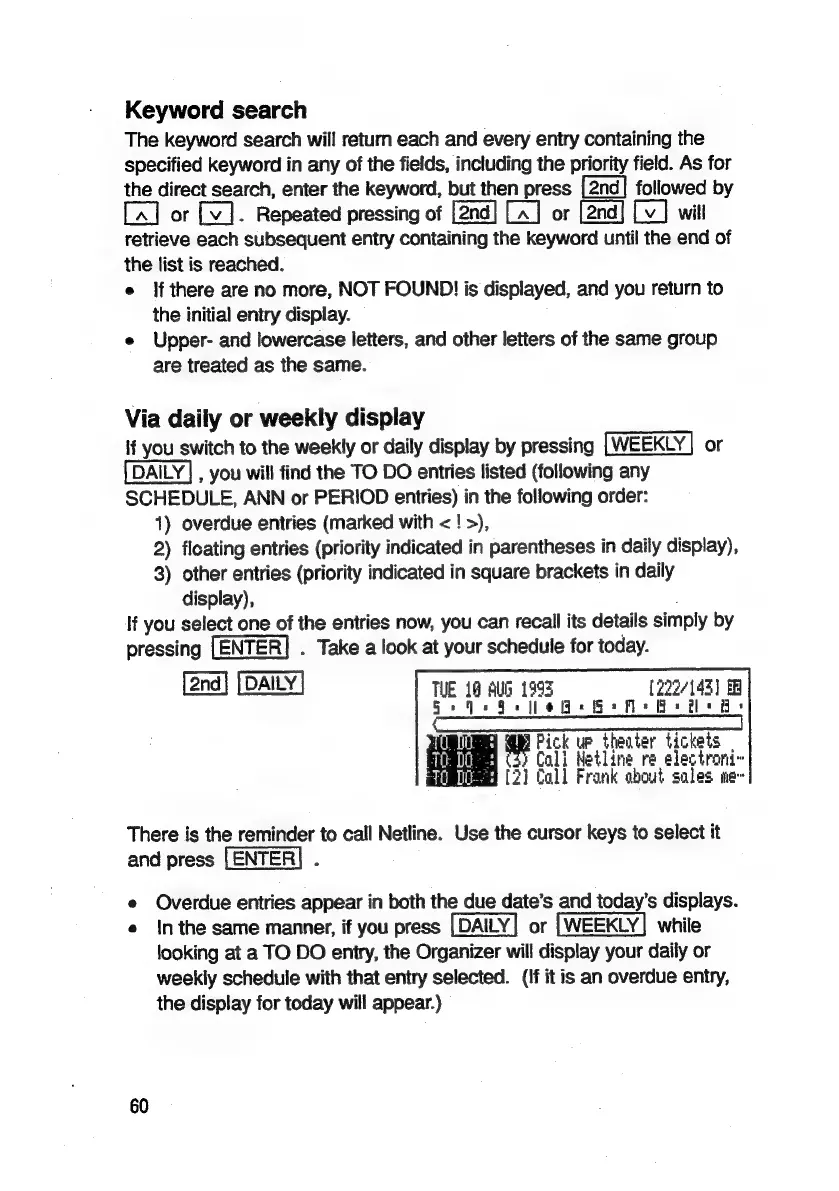
Via
daily
or
weekly
display
if
you
switch
to
the
weekly
or
daily
display
by
pressing
or
,
you
will
find
the
TO
DO
entries
listed
(following
any
SCHEDULE,
ANN
or
PERIOD
entries)
in
the
following
order:
1)
overdue
entries
(marked
with
<!
>),
2)
fleating
entries
(priority
indicated
in
parentheses
in
daily
display),
3)
other
entries
(priority
indicated
in
square
brackets
in
daily
display),
If
you
select
one
of
the
entries
now,
you
can
recall
its
details
simply
by
pressing
.
Take
a
look
at
your
schedule
for
today.
TUE
10
AUG
1995
222/142)
EB
A
I
0
J
=
=
Ba
Pick
up
theater
tickets
Biimlige
(5)
Coli
Netline
re
electroni~
yim
(2)
Call
Frank
sbout
soles
me~
There
is
the
reminder
to
call
Netline.
Use
the
cursor
keys
to
select
it
and
press
[ENTER}
.
Overdue
entries
appear
in
both
the
due
date’s
and
today’s
displays.
In
the
same
manner,
if
you
press
or
while
looking
at
a
TO
DO
entry,
the
Organizer
will
display
your
daily
or
weekly
schedule
with
that
entry
selected.
(If
it
is
an
overdue
entry,
the
display
for
today
will
appear.)
60

Related product manuals