-76-
3.2.4 Windows® Direct Function
Note: For Windows®95 Version 4.00.950B
, see page 69 “Compatibility Notification
Regarding Linking of “Windows
®
Direct” Function with Windows
®
95 Version
4.00.950B
.”
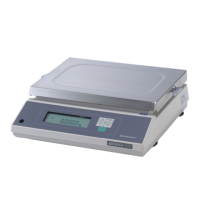
The BX-K and BW-K series balance can transfer data directly to a personal
computer running Lotus 1-2-3, Excel, or other applications of Windows®*.
3.2.4.1 Preparation (Installation)
Install according to the procedure described below.
1) Supply power to the balance and set the condition for communication as
follows.
Menu [74] [77] [81] [89] [92]
Menu [97] [98]
2) Keep pressing the
key and complete selection of the balance menu.
3) Disconnect the power to the personal computer and balance.
4) Connect the personal computer to the balance with the RS-232C cable.
5) Turn ON the power to the personal computer only and start Windows®*.
6) Click "Start", choose "Settings" and "Control Panel" then select
"Accessibility Options."
7) Confirm that there are no check marks for any items on tabs including
"General."
8) Put a check mark at "Support Serialkey device" in the "General" tag. This
is the only check mark on all the tabs.
9) Open "Settings."
Select the serial port corresponding to the RS-232C port of your personal
computer. (Serial port: any one of COM1 to 4. Mostly, COM1)
11) Select a "Baud rate" of 300.
12) Click "OK."
13) Click "Apply."
14) Click "Start", point to "Shut Down" then click "Restart the computer?".
15) After Windows®* has completely started, turn on the power supply to the
balance.
It is not necessary to perform the Windows®* control panel setting
operation every time.



 To Next Page