32
Share Your Data
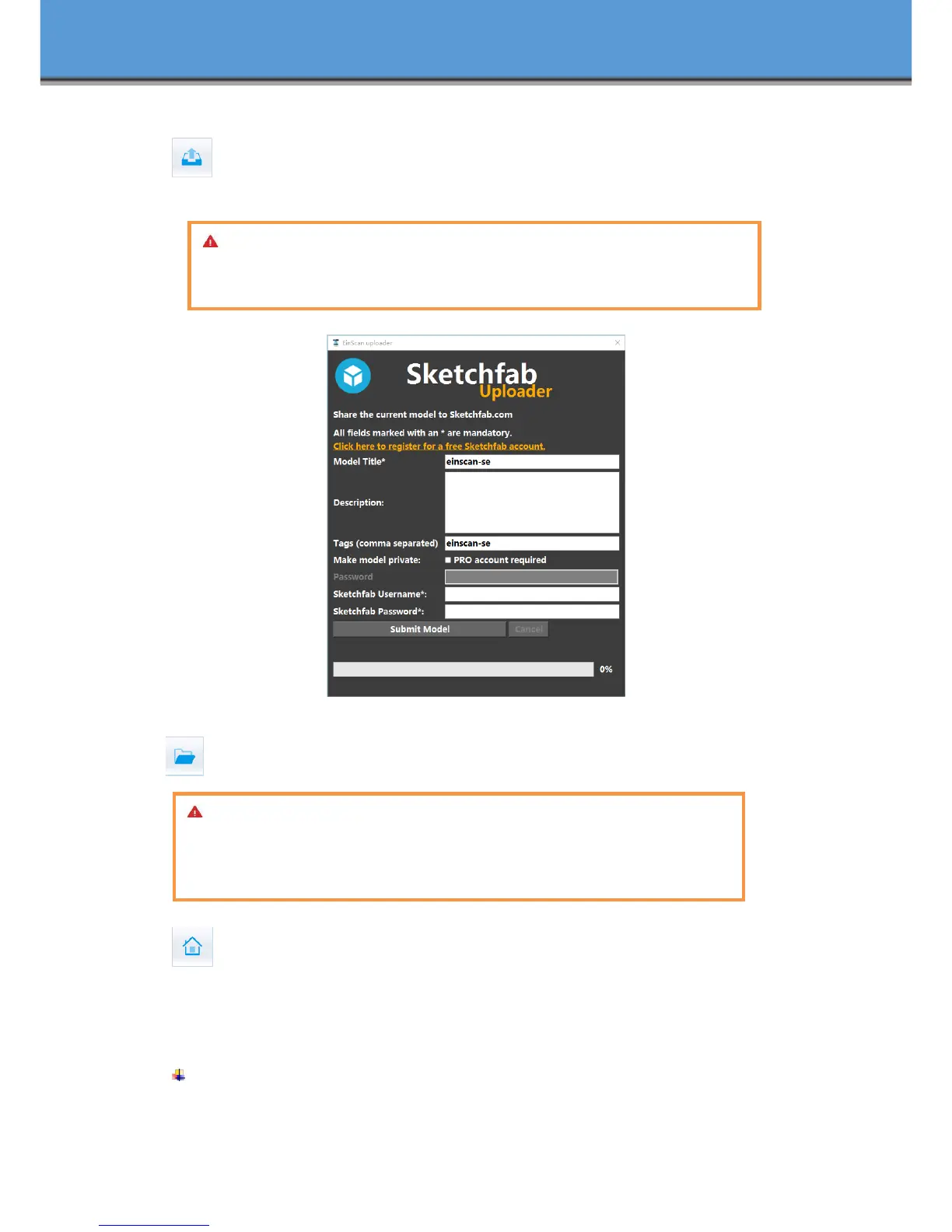
Click the button after merging to share data, it will show the dialog as below.
You can share your model to Sketchfab, while model title, username and user password are
required. Register an account and look at the shared model at http://sketchfab.com.
Project
You can new or open projects. The default project location is the desktop, then it will
remember where the user last created a new project.
Back to home
If you want to change the scan modes, click the button to go back to the homepage to
select the scan mode.
Mouse Operation Prompts
Lower left corner of the interface is the mouse operation prompts:
After scanned or imported project, the prompt text is as follows:
Hold down the left mouse button: Rotate the object;
Note:
Sketchfab Normal account can only upload data maximum 50M, while Professional
account can share maximum 200M, and set model as private.
Note:
The projects created by auto scan and fixed scan can be reciprocally imported.
After importing the project, direct access to scan, choose the scan mode based on
whether the imported project is texture.




 To Next Page