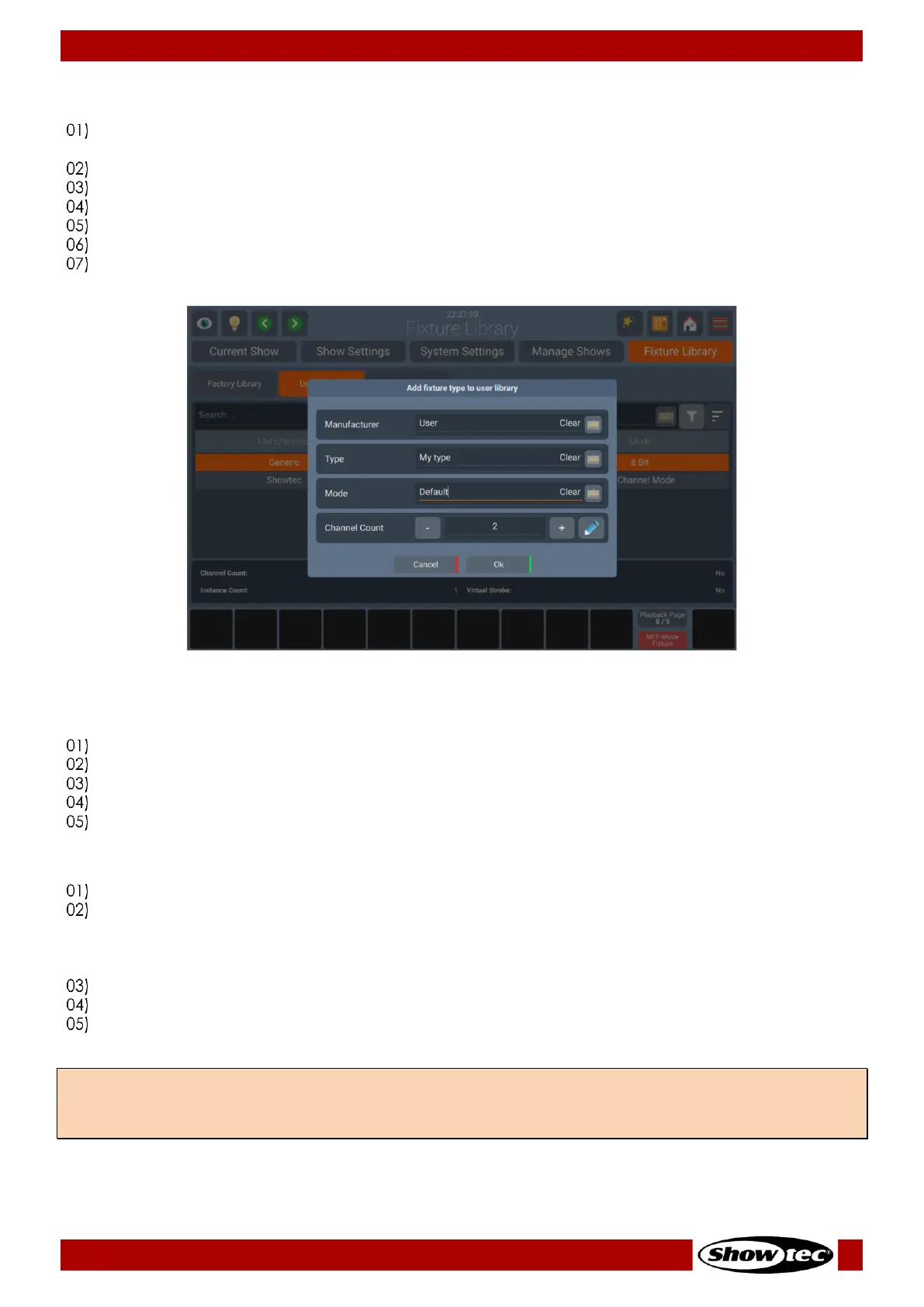
Adding a new Fixture Type
To add a new fixture to the User or Show Library, first select the Library type from the Fixture Library
Tab in the Setup Menu.
Open the Action Dialog by pressing the Magic Wand Button.
Click on Add Fixture.
Enter the Manufacturer Name, Fixture Type and Mode.
Enter the amount of DMX Channels this fixture has.
Click on Ok.
The Library Editor will be shown allowing you to assign functions to the channels and more.
Deleting a Fixture Type
To delete a fixture type, head to the Fixture Library Tab within the Setup Menu.
Select the fixture type you would like to delete.
Open the Fixture Library Action dialog using the Magic Wand Button.
Click on Delete Fixture.
A Dialog asking for confirmation is shown. If you are sure, click on Yes.
Editing / Modifying a Fixture Type
To edit or modify a fixture type, head to the Fixture Library Tab within the Setup Menu.
Select the fixture type you would like to edit from the User Library or Show Library. Please note that
the factory library is read-only. If you would like to edit a fixture from the factory library, you first need
to transfer it to the user library. See then step by step to transfer (copying) a Fixture between Libraries
below.
Open the Fixture Library Action dialog using the Magic Wand Button.
Click on Edit Fixture.
The Library Editor will be shown allowing you to assign functions to the channels and more.
Note: If you edit a fixture type in the User Library and are using the same fixture type in your Show,
changes made in the User Library are not automatically carried over to the fixture type within the Show
Library.




 To Next Page