2
Building Technologies PN A5Q00020463 009854_b_--_--.doc
Fire Safety & Security Products 10.2007
en
Installation
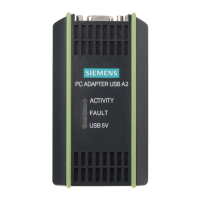
FDUZ221 MCL-USB Adapter
Intended use
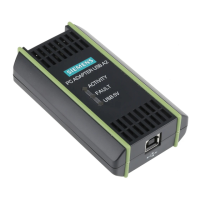
The FDUZ221 MCL USB adapter is an interface converter
for USB to MC link. It can be used to connect FD20
devices to a PC using a serial protocol (MCL). The
adapter is used for the firmware update or for operation.
FDUZ221 is maintenance-free and does not need to be
calibrated.
The following FD20 devices are currently supported:
z FT2010 floor repeater terminal
z FT2011 floor repeater display
z FDCW221 radio gateway
z FDUD292/293 detector exchanger and tester
z FDUL221 line tester
Scope of delivery
The scope of delivery includes:
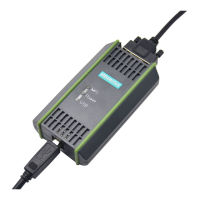
z FDUZ221 MCL-USB adapter
z FDUD292-A MC Link cable for connection to
FD20 devices
z USB cable for connection to the PC
z CD with USB driver and assembly instructions
z (USB driver is signed for Microsoft Windows® 2000/XP)
Safety instructions
Risk of personal injury and property damage
Cables should only be run and connected by a service
technician.
z The adapter may only be used for Siemens FD20
devices with MC link interface.
z The length of the USB cable must not exceed 1.5 m.
Legend for Fig. 1
7 Other FD20 devices
Legend for Fig. 2
1 FDUZ221 adapter, MC link connection
2 Status LED on MC link adapter FDUZ221
3 Adapter FDUZ221, USB connection type B
4 MC link cabel FDUD292-A
5 USB connection type A, connection to PC
6 USB connection type B, connection to FDUZ221
Installation of the USB driver
Insert the supplied CD. If "setup.exe" does not start
automatically, start the file manually.
Î USB driver is installed and available to the system.
Updating the firmware
1. Connect the USB cable to the PC and FDUZ221 as
shown in Fig. 1 and wait until the status LED on
FDUZ221 stays lit.
2. Start the application with which you want to carry out the
firmware update.
3. Configure the COM port of FDUZ221 in the application.
You can identify the COM port by selecting
Control Panel > System > Hardware > Device Manager
> Ports (COM)
4. Connect the FDUD292-A MC link cable to the FD20
device and the FDUZ221 as shown in Fig. 1.
When carrying out a firmware update for FDUZ221,
you can leave the MCL port open.
5. Carry out the firmware update as described in the other
valid documents.
z Other valid documents
– Doc. no. 009078, Configuration
– Doc. no. 010107, Periphery update tool
z Link for drivers and firmware update FDUZ221:
– https://psp.sbt.siemens.com
If any problems occur, contact the hotline:
+49 89 9221-8000
CE declaration of conformity
The models of this product placed into circulation by us comply with
the regulations of the following European directives:
– 89/336/EEC = EMC directive (immission, emission)
– 73/23/EEC = Low voltage directive
Technical data
Weight approx. 75 g
Dimensions (W x H x D) 100 x 30 x 54 mm
Storage temperature -20 … +60 °C
Operating temperature -10 … +55 °C
Protection category IP30
USB port USB 2.0 / 1.1



 To Next Page