Macintosh Conguration Procedures
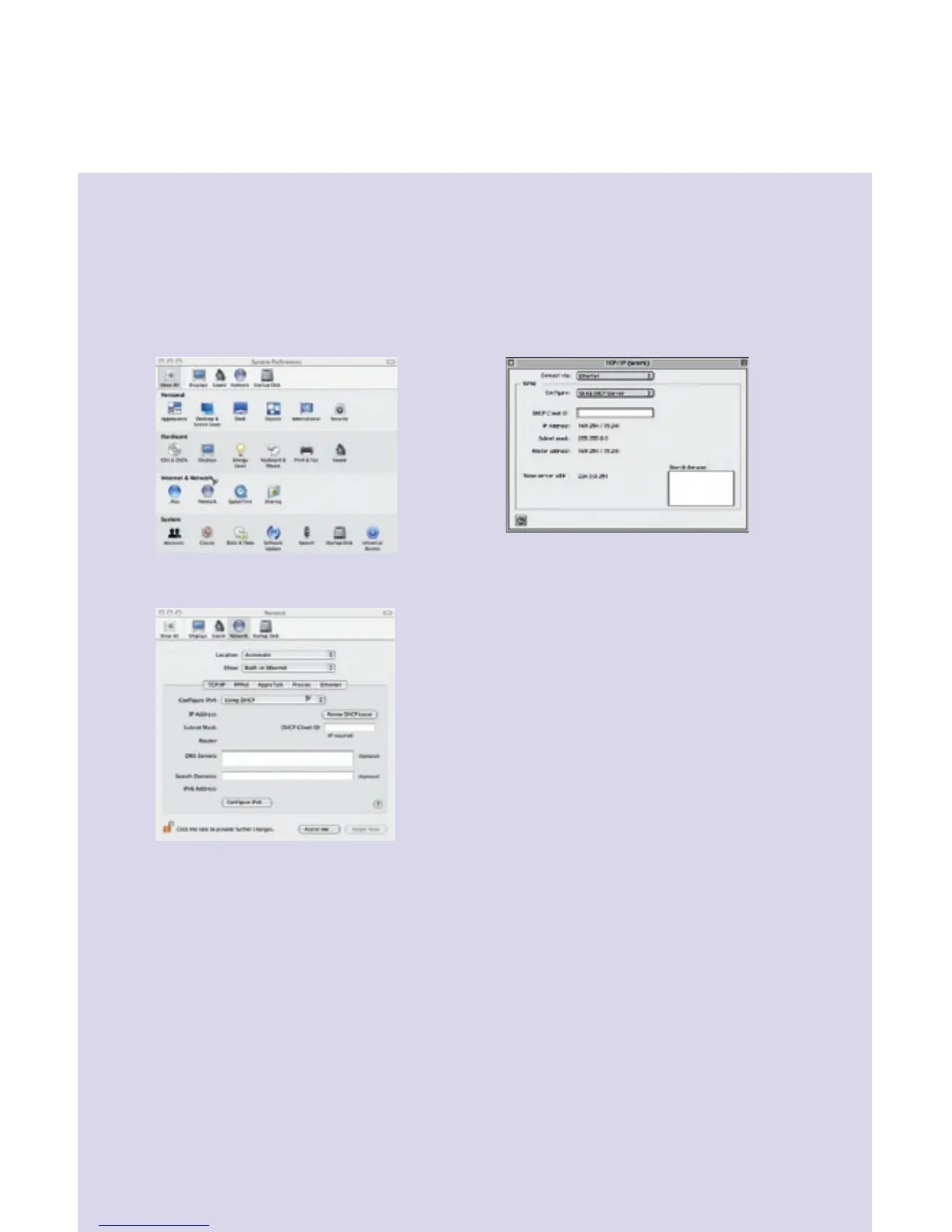
Follow the procedure below for OSX:
1. Click Apple -> System Preferences.
2. Select the Network icon under the
Internet & Network section.
3. Select one of the following from the
Show drop-down menu:
• Built–in Ethernet if connecting
via Ethernet.
• Ethernet Adaptor [en0, en1,...]
if connecting via USB.
4. Select Using DHCP Server from the
Congure IPv4 drop-down menu.
5. Click Apply Now and exit out of
System Preferences window.
6. If you have a router, congure the
router using the Router Conguration
procedure that follows.
Follow the procedure below for OS9:
1. Click Apple -> Control Panels -> TCP/IP.
2. Select one of the following from the
Connect via drop-down menu:
• Ethernet or Ethernet
built–in
if
connecting via Ethernet.
• SpeedStream 5x Series if connecting
via USB.
3. Select Using DHCP Server from the
Congure drop-down menu.
4. Close window and save changes.
5. If you have a router, congure the
router using the Router Conguration
procedure that follows.
Router Conguration
1. Start your Web browser.
2. In the Address box, enter the following:
http://speedstream
3. When prompted for a username and
password, type admin for the password
only (username is not required).
4. Click Login and enter the username
and password provided by your
service provider.
5. Click Save.
6. If additional conguration is desired,
select Setup to congure DHCP, rewall
settings, security options, and also to
view status and statistical information.
Macintosh Configuration
In order to setup the SpeedStream
®
device, your computer must rst be congured to obtain
an IP address from a DHCP server.
Congratulations! You have
completed the installation of
your SpeedStream
®
device.
7



 To Next Page