Quick Installation Guide | 32 | Quick Installation Guide
This is a router installation guide for Singtel Broadband services.
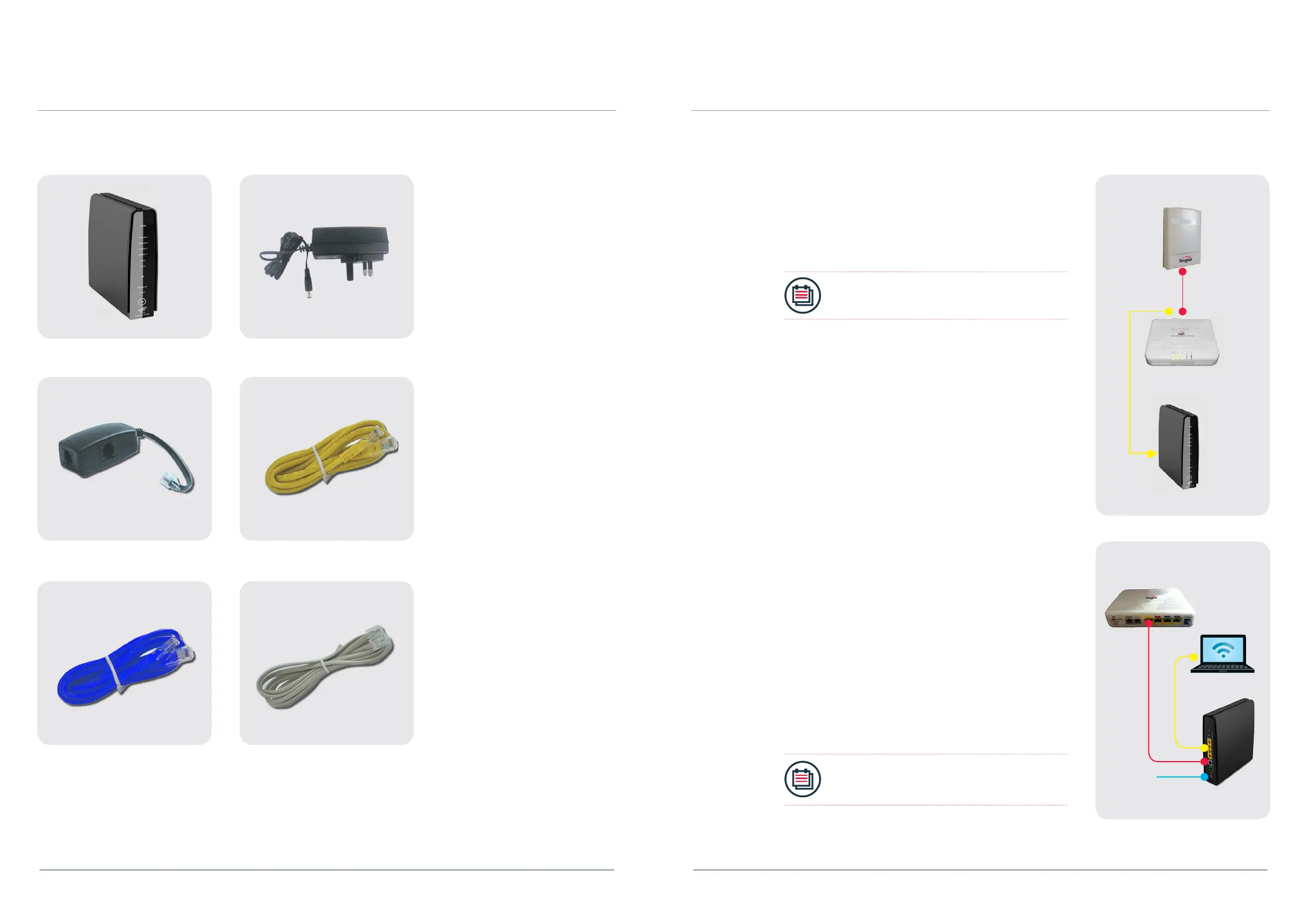
The following items should be included in the Router package.
Step 1: Equipment Check
Router Power Adaptor
DSL Microlter
Ethernet Cable (RJ45) Yellow
Ethernet Cable (RJ45) Blue Telephone Cable (RJ11)
Step 2: Broadband Connection Setup
2.1 For Singtel Business Broadband (Fibre) Customers
2.1.1 Fibre Connection Setup
2.1.1.1
Connect the “BROADBAND” port on the Router to the ONT’s
“LAN 1” port in yellow using the Ethernet Cable (RJ45).
Note:
Switch off the ONT’s power before you setup.
2.1.1.2
For desktop computers or laptop computers, please connect it to
the yellow “LOCAL ETHERNET” port on the Router.
2.1.1.3
Once the power adapter is connected, follow the activation
sequence below.
a. Activate the Optical Network Terminal (ONT) by switching
on the power at the electrical outlet. Wait for “POWER”
and “PON” LEDs to stabilise and turn green.
b. Power up the Router and wait for the “POWER”,
“ETHERNET”, “BROADBAND” and “INTERNET” to
stabilise and turn green.
Optical Network
Terminal (ONT)
Router
Note:
For Fibre Broadband service, there is no need to
key in user ID and password.
Optical Network
Terminal (ONT)
Router
Fiber TP
Laptop
Power
Adaptor


 To Next Page