Quick Installation Guide | 76 | Quick Installation Guide
Please note that you should have the Singtel Business Broadband Service Letter before proceeding.
The Singtel Business Broadband Service Letter contains your Username and Password which will be used for setting up
the Singtel Business Broadband.
2.2.2 Logging in to Singtel Business Broadband
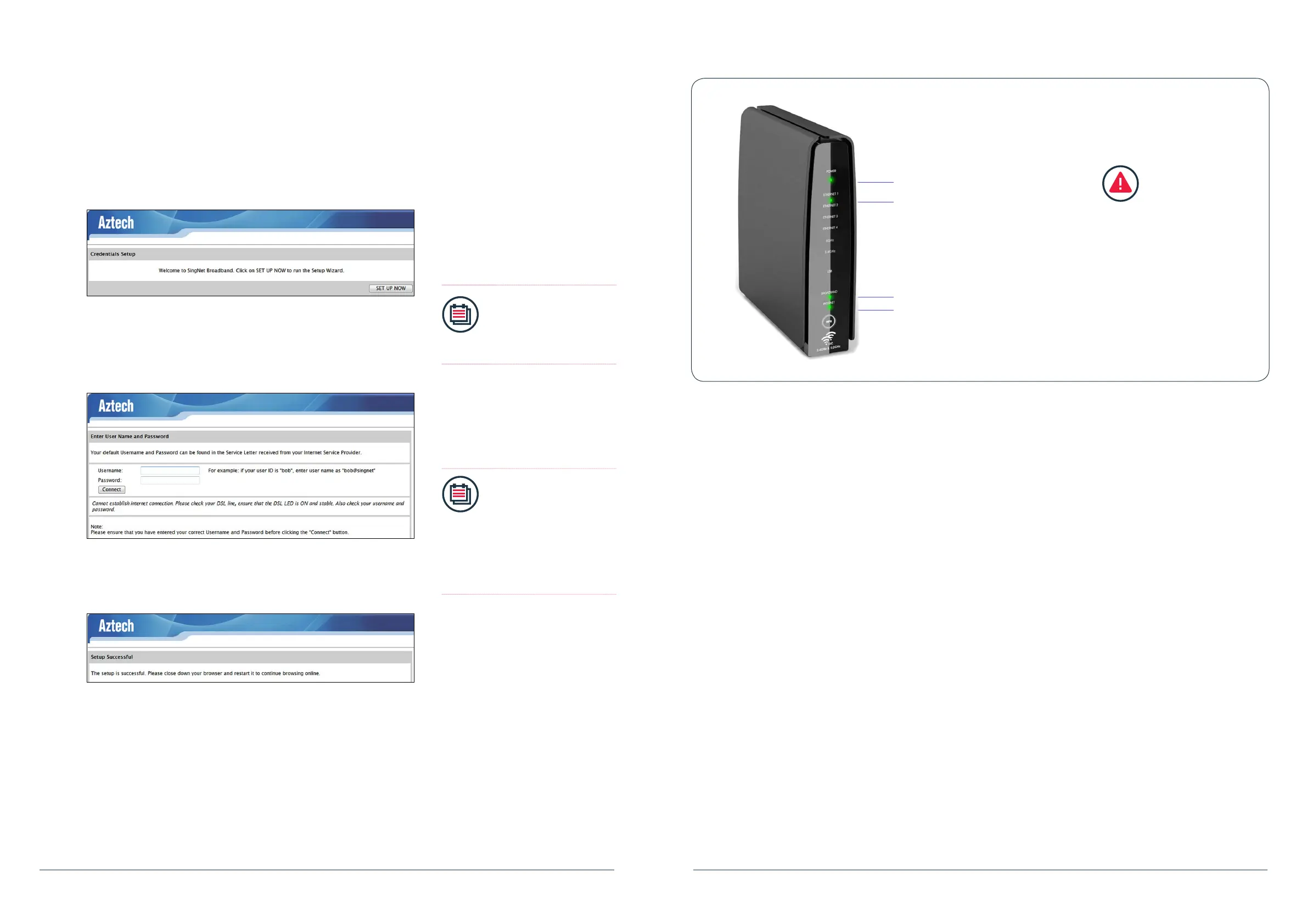
2.2.2.1
Open your web-browser (e.g. Internet
Explorer). You should now see the
screen on the left. Click on “SET UP
NOW”.
Note:
If you are unable to view
the page, type the URL
http://192.168.1.254 in
the browser.
2.2.2.2
Type your USER ID and Password as
stated in your Service Letter in the
“Username” and “Password” elds
and click the “Connect” button.
Note:
The text after your
Username, “@” (e.g.
username@) maybe
different. Please ensure
that you have entered the
correct one as stated in
your service letter before
proceeding.
2.2.2.3
Please wait while Singtel veries your
account. If you have entered your
“Username” and “Password” correctly,
you will be redirected to the “Setup
Successful” page.
Congratulations!
You can now use the Broadband service!
Power
Ethernet
Broadband
Internet
LED Check
The “POWER”, “BROADBAND”, “ETHERNET” and
“INTERNET” LEDs should now be stable in GREEN
(not blinking), except the “ETHERNET” LED, it
should be GREEN and blinking. If not, please go back
to previous step to re-enter USER ID and Password.


 To Next Page