EasyManua.ls Logo

Sitecom WLR-4002B - Select the VPN Type that corresponds to the VPN Type you have configured in the WLR-4002 B. Complete the following fields: Description Enter a name for your VPN connection, this name is for reference purposes only. Server Enter the WLR-4002 B WAN IP address Account Enter the name used to log onto the VPN tunnel (this must be one of the users you have set in the VPN user table of the WLR-4002 B) Password Enter the Password used to log onto the VPN tunnel. Secret(L2 TP only) If the VPN Type of the VPN tunnel you have set up in the WLR-4002 B is L2 TP over IPSec You have also entered a Shared key in the WLR-4002 B(see step 7 of chapter Using the Wizard to Configure the WLR-4002 B for L2 TP over IPSec for reference) Enter the same key in this field.

Sitecom WLR-4002B
130 pages
Print Icon
To Next Page IconTo Next Page
To Previous Page IconTo Previous Page
Loading...
95
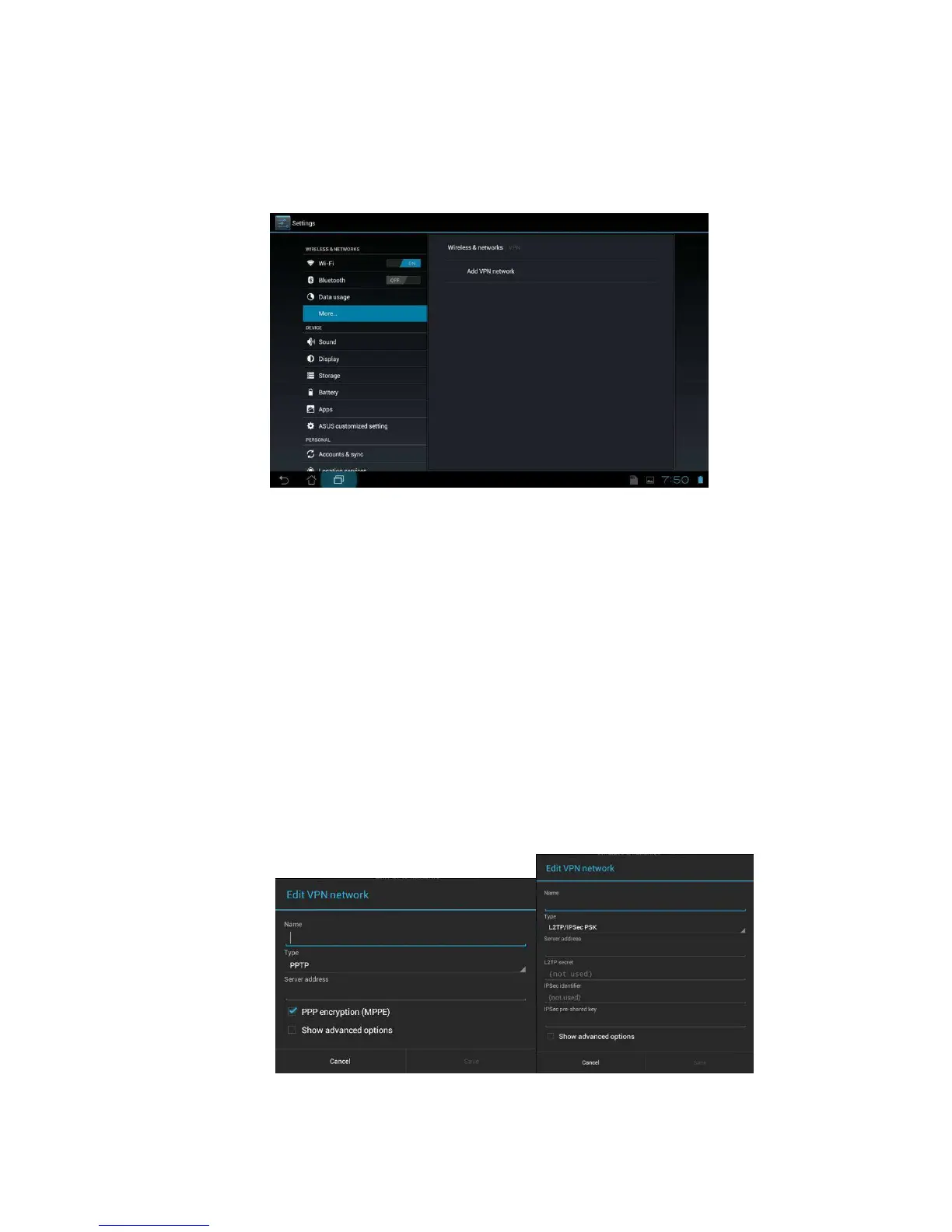
2. Click on Add VPN Network.
3. Select the VPN Type that corresponds to the VPN Type you have
configured in the WLR-4002B.
Complete the following fields:
Description Enter a name for your VPN connection, this name is
for reference purposes only.
Server Enter the WLR-4002B WAN IP address
Account Enter the name used to log onto the VPN tunnel (this
must be one of the users you have set in the VPN
user table of the WLR-4002B)
Password Enter the Password used to log onto the VPN tunnel.
Secret(L2TP only) If the VPN Type of the VPN tunnel you have set up in
the WLR-4002B is L2TP over IPSec You have also
entered a Shared key in the WLR-4002B(see step 7
of chapter Using the Wizard to Configure the
WLR-4002B for L2TP over IPSec for reference)
Enter the same key in this field.

Related product manuals