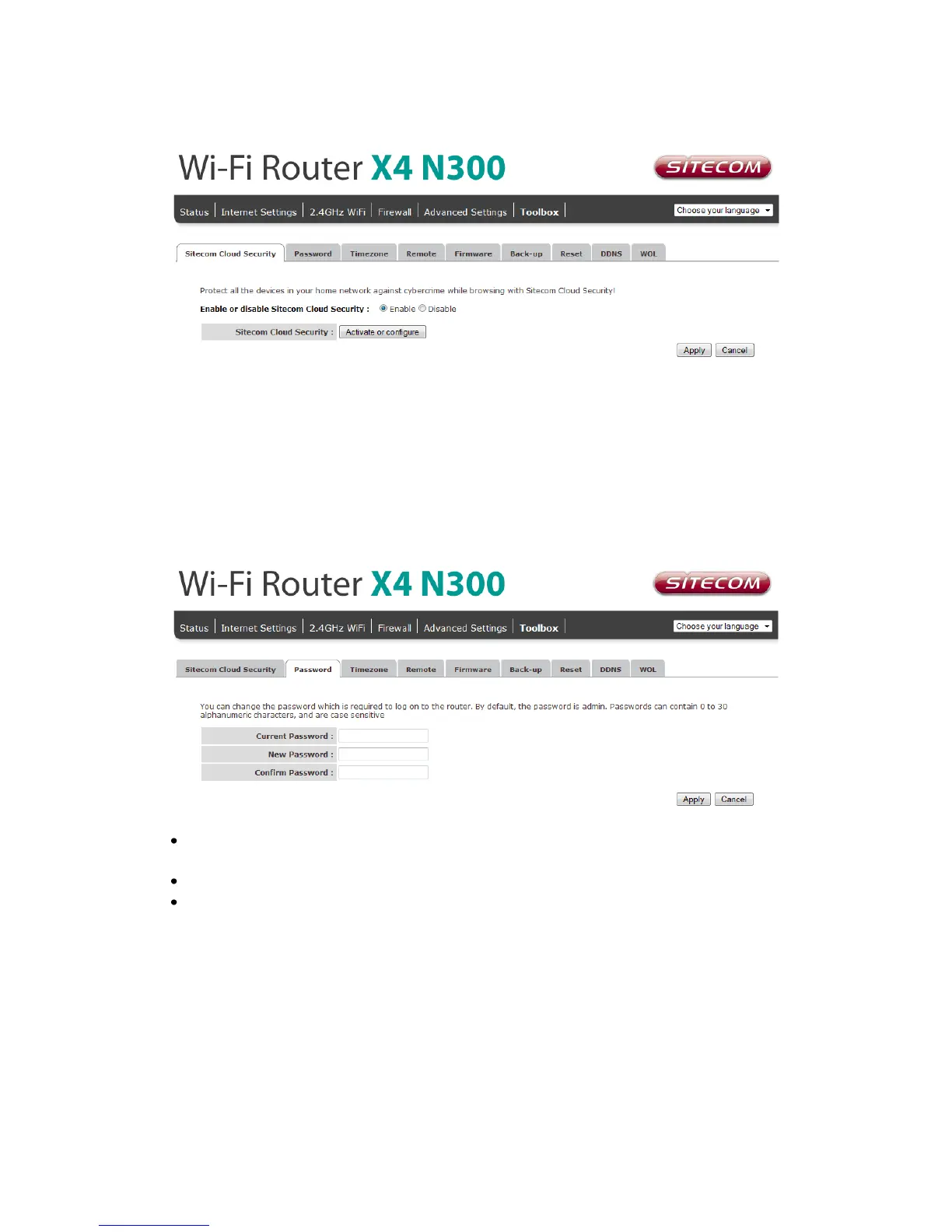
Go to Toolbox and select “Sitecom Cloud Security”.
Click the “Disable” radio button and click „Apply’ for the settings to take effect.
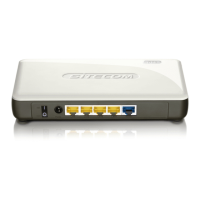
Password
You can change the password required to log into the router's system web-based
management. Passwords can contain 0 to 12 alphanumeric characters, and are case
sensitive.
Current Password: Fill in the current password to allow changing to a new
password.
New Password: Enter your new password.
Confirmed Password: Enter your new password again for verification purposes.
Click Apply at the bottom of the screen to save the above configuration.
Time Zone
The Time Zone allows your router to base its time on the settings configured here, which
will affect functions such as Log entries and Firewall settings.


 To Next Page